X2Go and command line usage?
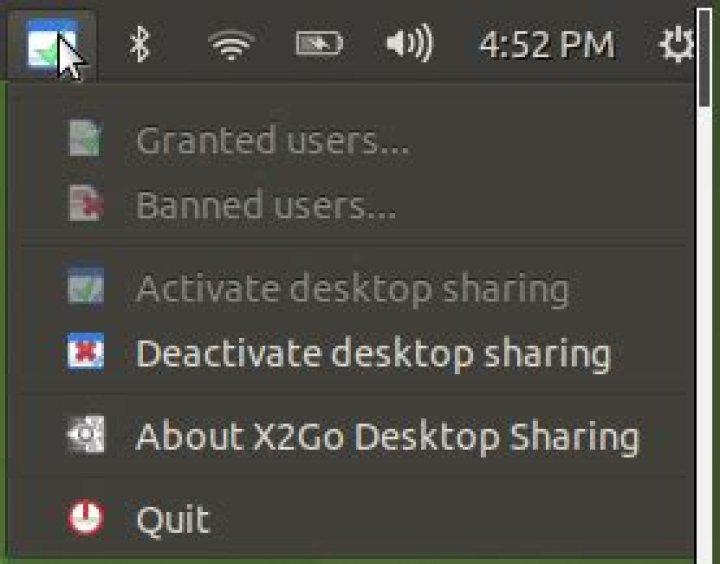
I have started trying out X2Go instead of VNC for control of my Ubuntu PCs - and, while it generally works, I cannot quite figure out how to do the things, listed below.
But first - I'm using Ubuntu 20.04 with MATE desktop on both PCs, and using sudo add-apt-repository ppa:x2go/stable (). On the computer to be controlled (the server), I've installed:
sudo apt install x2goserver x2goserver-xsession
sudo apt install x2godesktopsharing
sudo usermod -a -G x2godesktopsharing myuser
On the computer that is controlling (the client), I've installed:
sudo apt install x2goclient- On the server, I actually get a desktop "applet", where I can enable or disable the server, which I like quite a lot:
However, let's assume I log in to the server via ssh, and x2go server has deactivated desktop sharing. My question is, then:
- How do I activate (and deactivate) desktop sharing in x2go server from the command line (over ssh)?
Next, I wonder about the client and screen sizes - let me illustrate through an example with VNC:
If I have VNC server on my server machine (say, 192.168.0.100) on port 5900, I can connect to it from the command line using, say, ssvncviewer:
ssvncviewer 192.168.0.100If my server has a desktop with bigger resolution (pixel size, say, 1920 x 1200), and my client has a desktop with lower resolution (pixel size, say, 800 x 600), then the above command shows a "cutout" of the server desktop without scaling:
Then, if I press F9 to issue "Full Screen" to SSVNC, this "cutout" takes over the full-screen - and since there is no scaling, the text on the server desktop is readable, but I can still navigate, by placing the mouse pointer at the edges of the screen (top, bottom, left, right) - and then autoscroll (or autopan) is performed by ssvncviewer.
On the other hand, if I issue
ssvncviewer -scale auto 192.168.0.100... then I get the full (large) desktop of the server scaled to the window that can fit on the client - so I can observe the server desktop in its entirety; however due to scaling, the text is not really readable (note, the artifacts at bottom of screenshot are due to VNC server caching):
Well - I really like being able to switch between these two modes of viewing (non-scaled cutout vs. scaled)... however:
- I cannot really find options for scaled vs non-scaled view in X2Go client GUI, apart from these (Session/Session Management.../(select session)/Session Preferences/ Input/Output):
So if I connect via X2GoClient with "Custom" size, I get a cutout, but centered:
... and I cannot find any way to pan; if I then hit CTRL+ALT+SHIFT+F, I go into full-screen mode - but it is scaled (unreadable text); if I hit CTRL+ALT+SHIFT+F again, I exit full-screen mode, but then the window does not show a cutout anymore, but a scaled view instead:
And of course, if I start in Fullscreen, then I always just get a scaled view.
So my questions here are:
- Is there a way to start X2Go client connection from the command line (like I can start a VNC client connection with, say
ssvncviewer 192.168.0.100)? - Is there a "cutout" (that is, unscaled) mode in X2Go client with some form of interactive panning, and if there is, how can I activate it (either through GUI, or through the command line)?
1 Answer
I found eventually this post on a mailing list, Command line alternatives to x2goclient-cli, apparently from 2011:
If I've interpreted recent mail traffic (and roadmap in wiki) correctly, x2goclient-cli is deprecated and will no longer be actively develeoped. As far as I can see there currently are two alternatives to using x2goclient-cli:
- x2goclient (the QT client) with command line options.
- pyhoca-cli.
I tried looking into the command line options of x2goclient, and I cannot really figure out how to start a session using that ...
On the other hand, I found that pyhoca-cli is in Ubuntu repositories:
... and I found a doc on its usage:
So, I've installed it with:
sudo apt install pyhoca-cli... and following the instructions, I've tried this (since I've already made connections from x2goclient gui, I drop the --add-to-known-hosts from the examples in the page); first one needs to "list desktops", that is, list desktop sessions (so you'd need to at least once establish a connection from X2Go client GUI)
$ pyhoca-cli --server 192.168.0.100 --list-desktops --user myuser
pyhoca-cli[139077] NOTICE: preparing requested X2Go session
...
Password:
pyhoca-cli[139077] (x2gocontrolsession-pylib) NOTICE: connecting to [192.168.0.100]:22
pyhoca-cli[139077] (PyHocaCLI) NOTICE: authentication has been successful
X2Go desktops available for sharing
===================================
Host: 192.168.0.100 - [192.168.0.100]:22
Username: myuser
myuser@:0
So, from above, I have the session myuser@:0 - and that is what I can connect to:
$ pyhoca-cli --server 192.168.0.100 --share-desktop myuser@:0 --user myuser --share-mode 1
pyhoca-cli[139324] NOTICE: preparing requested X2Go session
...
pyhoca-cli[139324] (PyHocaCLI) NOTICE: proceeding to interactive login for user ,,myuser''
Password:
pyhoca-cli[139324] (x2gocontrolsession-pylib) NOTICE: connecting to [192.168.0.100]:22
pyhoca-cli[139324] (PyHocaCLI) NOTICE: authentication has been successful
pyhoca-cli[139324] (x2gosession-pylib) NOTICE: Using session myuser-50-1639641479_stS1XSHADmyuserXSHADPP0_dp24 as master session for profile Pyhoca-Client_Session.
pyhoca-cli[139324] (PyHocaCLI) NOTICE: Press CTRL+C to end desktop sharing for this session...
^CKeyboardInterrupt
2021-12-16T07:58:35Z
pyhoca-cli[139324] (x2gosession-pylib) WARN: local folder sharing is disabled for this session profile
pyhoca-cli[139324] (x2gosession-pylib) WARN: local folder sharing is disabled for this session profile
pyhoca-cli[139324] (x2goterminalsession-pylib) NOTICE: cleaning up session myuser-50-1639641479_stS1XSHADmyuserXSHADPP0_dp24 after termination
pyhoca-cli[139324] (PyHocaCLI) NOTICE: X2Go session myuser-50-1639641479_stS1XSHADmyuserXSHADPP0_dp24 has been terminated
So, that works - note that:
- I've experienced that the
--share-desktopcommand might fail to connect; in that case, I had to stoppyhoca-cli; then start X2Go client in GUI mode, and connect once (succesfully) from there; then after that--share-desktopstarted working again - The
--share-desktopcommand again opens a centered cutout as described in OP - which then requires scaled full-screen, and the scaling is retained once full-screen is exited
So, that is nice - now just need to figure out:
- How to enable/activate the X2Go server from the command line over ssh
- How to specify that I want a non-scaled "cutout" in full-screen mode, with automatic panning (via mouse pointer being moved towards top/bottom/right/left edges of the screen).
EDIT: Discovered the following: the above examples were done with (I think) X2GOClient GUI/Session Preferences/Session Type "X2Go/X11 Desktop Sharing". Motivated by Windows x2go client displays at incorrect resolution,
I tried to change Session Type to "MATE" (which is the desktop environment I use on both server and client, and shown in the screenshots above). With this, a window opens that is scaled to the max available size at the client's desktop resolution, and inside, I get the client desktop shown at accurate pixel size, starting from the top left edge (and the top bar is scaled to the size of this window) - and so I can run programs and see nicely what goes on.
What I cannot tell at the moment, is whether this is a copy of the desktop actually running - or is this a new session for the same user (probably new, pyhoca-cli --list-desktops --server 192.168.0.100 afterwards lists two sessions instead of one); at least, for some programs I use, that does not matter, so this solved the unreadable resolution for me (at least partially for now). Note also, that once you close the X2GoClient GUI connection - when you open the Session Preferences/Session Type next time, it (as said in linked post):
automatically changes to "Custom desktop" with command "MATE"
I guess, the equivalent for this on the command line is to create a new session:
pyhoca-cli --server 192.168.0.100 --username myuser --new --command MATE... and once a new session is created, after you close the window (note that also if you hit CTRL+C on pyhoca-cli`, it will also close the window, and it does not delete the session, but instead suspends the session) and want to reconnect again, you do not need to create a new session again. First confirm there is a session existing with:
pyhoca-cli --username myuser --list-sessions --server 192.168.0.100... or alternatively, list the desktops:
pyhoca-cli --username myuser --list-desktops --server 192.168.0.100... and then you can resume a session instead (note a session name is required, not the desktop name; but session names OLDEST and NEWEST can be used as well):
pyhoca-cli --username myuser --server 192.168.0.100 --resume NEWEST... or rather, you could, if there wasn't this bug #1445 - pyhoca-cli fails to connect to suspended x2go session - X2Go Bug report logs, which is apparently fixed in pyhoca-cli 0.6.1.3, however my Ubuntu 20.04 still has 0.6.1.2.
And, finally, to destroy/kill/erase a session, use --terminate (which also accepts ALL):
pyhoca-cli --username myuser --server 192.168.0.100 --terminate ALL

