Windows Task Scheduler Not Running Microsoft Access Script
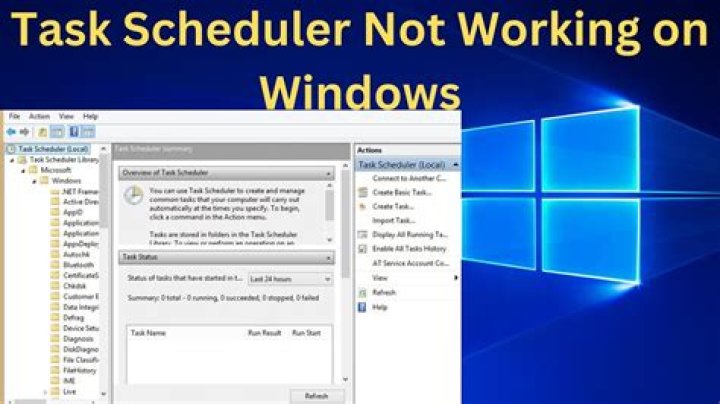
I have a script setup in an Access database that I want to run nightly. I've setup a task in task scheduler to run every day at 4:00am. It opens the database, runs the script, and the last line of the VBA script closes the database.
The tasks will work fine for a few days, and then I'll see that it stops working. I have the task set to stop after 2 hours (which is way more than enough time). I'm assuming what is happening is that when the database opens, a security popup is preventing the script from running.
I've set the database file as trusted and when I open it manually, it seems fine.
Below is what I have as the action for the task:
Program/Script: "C:\Program Files (x86)\Microsoft Office\Office15\MSACCESS.EXE"
Add arguments: "\path to database\database.accdb" /x MacroName"
The task is running everyday, so I believe the task in task scheduler is setup correctly. I'm just not sure why the script in Access isn't running, again, my guess is that a popup is occuring when the database opens, preventing the script from running (Even though I've set the location as a trusted location).
Any help/tips would be greatly appreciated
1 Answer
I would try the following
#1
instead of passing the /x MacroName on the command line,
you could run code inside your specified database Startup form OnOpen event.
e.g. if the current time is between 3am and 5am then run MacroName
#2 Check the quote marks in your command line (your arguments listed above has three double quotes... you should have an even-number of double quotes in your command line, not odd number
#3 Create a table for logging messages, with a date/timestamp field
Inside your 4am code sprinkle some lines of code to add rows into this Log table. Inspect the log table later to see how far throughout your Macro the code is actually getting to... it could be one particular piece of your code is crashing occasionally?
#4 If it is still stopping every day then change the time to when you are on your computer and can observe the behavior for a week or so, and if your suspicion is correct, you will see the popup occur
1