Windows 10: Permanently disable VBS (Virtualization-based security)?
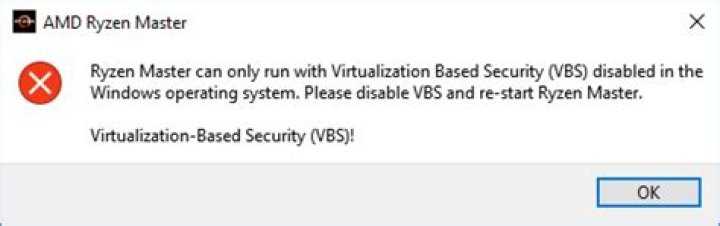
Android Studio requires Hyper-V, but installing Hyper-V also enabled VBS (Virtualization-based Security). The problem is AMD's Ryzen software doesn't run if VBS is enabled.
Applying the following script gave me an option to "opt-out" from VBS on the next reboot, but that does not seem to be permanent. Restarting Windows seems to enable VBS again. So, it seems that I have to run the script and press the opt-out key every time.
Is there anyway to disable VBS permanently and never ask me to disable it again?
set FREE_MOUNT_VOL_DRIVELETTER=L:
mountvol %FREE_MOUNT_VOL_DRIVELETTER% /s
copy C:\WINDOWS\System32\SecConfig.efi L:\EFI\Microsoft\Boot\SecConfig.efi /Y
bcdedit /create {0cb3b571-2f2e-4343-a879-d86a476d7215} /d "DG" /application osloader
bcdedit /set {0cb3b571-2f2e-4343-a879-d86a476d7215} path "\EFI\Microsoft\Boot\SecConfig.efi"
bcdedit /set {bootmgr} bootsequence {0cb3b571-2f2e-4343-a879-d86a476d7215}
bcdedit /set {0cb3b571-2f2e-4343-a879-d86a476d7215} loadoptions DISABLE-LSA-ISO,DISABLE-VBS
bcdedit /set {0cb3b571-2f2e-4343-a879-d86a476d7215} device partition=%FREE_MOUNT_VOL_DRIVELETTER%
mountvol %FREE_MOUNT_VOL_DRIVELETTER% /d
Local Group Policy does not seem to work.
The Registry value EnableVirtualizationBasedSecurity already has been set to 0.
8 Answers
"HKEY_LOCAL_MACHINE\System\CurrentControlSet\Control\DeviceGuard and add a new DWORD value named EnableVirtualizationBasedSecurity and set its value to 0 " DID the trick for me.
1This procedure should disable Virtualization Based Security:
- Run
gpedit.msc - Go toLocal Computer Policy > Computer Configuration > Administrative Templates > System > Device Guard
- Double click Turn on Virtualization Based Security
- Select Disabled
- Click OK
- A reboot might be required.
As far as I understand: Either it can't be disabled unless disabling Hyper-V, or Ryzen Master is treating Hyper-V same way as VBS.
Any way OP was asking this question because he wanted to execute Ryzen Master (as well as I was today).
Heare I would print hacky solution to launch Ryzen Master without disabling Hyper-V.
Reddit user klauspost has created a patch that allows bypassing this checks in Ryzen Master. I've tested and it works on my machine and it indeed able to change CPU configuration.
The patch itself: Reddit thread:
Some youtube video with tutorial how to apply patch:
P.S. As far as I understand: AMD don't want to cause any stability issues so they won't officially allow ti run with Hyper-V. It can cause some issues with virtualization. Hyper-V is such type of VM that is running at top of Windows, so your OS is always run inside VM.
So use this patch for your own risk. Neither I nor patch author is responsible for possible damage.
I did all the same things you did (GPedit, RegEdit).
Finally, disabling secure boot and any VBS option in the BIOS did the trick.
1I have 20.04 installed and what I found is that other than what @dyasta had mentioned above, be sure to unselect the Windows Features of Windows Defender Application Guard.
In my case, I managed to turn VBS off by making the GPEDIT change suggested above, turned off all Hyper-V features, turned off Windows Defender Application Guard, and reboot.
1I had the same error as you. What I did was turn off the below features in Windows features.
- Windows Hypervisor Platform
- Virtual Machine Platform
- Microsoft Defender Application Guard
The reason: there are multiple System Components that utilize VBS.
If this is an option for you, update to a newer version of Ryzen Master and have Hyper-V turned on and VBS running, without making other changes. It appears that newer version(s) of Ryzen Master allow VBS to be running. But specifically which versions do or do not, I'm not sure.
I am using Windows 10 Pro version 1909 and Ryzen Master version 2.8.0.1937, with Hyper-V turned on and VBS running.
- Make sure you've removed Windows Features that may use Hyper-V. Including, Hyper-V, Windows Subsystem for Linux, Sandbox, etc...
Modify boot configuration to disable Hypervisor services:
bcdedit /set hypervisorlaunchtype off


