Windows 10 BCDEdit - How to change {bootmgr} path?
So basically, I'm trying to install rEFInd. I've gotten everything to go successfully besides this part:
Type bcdedit /set {bootmgr} path \EFI\refind\refind_x64.efi to set rEFInd as the default EFI boot program. Note that {bootmgr} is entered as such; that's not a notation for a variable. Also, change refind_x64.efi to refind_ia32.efi on systems with 32-bit EFIs. Such computers are rare, and most of them are tablets. Check your Windows bit depth to determine which binary you should use.
I get this:
The parameter is incorrect.
The exact line I enter is
bcdedit /set {bootmgr} path \EFI\refind\refind_x64.efi
I recall this working in earlier versions of Windows, but not here. What should I do?
Please note that EasyUEFI and VisualBCD are both screwing up. Here is a full output of my current BCD:
3 Answers
You can create a separate boot entry in NVRAM for rEFInd and set it as default (first boot choice) if this is the desired result. This should be possible using your UEFI firmware functionality for setting/creating new UEFI boot entry.
If this is not possible using firmware functionality:
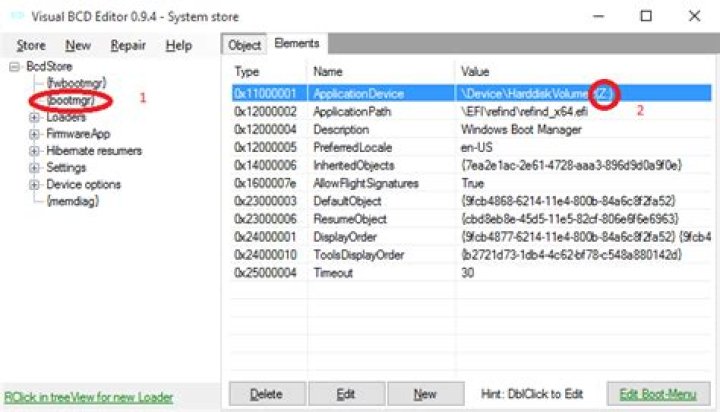
I just changed "ApplicationPath" for {bootmgr} object using Visual BCD Editor in Windows 10 - 10240.
You have to map EFI System partition(ESP) to drive Z: for example (use diskpart.exe or mountvol.exe) and later use search button when editing ApplicationPath element to select rEFInd executable on ESP - "\EFI\refind\refind_x64.efi".
("ApplicationDevice" should show Z: or else you will get application exception)
In Windows 10 you have to quote {bootmgr}. The new line is
bcdedit /set '{bootmgr}' path \EFI\refind\refind_x64.efiIf you're using PowerShell you need to quote as answered by @zauguin.
Another option would be to use CMD, which is the terminal that the rEFInd author used when writing the guide.


