What system monitoring tools are available?
I am looking for system monitoring tools which are GUI and CLI or web-based which include basic functions such as:
- CPU Usage
- Ram Usage
- Swap Usage
- Disk Usage ( Space / I/O )
- Heat Monitoring
I know there are many tools I can use, but I am looking for a single tool that has these basic functions.
018 Answers
Glances - An eye on your system
Glances is a free software (licensed under LGPL) to monitor your GNU/Linux or BSD operating system from a text interface. Glances uses the library libstatgrab to retrieve information from your system and it is developed in Python.
Installation
Open a terminal (Ctrl+Alt+T) and run following commands:
From Ubuntu 16.04 and above you can just type sudo apt install glances, but version 2.3 have this bug. Else:
Easy Script Installation Glances
curl -L | sudo /bin/bashOR
wget -O- | sudo /bin/bashManual Installation
sudo apt-get install python-pip build-essential python-dev lm-sensors
sudo pip install psutil logutils bottle batinfo zeroconf netifaces pymdstat influxdb elasticsearch potsdb statsd pystache docker-py pysnmp pika py-cpuinfo bernhard
sudo pip install glances
Basic usage
To start glances simply type glances in terminal.
In glances you’ll see a lot of information about the resources of your system: CPU, Load, Memory, Swap Network, Disk I/O and Processes all in one page, by default the color code means:
GREEN : the statistic is “OK”
BLUE : the statistic is “CAREFUL” (to watch)
VIOLET : the statistic is “WARNING” (alert)
RED : the statistic is “CRITICAL” (critical)
When Glances is running, you can press some special keys to give commands to it:
c: Sort processes by CPU%
m: Sort processes by MEM%
p: Sort processes by name
i: Sort processes by IO Rate
d: Show/hide disk I/O stats
f: Show/hide file system stats
n: Show/hide network stats
s: Show/hide sensors stats
b: Bit/s or Byte/s for network IO
w: Delete warning logs
x: Delete warning and critical logs
1: Global CPU or Per Core stats
h: Show/hide this help message
q: Quit (Esc and Ctrl-C also work)
l: Show/hide log messages
Cpu , Ram , Swap Monitoring
Disk Monitoring
System Heat Monitoring
If you type glances --help you will find ( -e Enable the sensors module (Linux-only) )
glances -eConfiguration file
You can set your thresholds in Glances configuration file, on GNU/Linux, the default configuration file is located in /etc/glances/glances.conf.
Client/server mode
Another interesting feature of this monitoring tool is that you can start it in server mode just typing glances -s, this will give an output like Glances server is running on 0.0.0.0:61209 and now you can connect to it from another computer using glances -c @server where @server is the IP address or hostname of the server.
Glances uses a XML/RPC server and can be used by another client software. In server mode, you can set the bind address (-B ADDRESS) and listening TCP port (-p PORT), the default binding address is 0.0.0.0 (Glances will listen on all the networks interfaces) and TCP port is 61209. In client mode, you can set the TCP port of the server (-p port). In client/server mode, limits are set by the server side. The version 1.6 introduces a optional password to access to the server (-P password) that if set on the server must be used also on the client.
Additional Sources: PyPI, Github, Linuxaria
Update
Monitoring juju container just for example how things look like Large Image
In terminal no 1 Glances is running in server mode, In terminal no 2 juju container is running apt-get update & In terminal 3 glances -c 192.168.1.103 Glances is connected to container ip
Glances CPU Usage
Glances itself seems to require period spikes of cpu usage while being active, as evidenced by the built in system monitor usage graph. If the graph is accurate - then by using glances one gives up about 1/4 of a CPU on a system. This my have en effect for those who are monitoring CPU loads on servers.
indicator-SysMonitor
Indicator-SysMonitor does a little, but does it well. Once installed and run, it displays CPU and RAM usage on your top panel. Simple.
Download from here
Conky
One of my personal favourites
Screenletyou’ll find a bunch of differently styled CPU and RAM monitors included in the screenlets-all package available in the Ubuntu Software Center.
Glances
To install:
sudo apt-get install python-pip build-essential python-dev
sudo pip install Glances
sudo pip install PySensors
VMSTAT
Displays information about CPU, memory, processes, etc.
IOSTAT
This command line tool will display statistics about your CPU, I/O information for your hard disk partitions, Network File System (NFS), etc. To install iostat, run this command:
sudo apt-get install sysstatTo start the report, run this command:
iostatTo check only CPU statistics, use this command:
iostat -cFor more parameters, use this command:
iostat --helpMPSTAT
The mpstat command line utility will display average CPU usage per processor. To run it, use simply this command:
mpstatFor CPU usage per processor, use this command:
mpstat -P ALLSaidar
Saidar also allows to monitor system device activities via the command line.
You can install is with this command:
sudo apt-get install saidarTo start monitoring, run this command:
saidar -c -d 1Stats will be refreshed every second.
GKrellM
GKrellM is a customizable widget with various themes that displays on your desktop system device information (CPU, temperature, memory, network, etc.).
To install GKrellM, run this command:
sudo apt-get install gkrellmMonitorix
Monitorix is another application with a web-based user interface for monitoring system devices.
Install it with these commands:
sudo add-apt-repository ppa:upubuntu-com/ppa
sudo apt-get update
sudo apt-get install monitorix
Start Monitorix via this URL:
3Following are the tools for monitoring a linux system
- System commands like
top,free -m,vmstat,iostat,iotop,sar,netstatetc. Nothing comes near these linux utility when you are debugging a problem. These command give you a clear picture that is going inside your server - SeaLion: Agent executes all the commands mentioned in #1 (also user defined) and outputs of these commands can be accessed in a beautiful web interface. This tool comes handy when you are debugging across hundreds of servers as installation is clear simple. And its FREE
- Nagios: It is the mother of all monitoring/alerting tools. It is very much customization but very much difficult to setup for beginners. There are sets of tools called nagios plugins that covers pretty much all important Linux metrics
- Munin
- Server density: A cloudbased paid service that collects important Linux metrics and gives users ability to write own plugins.
- New Relic: Another well know hosted monitoring service.
- Zabbix
For the last few years I have used:
System Load Indicator
available from Software Centre
1top
top is monitoring Software, listing all the processes with CPU/RAM usage, Overall CPU/RAM usage and more Also it's mostly installed by default
htop
htop is like an extended version of top. It has all the features from above, but you can see child processes and customize the display of everything. It also has colors.
iotop
iotop is specifically for Monitoring Hard rive I/O It lists all processes and shows their Hard drive usage for read and write.
4You might want to try sysmon. Although not as fancy as Glances, it is very straightforward and easy to use.
If you want to get dirty and do a little scripting in python, here are some basics of system monitoring with Python to get you started.
You'll need an external module called psutil to monitor most things. It's easiest to use an external module installer instead of building from source.
Note: These examples are written in Python 2.7
sudo apt-get install pip
sudo pip install psutil
Now that we have the modules installed, we can start coding.
First, create a file called usage.py.
gedit ~/usage.pyStart by importing psutil
import psutilThen, create a function to monitor the percentage your CPU cores are running at.
def cpu_perc(): cpu_perc = psutil.cpu_percent(interval=1, percpu=True) for i in range(len(cpu_perc)): print "CPU Core", str(i+1),":", str(cpu_perc[i]), "%"Let's break that down a bit, shall we?
The first line, cpu_num = psutil.cpu_percent(interval=1, percpu=True), finds the percentage that the cores in your CPU are running at and assigns it to a list called cpu_perc.
This loop right here
for i in range(len(cpu_num)): print "CPU Core", str(i+1),":", str(cpu_perc[i]), "%"is a for loop that prints out the current percentage of each of your CPU cores.
Let's add the RAM usage.
Create a function called ram_perc.
def ram_perc(): mem = psutil.virtual_memory() mem_perc = mem.percent print "RAM: ", mem_perc, "%"psutil.virtual_memory gives a data set containing different facts about the RAM in your computer.
Next, you can add some facts about your network.
def net(): net = psutil.net_io_counters() mbytes_sent = float(net.bytes_sent) / 1048576 mbytes_recv = float(net.bytes_recv) / 1048576 print "MB sent: ", mbytes_sent print "MB received: ", mbytes_recvSince psutil.net_io_counters() only gives us information about packets sent and received in bytes, some converting was necessary.
To get some information about swap space, add this function.
def swap_perc(): swap = psutil.swap_memory() swap_perc = swap.percentThis one is pretty straightforward.
Temperature is kind of hard to do, so you may need to do some research of your own to figure out what will work with your hardware. You will have to display the contents of a certain file.
Disk usage is a lot easier than temperature. All you need to do is to pass the disk you want to monitor (i.e: /) through a certain function.
def disks(): if len(sys.argv) > 1: for disk in range(1, len(sys.argv)): tmp = psutil.disk_usage(sys.argv[disk]) print sys.argv[disk], "\n" print "Megabytes total: ", print str(float(tmp.total) / 1048576) print "Megabytes used: ", print str(float(tmp.used) / 1048576) print "Megabytes free: ", print str(float(tmp.free) / 1048576) print "Percentage used: ", print tmp.percent, "\n"The original output of psutil.disk_usage is this,
>>>psutil.disk_usage('/')
sdiskusage(total=21378641920, used=4809781248, free=15482871808, percent=22.5)
but you can also just receive total, used, free, or percent.
The completed program: (the aforementioned functions were combined)
import psutil, os, sys
mem_perc = 0 #init var
swap_perc = 0 #init var
mbytes_sent = 0 #init var
mbytes_recv = 0 #init var
cpu_perc = 0 #init var
swap = 0 #init var
mem = 0 #init var
net = 0 #init var
def disp(degree): global cpu_perc global swap global swap_perc global mem global mem_perc global net global mbytes_sent global mbytes_recv cpu_perc = psutil.cpu_percent(interval=1, percpu=True) swap = psutil.swap_memory() swap_perc = swap.percent mem = psutil.virtual_memory() mem_perc = mem.percent net = psutil.net_io_counters() mbytes_sent = float(net.bytes_sent) / 1048576 mbytes_recv = float(net.bytes_recv) / 1048576 os.system('clear') #clear the screen print "-"*30 print "CPU" print "-"*30 print "CPU Temperature: " , degree, "'C" for i in range(len(cpu_perc)): print "CPU Core", str(i+1),":", str(cpu_perc[i]), "%" print "-"*30 print "MEMORY" print "-"*30 print "RAM: ", mem_perc, "%" print "Swap: ", swap_perc, "%" print "-"*30 print "NETWORK" print "-"*30 print "MB sent: ", mbytes_sent print "MB received: ", mbytes_recv print "-"*30 print "DISKS" print "-"*30 if len(sys.argv) > 1: for disk in range(1, len(sys.argv)): tmp = psutil.disk_usage(sys.argv[disk]) print sys.argv[disk], "\n" print "Megabytes total: ", print str(float(tmp.total) / 1048576) print "Megabytes used: ", print str(float(tmp.used) / 1048576) print "Megabytes free: ", print str(float(tmp.free) / 1048576) print "Percentage used: ", print tmp.percent, "\n"
def main(): print("Press Ctrl+C to exit") while True: temp = open("/sys/class/thermal/thermal_zone0/temp").read().strip().lstrip('temperature :').rstrip(' C') temp = float(temp) / 1000 disp(temp)
main()
The line temp = open("/sys/class/thermal/thermal_zone0/temp").read().strip().lstrip('temperature :').rstrip(' C') might not work with your hardware configuration.
Run this program from the command line. Pass the disks you want to monitor as arguments from the command line.
$ python usage.py /
Press Ctrl+C to exit
------------------------------
CPU
------------------------------
CPU Temperature: 39.0 'C
CPU Core 1 : 4.8 %
CPU Core 2 : 1.0 %
CPU Core 3 : 0.0 %
CPU Core 4 : 4.9 %
------------------------------
MEMORY
------------------------------
RAM: 33.6 %
Swap: 6.4 %
------------------------------
NETWORK
------------------------------
MB sent: 2.93382358551
MB received: 17.2131490707
------------------------------
DISKS
------------------------------
/
Megabytes total: 13952.484375
Megabytes used: 8542.6640625
Megabytes free: 4678.5703125
Percentage used: 61.2
/media/calvin/Data
Megabytes total: 326810.996094
Megabytes used: 57536.953125
Megabytes free: 269274.042969
Percentage used: 17.6
Hope this helps! Comment if you have any questions.
8Package systat has a tool called sar that does all you want. It can also gather historical data so you can see what happened some time ago.
SeaLion can be handy tool as it has built-in commands to monitor your server performance as well as you can add your own custom commands, scirpts and log output. It's very easy to setup and find out what went wrong at specific time.
There is a built-in tool called gnome-system-monitor. It can do all of what you mentioned, except the heat monitoring.
The
freecommand is the most simple and easy to use command to check memory usage on linux/ubuntu.free -mTo check memory usage is to read the
/proc/meminfofile.cat /proc/meminfoThe
vmstatcommand with thesoption.vmstat -sThe
topcommand is generally used to check memory and cpu usage per process.topThe htop command also shows memory usage along with various other details.
htopTo find out hardware information about the installed RAM.
sudo dmidecode -t 17
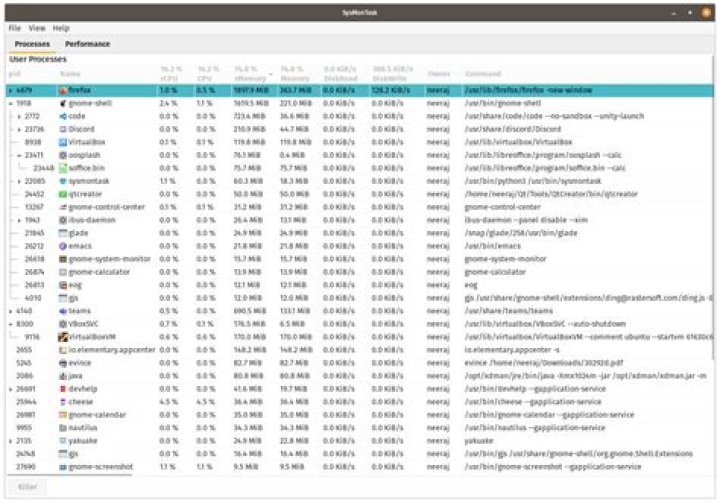
I was stunned to see when there is no simple,ellegant as well advance GUI System monitor like Windows TaskManager. KSysGaurd in KDE is great but requires plugins to install new functionality without it, is similar to gnome-system-monitor. KSysGaurd has advance options but not very simple. Personally, I didn't like either the KSysGaurd and Gnome-system-monitor.
I went and tried created a simple elegant GUI like Windows Task Manager. Check out my approach for the same:
Some highlights are:
Update: Now I have added the user Processes in version 1.1.0
I have filtered out the background Processes(with some exception) and shown only user-specific Processes (user parent and child process like in windows) which makes it easy to spot processes that you are interested in instead of finding out from the pool of all process that gnome-system-monitor shows.
Also, it includes the aggregates(on the column header) of all the processes.
There are only a few processes that are kinds of background but still appear: The exceptions :(
Suggestions are most welcomed in improving.
Thanks
1I recommend
Very easy to configure and minimal usage of resources.
1Nagios seems to be the most popular and most customizable but I would not choose it for GUI.
Zabbix's open source solution monitors everything you have mentioned as well as provides time-based graphs for performance monitoring.
If you are looking for an even cleaner GUI, check out Zenoss. Zenoss is an open-source, web-based tool, but offers service analytics and root cause analysis with its propriety tool.
I like to use conky which can be configured anyway you like:
You can google conky and find 787,000 hits. There is something for everyone.
At the top of the display notice "Lock screen: 4 Minutes Brightness: 2074". These are generated by "Indicator-Sysmonitor" which allows you to display on the systray / application indicator using a bash script.
For a tutorial on setting up "Indicator-Sysmonitor" see: Can BASH display in systray as application indicator?
check the eginnovations Linux monitoring tool -
web-based, simple to install and even support Linux virtualization.
I think you should take a look at Agentless Monitor from AppPerfect, that covers various aspects of monitoring like JAVA / J2EE application monitoring, server monitoring, database monitoring, transaction monitoring, network monitoring, log monitoring, and system monitoring. It is free and easy to use.
In my case, this answer from this link helped me a lot.
Used to be a Windows user? You may want an Ubuntu equivalent of the Windows Task Manager and open it via Ctrl+Alt+Del key combination.
Ubuntu has the built-in utility to monitor or kill system running processes which acts like the “Task Manager”, it’s called System Monitor.
Ctrl+Alt+Del shortcut key by default is used to bring up the log-out dialog on Ubuntu Unity Desktop. It is not useful for users who are used to quick access to the Task Manager.
To change the settings of the key, open Keyboard utility from the Unity Dash (or System Settings -> Keyboard).
On Shortcuts tab -> Custom Shortcuts, click the plus icon to add a shortcut. Type in name Task Manager and command gnome-system-monitor.
After it is added, click on where it says “Disable” and press Ctrl+Alt+Delete. You’ll get a dialog said “The shortcut key … is already used for Log Out”, click Reassign and you’re done!
I recently publishes tiptop, a system monitor for the command line.
The exact coloring depends on your terminal's theme. (This one is Tokyo Night.)