Used "%localappdata%\Google\Chrome\User Data" but my bookmarks and extensions disapeared
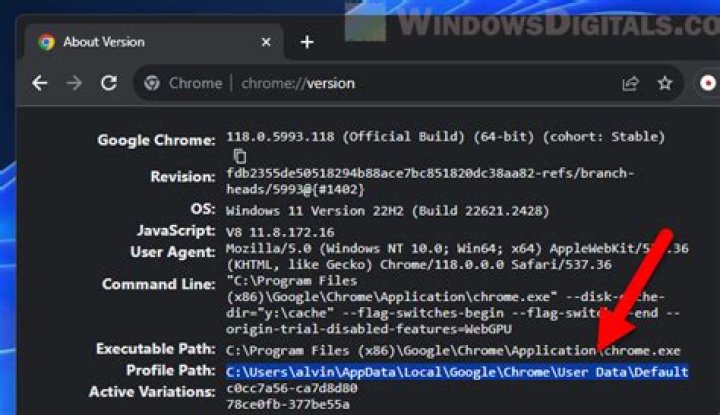
I was trying to solve an annoying problem with THIS WEB PAGE IS NOT AVAILABLE message showing up all the time in my CHROME browser. I followed indeed ALL the forums advises on the issue to no avail. Till I found this procedure at START: to use "%localappdata%\Google\Chrome\User Data", rename the DEFAULT as BACKUPDEFAULT folder,close the directory and see if the problem was solved. Which it was instantly !!! and my browser speed up as never before. But my bookmarks and extensions had dissapeared. Now I don't know how to retrieve my bookmarks, extensions and the rest of the configuration in my browser without coming back to the WEB PAGE IS NOT AVAILABLE disturbance.
Thank you very much indeed for your help,
Fernando
Samsung R 530 Windows 7 500 gigs
11 Answer
- Go back to "%localappdata%\Google\Chrome\User Data" and delete the new "Default" profile you made.
- Rename your backed-up profile "BACKUPDEFAULT" back to "Default" (or just copy it).
- Go into Chrome, and export your bookmarks, etc. to a file.
- Close Chrome.
- Go back and repeat what you did before to create a new Default profile.
- Load Chrome again.
- Import the stuff you exported.
As for extensions, I'd just leave them all out and only install them again as you need them. There's a good chance it was one of your extensions that was causing the problems you were seeing, so installing them one at a time as needed will give you a better chance of identifying a potential culprit if it starts acting up again.
3