Use two columns in Microsoft Word separately
I want to do a two-column layout in Microsoft Word, but instead of the second column being written as a continuation of the first, I want the two columns to be written separately just like they were two different pages.
How would you go about doing this in Word 2010?
7 Answers
Another easy way to do what you describe is to use a table. Turn the borders off and you'll get two columns that are independent of each other.
1Using a column break is the easiest way that fits within the structure Word gives you to work with columns.
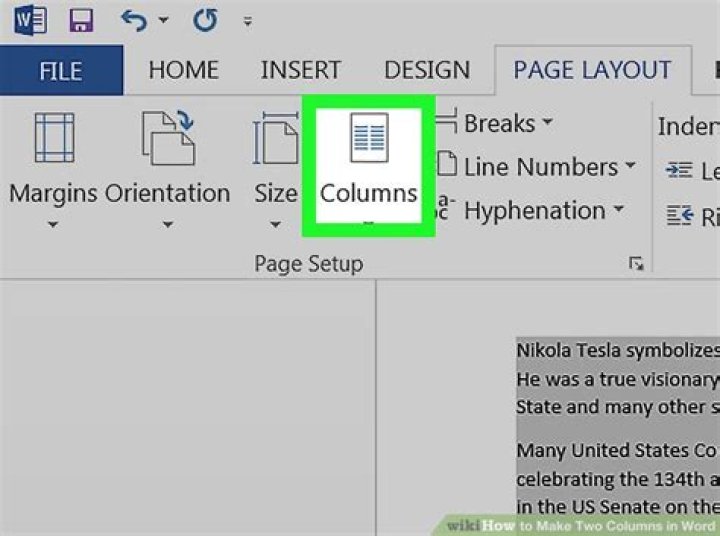
In the Page Layout tab, after you've set up the desired number of columns, in the Page Setup section, click the Breaks dropdown and select the Column break command.
1Honestly... You're getting more into page-layout than document creation. Word does a better job of doing document creation than it does with page layout. Publisher is much better at page-layouts. You can accomplish the same task in Word... but it appears slightly different than you would expect.
Under the "Page Layout" tab... go to Margins -> Custom Margins (at the bottom of the list), and then near the middle of the dialog, there should be a "Multiple Pages:" drop-down-box with "2 Pages per sheet". Also set the page-layout to Landscape. On the screen while editing, it would appear like you're working on 1 skinny page... and as you add content... what appears to be the 2nd page will actually be printed on the second half on the 1st printed-page.
2Using a later version of Office (probably 2007 upwards) you can insert something called a sidebar. Sidebars are similar to regular text boxes, but get some extra formatting (which you may or may not appreciate).
You would have to insert it manually onto every page, so it's not a good solution for longer documents. However it does sidestep some of the difficulties of working with tables.
Go to the 'insert' ribbon, click 'Text Box', then select a sidebar.
Here's a slightly more complex but more flexible solution:
If it's only for a few pages or less, you could also insert two textboxes on each page, and direct the overflow the way you want it. This way, you can finely control the margins of the columns and be completely sure how the text is going to flow. (However, I think that stuff like that is usually easier in Publisher, where you can set text baseline spacing globally.)
It's easy.
1) Part columns
2) Click "more columns" in "columns" to choose spaces, width, etc. 3) Use a column break - it will send you to the second column. Use column break on top of second column to send text to next page's first column.
If you have numbered content, a paragraph indent will appear on top of the second page's first column. Click 'delete' --which will delete the number, but go back to the previous page's second column and tap 'enter' once. This will renumber the text on the second page.
0If you put a hard page break (CTRL + ENTER) at the end of the second column they will unbalance and you can treat each separately.