Update package-manager to include programs installed from source
I am installing aircrack-ng from source using the instructions given in their official website. However when I am finished installing, I run:
dpkg --get-selections | grep aircrack-ngOr:
apt-cache policy aircrack-ngBoth are showing that the package is not installed. However when I type:
aircrack-ngat the shell it shows a list of aircrack-ng options. So that I am sure that it is installed. But as it is not installed from the official repositories via apt-get it is not getting included in the package manager.
My questions:
- How to include the application in
apt-getoraptitudepackage manager that I install from source? - Commands to view the list of all packages installed from source but has not been included in the package manager?
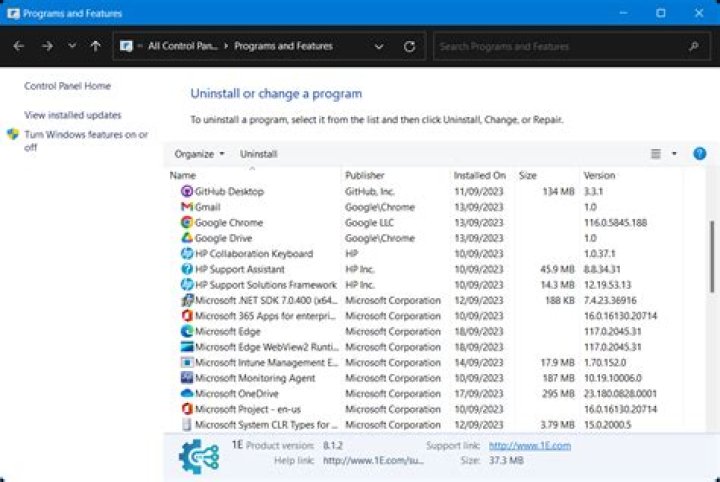
- In Windows I get a list of all installed programs in the Control Panel, irrespective of the way they are installed. What is the equivalent command in Linux?
dpkg --get-selectionsreturns a huge list that seem not only to contain all list of applications, but also drivers. I want just the applications names. What command do I issue?
2 Answers
You can't able to view packages which are installed from source through aptitude or dpkg or apt-cache or synaptic.
You can make your own deb package using apt-get source.
karimov-danil@Karimov-Danil:~$ apt-get source aircrack-ng
Reading package lists... Done
Building dependency tree
Reading state information... Done
Need to get 1 721 kB of source archives.
Get:1 saucy/universe aircrack-ng 1:1.1-6 (dsc) [1 849 B]
Get:2 saucy/universe aircrack-ng 1:1.1-6 (tar) [1 453 kB]
Get:3 saucy/universe aircrack-ng 1:1.1-6 (diff) [266 kB]
Fetched 1 721 kB in 11s (146 kB/s)
gpgv: Signature made Вт. 11 июня 2013 06:45:57 YEKT using RSA key ID 9FFA69A3
gpgv: Can't check signature: public key not found
dpkg-source: warning: failed to verify signature on ./aircrack-ng_1.1-6.dsc
dpkg-source: info: extracting aircrack-ng in aircrack-ng-1.1
dpkg-source: info: unpacking aircrack-ng_1.1.orig.tar.gz
dpkg-source: info: unpacking aircrack-ng_1.1-6.debian.tar.gz
dpkg-source: info: applying 000-Airmon_needs_bash.diff
dpkg-source: info: applying 002-Fix_airodump-ng_manpage.diff
dpkg-source: info: applying 003-fix-ftbfs-590765.diff
dpkg-source: info: applying 004-fix-license-issues.diff
dpkg-source: info: applying 005-fix-issues-cppcheck-r2008.diff
dpkg-source: info: applying 006-fix-ftbfs-and-man-path.diff
dpkg-source: info: applying 008-fix_path_airodump-ng-oui.diff
dpkg-source: info: applying 009-airodump-ng-oui-update-manpage.diff
dpkg-source: info: applying 010-add-freebsd-support.diff
dpkg-source: info: applying 011-add-support-for-gcrypt.diff
dpkg-source: info: applying 012-add-unittest-gcrypt.diff
dpkg-source: info: applying 013-fix-hurd-ftbfs.diff
dpkg-source: info: applying 014-man_page_formatting.diff
dpkg-source: info: applying 015-move_to_man8_admin_commands.diff
dpkg-source: info: applying 016-fix-ldflags.diff
dpkg-source: info: applying 017-fix-bigendianissues.diff
dpkg-source: info: applying 018-workaround-681113-kfreebsd.diff
dpkg-source: info: applying 019-fix-spelling-manpages.diff
dpkg-source: info: applying 020-ignore-negative-one.diff
dpkg-source: info: applying 021-fix-airodump-ng-oui-update.diff
Then
sudo apt-get install libgcrypt11-dev
cd aircrack-ng-1.1/
fakeroot debian/rules binary
This will make deb file which is installable by dpkg.
sudo dpkg -i ../aircrack-ng_1.1-6_amd64.debAfter installation you will see it inside Synaptic under Local and Obsolete Packages.
Answering to the second question, Avinash Raj is correct. There is no way you can see all applications installed in non-standard ways. The same situation as with portable applications in Windows.
And how to see all installed applications? Open Dash and choose Applications Lens.
The command xdotool key super+a and Super+A are equivalent and show the above panel. Before applying this command, you have to install xdotool package. Install it by running
sudo apt-get install xdotoolAnd if you want to retrieve applications list, use following command:
ls /usr/share/applications/ | sed s/.desktop// -

