Ubuntu on Virtualbox screen is too small, can't change resolution
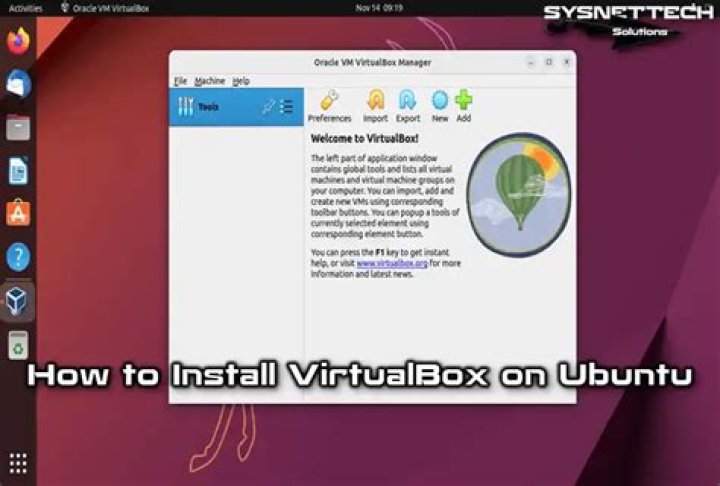
I'm installing Ubuntu on Virtual Box but the screen was too tiny to do anything.
I used the Scale to 200% option at the bottom toolbar of VirtualBox but when I finally got Ubuntu setup and ready to go, I went to change the resolution in displays but I'm unable to do so. The screen is too cut off and I can't see any of the resolution options thus I have no way of changing it.
I tried using xrandr on the command line and it helped fit everything in the window except when I did full screen I had a tiny window and the rest of the full screen window was black. I was able to see the resolution options though but then when I went ahead and changed the resolution I was unable to confirm the new resolution and it reverted back to the original issue where the screen is cut off and I can't see the resolution options
4 Answers
In order to make the screen bigger, follow the next steps.
Start the VM
Click in Devices > Insert Guest Additions CD image...
- You'll see a CD icon in your Favorites (left side). Double click on it
- Here's what you'll see. In the top right there's a button saying "Run Software". Click on it.
- Then, without touching anything else, once the software finished running the screen goes bigger.
Note: once you power off the VM and start it again, don't be scared if it starts again with small screen because before you're ready to use it, the screen will be big again without you needing to touch anything. Also, you'll still see the CD; feel free to right click on it and Eject it.
IT worked for me.
If you created the Ubuntu VM with 6.0.0, you need to shut down the VM, go to the VM Settings » Display » Screen » Graphics Controller = VBoxVGA.
2All terribly wrong answers.
During first boot from live CD, you first need to exit the installation screen. You can select "Try Ubuntu" button.
Then just right-click the desktop, select Display Settings, and choose a different resolution.
Then run the installer. I did have to re-select the resolution again during the installer for some reason.
The same issue occurs with PopOS install. With PopOS right-click the application icon and choose Quit. Then same as above to change resolution. Mint doesn't seem as bad as the default resolution seems to be larger.
Once the OS is installed you do want to install Guest Additions. If you install Guest Additions on live CD it won't be available after you install so you will just have to install it again.
Install the Guest Box Additions inside the Ubuntu machine. Read down in section 4.1 about resizing the guest window
I have Ubuntu 18 running as a guest inside VMware Workstation with VMware Tools installed and the guest machine fills the VMware Window