Turn off "You're presenting to everyone" Windows notifications during Google Meet screen sharing
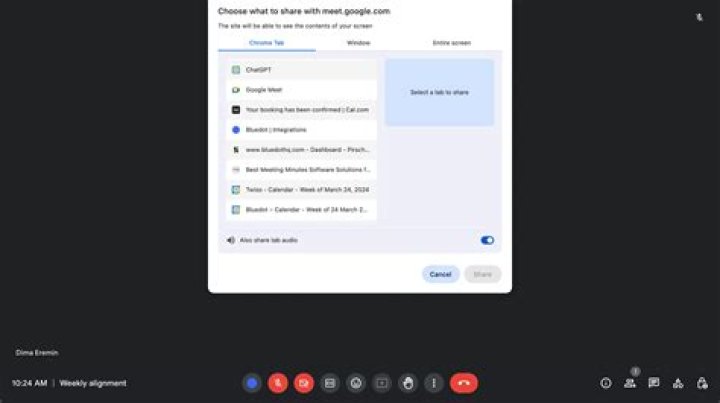
Whenever I present my screen during a Google Meet meeting, I get a notification in my Windows 10 notification center with the following message:
You're presenting to everyone. Click here to return to the video call when you're ready to stop presenting.
This would be fine if it only popped up once when I start presenting. However, every time I switch focus between the screen I am presenting and the screen on my other monitor, the notification is triggered again.
How can I avoid having this notification pop up multiple times per meeting when I am using both screens but only sharing one?
2 Answers
You can disable notifications specifically for Google Meet via the Chrome notification settings chrome://settings/content/notifications.
Under "Customised behaviours", add to the "Not allowed to send notifications" list.
If it's already in the "Allowed to send notifications" list, click the ⋮ and select Block.
This will block all notifications from Google Meet in Chrome but I couldn't think of any others it sends anyway.
In Windows Settings, Notifications and actions, turn off receiving notifications from Google Meet.