Toggle Keyboard Navigation (aka Mouse Navigation) using keyboard
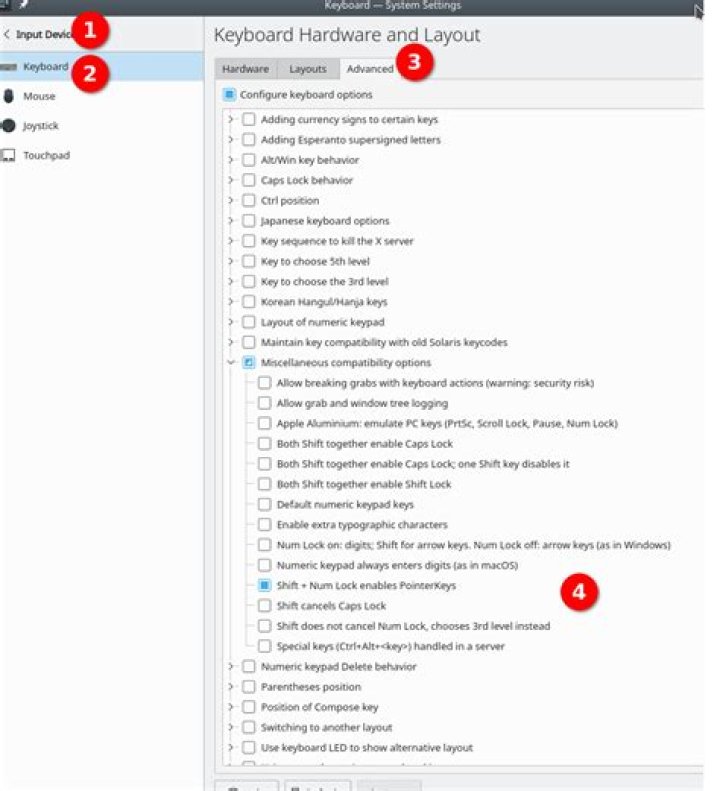
In KDE, is there a way to toggle 'keyboard navigation', also known as 'mouse keys' using the keyboard? I would ideally like to bind this functionality to Scroll Lock. This question is about whether there is a native way or a programme I can install.
I would like this to be as seamless as hitting 'apply' in the 'Systems Settings->Keyboard Navigation' dialog. At the moment, I do it through the system settings dialog a number of times a day and I am trying to improve my workflow.
I've tried searching both here and elsewhere but without much luck.
I tried writing a script to update the config file. As far as I can tell to load the new config requires a restart of the plasma server, which takes around 6–7 seconds. This is too long for my needs. If you know how to do it by loading the new settings from an updated config file without restarting plasma, please answer my other question, How to get KDE to update settings once config file has been changed.
2 Answers
Mousekeys functionality is provided by the xkeyboard driver. You can use xkbset to activate and deactivate mousekeys from the terminal, scripts, or hotkey.
sudo apt install xkbset
xkbset mousekeys # enable mousekeys
xkbset -mousekeys # disable mousekeys
I managed to bind a script which toggles the Mouse Keys feature to a keyboard key as follows, using xiota's answer:
Write the following shell script:
#!/bin/bash
if which xkbset &> /dev/null
then if xkbset q | grep "Mouse-Keys = Off" > /dev/null then xkbset mousekeys else xkbset -mousekeys fi
else echo Command 'xkbset' not found, but can be installed with: echo sudo apt install xkbset
fi
and save it somewhere useful. I called it toggle-mousekeys and saved it in ~/bin/.
Make this file executable:
chmod +x toggle_mousekeysYou can run the toggle_mousekeys command from a shell if the folder it's in is in your path. It will turn on Mouse Keys if it is currently off and turn it off if it is currently on.
The rest of the answer explains how to bind this new command to a key in KDE. There will be a similar way to do it in GNOME, Xfce etc.
In KDE's System Settings -> Shortcuts -> Custom Shortcuts dialog:
In the 'Edit' dropdown choose: New -> Global Shortcuts -> Command/URL
Name the short cut 'Toggle Mouse Keys' and explain what it does in the 'Comment' tab: “Toggle the state of Mouse Keys: enable Mouse Keys if disabled and disable if already enabled”.
In the 'Trigger' tab, choose the key you wish to bind to the script. I chose Scroll Lock. Click on the button in the tab showing 'None' and then press your chosen key.
In the 'Action' tab write in the path to your script in the 'Command/URL' field, eg
~/bin/toggle_mousekeys. You can also click the button with the folder icon and choose your script from a dialog.Click 'Apply' and test it.