Temporarily disable screensaver on Windows 10 in an easy way
Pretty simple issue - I work on something, I need the screen to stay on all the time until I'm done. I do not want the screensaver to intrude upon my work. While working, I do not touch the keyboard or mouse, but I do need to look at the screen. I'm just using the browser, which does not disable the screensaver.
The screensaver is set to start after 10 minutes of activity, and require a password to unlock - which would be very intrusive when I'm in the middle of something.
On macOS this would be trivial: set up a hot corner, assign to it "disable screensaver", and move the mouse to that corner for the duration of the work. When done, just move the mouse out of that corner.
Is there a way to accomplish something equally simple on Windows?
103 Answers
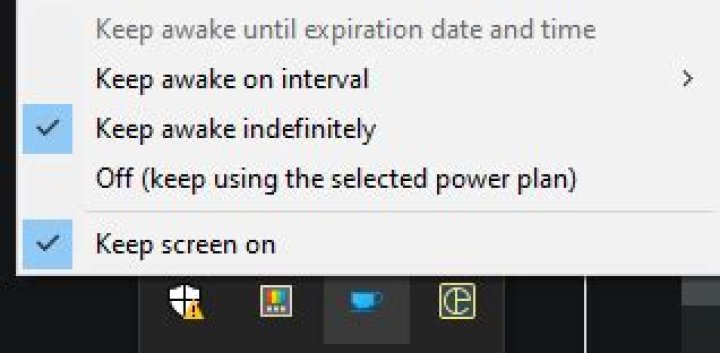
Microsoft Store has the app "Keep Screen On".
Not for the screensaver, but in "Power & Sleep" the setting "Screen: when plugged in, turn off after" turns off the screen after a given number of minutes. Here is a powershell script that sets this feature to "Never", runs the DeaDBeeF audio player and waits, finally restores the old setting after the audio player exits.
A desktop shortcut launches it with the following target:
C:\Windows\System32\WindowsPowerShell\v1.0\powershell.exe -nologo -windowstyle hidden -command &'C:\MyUtils\ScreenSaverSet.ps1'You could run a browser instead of the audio player or run nothing and pause for the user to hit any key when powering off the screen becomes desirable again.
Note that running of powershell scripts is controlled by a policy which is off by default. Google how to turn it on or put the following in a batch file ScreenSaverSet.bat and run that instead which theoretically bypasses the policy.
powershell.exe -ExecutionPolicy Bypass -File C:\MyUtils\ScreenSaverSet.ps1Script follows:
#Get GUID of active plan
#$GUID = (((Get-CimInstance -classname Win32_PowerPlan -Namespace "root\cimv2\power" | where {$_.IsActive -eq "true"}).InstanceID) -split("\\"))[1]
#Cut {} off of string at beginning and end of GUID
#$GUID = $GUID.Substring(1, $GUID.Length-2)
#The original script getting the GUID only worked as admin so use this method instead
$powerScheme = powercfg -getactivescheme
$GUID = $powerScheme.Substring($powerScheme.IndexOf(":")+2)
$GUID = $GUID.Substring(0, $GUID.IndexOf(" "))
#Write-Host "GUID = ""$GUID"""
#Get a list of all options for this plan
$Options = powercfg -query $GUID SUB_VIDEO VIDEOIDLE
$index = 0
#Find index of line that contains Turn off screen Settings
For($i=0; $i -lt $Options.Length; $i++)
{ $line = $Options[$i] if($line.ToLower() -like "*Turn off display after*") { $index = $i break }
}
#AC Setting is 6 lines later
$screenOffSetting = $Options[$index + 6]
#trim off the beginning of the string, leaving only the value
$screenOffSettingTrimmed = $screenOffSetting.Substring($screenOffSetting.IndexOf(":")+2)
$screenOffSetting = [int]$screenOffSettingTrimmed / 60 # convert to minutes
# prevent screen turn off , run our program & wait, restore screen turn off
powercfg -change -monitor-timeout-ac 0
Start-Process -FilePath "C:\Program Files\DeaDBeeF\deadbeef.exe" -Wait
powercfg -change -monitor-timeout-ac $screenOffSetting
You could try the HotCornersApp, which enables 'hot corners', just like you can easily do on a Mac.