Task bar icons missing on second screen
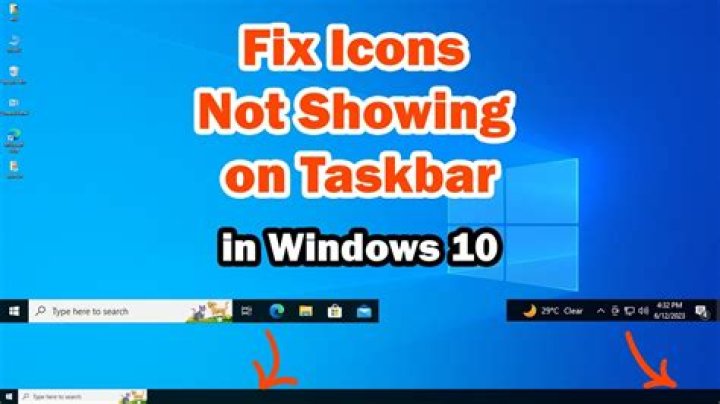
On windows 11, sometimes after a reboot when I plug in my second monitor to my laptop the icons go missing on the second screen.
Below are screenshots from the two screens, the first image is the main monitor and the second image from the second monitor.
If I kill windows explorer.exe and restart it through task manager the icons appear correctly as long as the monitor is still plugged in. If I restart the explorer.exe process while the monitor is unplugged OR I set windows to "PC screen only" the icons will not appear when I plug the monitor back in or if I change the display settings to extend my screen.
Does anyone know how to fix this without having to restart the explorer process?
2 Answers
Here is the solution which worked for me:
While connected on 2nd screen Right click on taskbar on the 2nd screen and then Got Taskbar settings-> Check the Auto hide taskbar settings.
Now disable the auto hide settings by unchecking it.
Disconnect your HDMI and reconnect.
Microsoft seems to have addressed the bug in release KB5008353:
- Updates an issue that might prevent icons from appearing on the taskbar of a secondary display.


