Stop Google Chrome opening Office files using Google Documents
How can I configure Google Chrome to stop trying to open PowerPoint and other document files using Google Documents?
I work behind a firewall, and Google Documents cannot access the files anyway. Google Chrome just gives me an error instead of just downloading the files?
I get the following error:
Sorry, we are unable to retrieve the document for viewing or you don't have permission to view the document.
4 Answers
In Chrome you need to go to the Extensions panel and disable "Docs PDF/Powerpoint Viewer (by Google)."See instructions below.
In Mac OS X:
- Open Chrome
- Select "Window" in the Menu bar, and then select "Extensions"
- Disable or uninstall the "Docs PDF/Powerpoint Viewer (by Google)" extension.
- Restart Chrome
In Windows XP/Vista/7:
- Open Chrome
In the address bar type in the following:
chrome://extensions
Disable (or uninstall) the "Docs PDF/Powerpoint Viewer (by Google)" extension.
- Restart Chrome
When opening documents in Chrome, your local programs (Word, Excel, PowerPoint, Adobe, etc) will now open your documents instead of Google Docs.
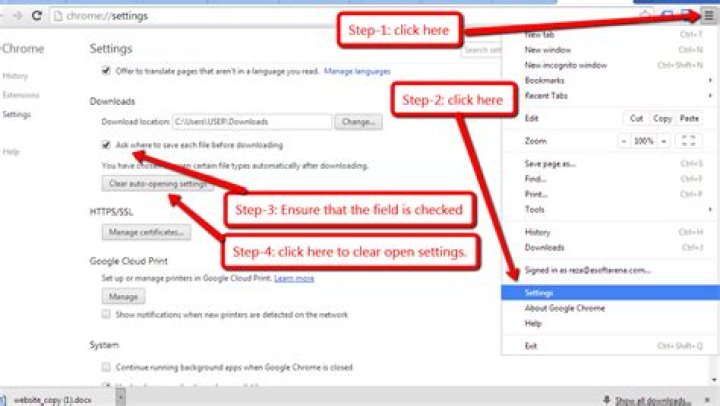
Click the (gray) wrench in the upper right corner of Chrome, select Options, select the "Under the Bonnet" tab, check the "Ask where to save each file before downloading" checkbox (if it isn't checked) under Downloads, and, if needed, click the "Clear auto-opening settings", also under Downloads. If this button is grayed out (disabled), it probably means you haven't specified any opening settings yet.
If these steps do not help, you might want to read (for example) the comments/answers at this link (which I tried to sum up above), there are further options (like manually editing Chrome's preferences file etc)
1This is very simple, just need to follow the attached image:
Not a solution, but a workaround is to do right click on the document link, and "Save link as..." - this seems to prompt for a location to save the document, and not attempting to open corporate SharePoint documents in Google Drive, which obviously can't work...