Start Python script with Task Scheduler via PowerShell
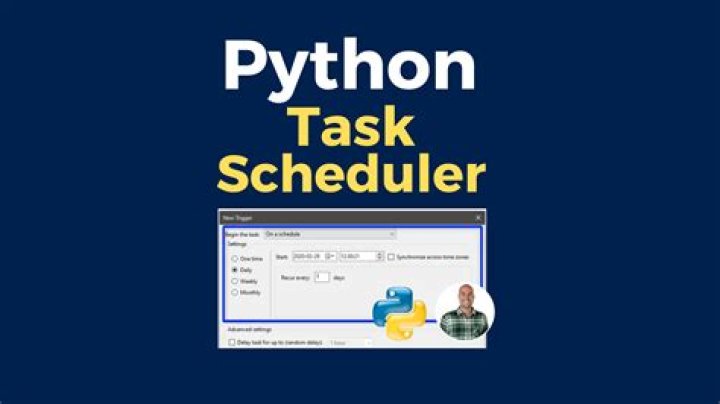
With PowerShell, I want to create a new task that starts a Python script:
Setting it this way via the GUI Task Scheduler works, but in my PowerShell code below, I don't know how to specify the "add arguments" field:
$action = New-ScheduledTaskAction -Execute "C:\Program Files\Python\Python38\python.exe"
$trigger = New-ScheduledTaskTrigger -Daily -At 5:00am
$trigger.StartBoundary = [DateTime]::Parse($trigger.StartBoundary).ToLocalTime().ToString("s")
$settings = New-ScheduledTaskSettingsSet -ExecutionTimeLimit 0
Register-ScheduledTask -Action $action -Trigger $trigger -Settings $settings -TaskName "Full Computer Backup" -Description "Backs up computer"
What change must I make to the PowerShell code to add the argument (in this case, the path to the python script [.py file])?
1 Answer
Use the -Argument parameter with the New-ScheduledTaskAction command.
You can add the full path as the value for the -Argument parameter (e.g. -Argument "<script path value>") to add this as the value for the task's Add arguments (optional) field value.
PowerShell
$action = New-ScheduledTaskAction -Execute "C:\Program Files\Python\Python38\python.exe" -Argument "C:\Scripts\mypScript.py"
$trigger = New-ScheduledTaskTrigger -Daily -At 5:00am
$trigger.StartBoundary = [DateTime]::Parse($trigger.StartBoundary).ToLocalTime().ToString("s")
$settings = New-ScheduledTaskSettingsSet -ExecutionTimeLimit 0
Register-ScheduledTask -Action $action -Trigger $trigger -Settings $settings -TaskName "Full Computer Backup" -Description "Backs up computer"
Supporting Resources
-ArgumentSpecifies arguments for the command-line operation.


