Realtek 8822CE wifi not working but bluetooth working
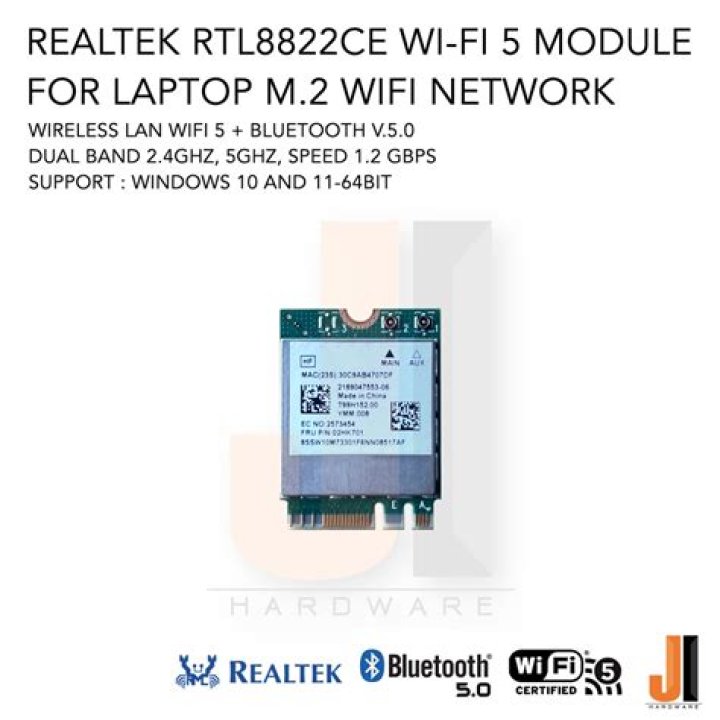
I tried to install both Ubuntu 18.04.4 LTS and Ubuntu 19.10 but I'm facing the same issue: I am able to use bluetooth but wifi adapter is not detected. I checked on my Lenovo laptop's BIOS and I have "Secure boot" disabled so I really don't know what to do. Can you please help me? Thanks.
This is the output of the command lspci -knn | grep Net -A3; rfkill list:
01:00.0 Network controller [0280]: Realtek Semiconductor Co., Ltd. Device [10ec:c82f] Subsystem: Lenovo Device [17aa:c02f]
06:00.0 Non-Volatile memory controller [0108]: Sandisk Corp Device [15b7:5005] (rev 01) Subsystem: Sandisk Corp Device [15b7:5005]
0: ideapad_wlan: Wireless LAN Soft blocked: no Hard blocked: no
1: ideapad_bluetooth: Bluetooth Soft blocked: yes Hard blocked: no
2: hci0: Bluetooth Soft blocked: yes Hard blocked: no
While the output of the command dmesg | grep rtw is empty.
4 Answers
I had the same problem, and I finally found a solution. See here.
In short: it turns out the driver that should support this hardware (rtw88) was available and compatible with this hardware already in kernel > 5.2, but it is not set to recognize this hardware.
To fix the problem I had to compile linux kernel with a small modification to the source code:
Locate the file: ./linux/drivers/net/wireless/realtek/rtw88/pci.c, and edit it. Look for the string '0xC822', and replace it with '0xC82F'
The idea of the solution from yaron160 works.
I used the code here instead to install the relevant driver module: . In the code dated 18th May, the file to be changed is rtw8822ce.c instead of pci.c
Hope this answer is helpful
8My solution is for debian(debian 10.5) but since I didn't see my solution anywhere in forums I'm gonna post it if it is not against the rules.
Did it on a Matebook D14 2020 CPU AMD Ryzen 5 3500U with a realtek 8822CE network card. I had no display without a new linux kernel so I installed the 5.7.X if you want any info on this feel free to DM me.
First you have to edit your /etc/apt/sources.list and add :
deb buster-backports main contrib non-freethenapt updatethis will allow us to download the firmware
back to your terminal install the package by typing :
apt-get -t buster-backports install firmware-realtekit is important to download with buster-backports, the version in synaptic is not updated and doesn't have the ce firmware. Now you can check if everything is fine with synaptic (if you don't have it I suggest to download it)
synaptic-pkexecsearch for "realtek" in the searchbar, you should have the latest version including 8822ce firmware(check the description).
it could probably work on ubuntu but I haven't tried it.
now you can reboot and you should be fine.
I am new to Linux and had the same problem with my asus tuf gaming a17 laptop. The lwfinger repository was no longer available, but found the driver elsewhere on github. Anyway, installing the driver didn't help, here it was because i was on firmware 1.173. Search for Linux firmware archive and update to 1.187 (1.187.3 is the current stable supported) make sure to use the 187_all deb. This got me on track and was able to finally use wifi in Linux. I didn't post links because it was a learning experience for me and i think all would benefit from that. Synaptic didn't help by the way.