No sound using DVI to HDMI adapter
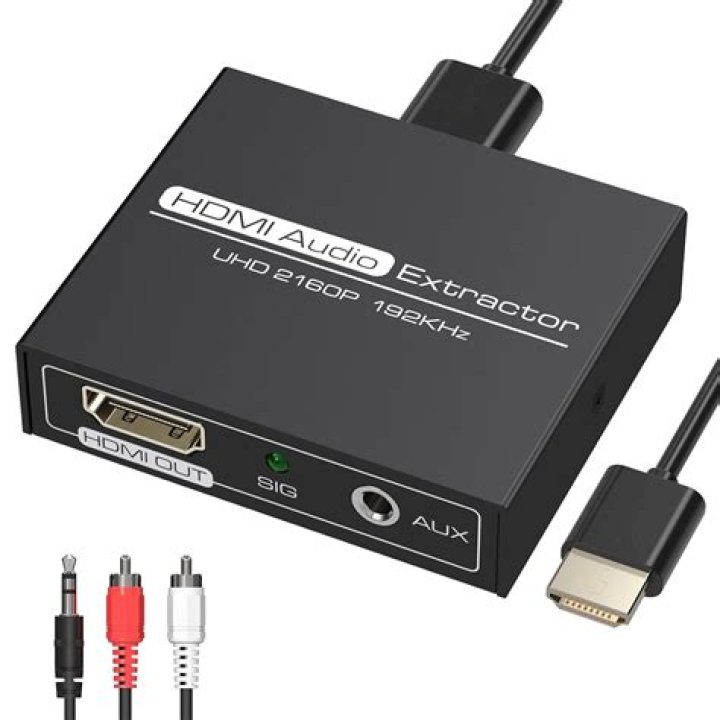
The sound is working when I switch to RGB but it's not working when I switch to HDMI (DVI-HDMI).
Why is there no sound when using DVI to HDMI adapter? How can I fix it?
 **** List of PLAYBACK Hardware Devices ****
card 0: MID [HDA Intel MID], device 0: ALC888 Analog [ALC888 Analog] Subdevices: 1/1 Subdevice #0: subdevice #0
card 0: MID [HDA Intel MID], device 1: ALC888 Digital [ALC888 Digital] Subdevices: 1/1 Subdevice #0: subdevice #0
card 0: MID [HDA Intel MID], device 3: HDMI 0 [HDMI 0] Subdevices: 1/1 Subdevice #0: subdevice #0
Monitor is 32LG80. (HD TV WITH BUILTIN 3.2 CH SURROUND SOUND) Using DVI-D (Dual link) to HDMI adapter and a 3.5mm stereo audio cable. Not using any graphic card. Motherboard: Intel DH55PJ
Cables: DVI to HDMI which doesn't support audio and a 3.5mm stereo cable.
While using Windows 8.1:
- Config: TV input is HDMI -- Both audio and Video working.
While using Ubuntu 14.04:
Config: TV input is HDMI -- Audio not working, Video working.
Config: TV input is RGB -- Audio working, Video not working.
Cables: VGA and a 3.5mm stereo cable
While using Windows 8.1:
- Config: TV input is HDMI -- Both audio and display working.
While using Ubuntu 14.04:
- Config: TV input is RGB -- Both audio and display working but the display resolution is limited to 1024*768 while the native resolution is 1366*768.
2 Answers
To have DVI sound coming through an HDMI adapter, you need to be using a DVI-D connector with a graphics card that supports transmitting audio over DVI.
DVI-D devices output HDMI signals, many including audio, (examples: ATI 3000-series and NVIDIA GTX 200-series video cards), and some multimedia displays input that HDMI signal, including audio, by using a DVI to HDMI adapter. Exact capabilities vary by video card specifications.
According to the above snippet from Wikipedia, it also seems that the display needs to support the input from a DVI to HDMI adapter.
Otherwise, it doesn't look like DVI supports audio.
7Pulse Audio automatically switches audio output to HDMI when an HDMI connection is established.
A great tool you can use to overcome the various pitfalls of Pulse Audio is alsamixer.
Just to make sure it's installed, go ahead and run the following command:
sudo apt-get install alsa-utilsThen, connect the HDMI connection with the connection set to DVI-HDMI.
Next, run the following command in a terminal:
alsamixerand then press F5 to view all channels.
You should see multiple channels. If you see only one channel for pulseaudio, you may need to press F6 to select a different card. However, if you do see multiple channels after pressing F5, continue.
Use the arrow key to scroll to the right and press the up arrow key to toggle the automute option to switch it off.
Now, there are two possibilities here.
First:
I think HDMI audio and analog audio are handled by two separate sound cards so you should have the option to select the analog stereo out sound card by pressing F6.
You should see something similar to the following example. This example shows only one analog output card. Should you have an extra digital card listed, switch to the analog card instead (HDA Intel PCH is a very common card for analog output).
┌───── Sound Card ──────┐ │- (default) │ │0 HDA Intel PCH │ │ enter device name...│ └───────────────────────┘Alternatively:
When using the standard 1/8th in. (3.5mm for you metric people) stereo headphone jack for audio, this channel automatically goes to 0 when you switch to another out such as, built in speakers or HDMI. If this is the case, you simply need to go to the headphone channel and raise the volume using the arrow up key. Some desktop computers have multiple channels for front back, etc. Locate the correct output channel and raise the volume.
Another possibility is that the channel may be muted. If a channel is muted, it will say MM at the base of the indicator for that channel.
In any case and whatever channel it is, headphone out or not, select the channel using the right or left arrow key.
Then, press the M key to toggle mute off or on. Be careful here to have the volume at a safe level so that unmuting the device will not blow your speakers!!
Here is an example showing three muted channels:
┌──────────────────────────────────────────────────────── AlsaMixer v1.0.28 ─────────────────────────────────────────────────────────┐
│ Card: HDA Intel PCH F1: Help │
│ Chip: Conexant CX20590 F2: System information │
│ View: F3:[Playback] F4: Capture F5: All F6: Select sound card │
│ Item: Speaker [dB gain: -4.00, -4.00] Esc: Exit │
│ │
│ ┌──┐ ┌──┐ ┌──┐ ┌──┐ ┌──┐ ┌──┐ ┌──┐ │
│ │ │ │ │ │ │ │▒▒│ │ │ │ │ │▒▒│ │
│ │ │ │ │ │ │ │▒▒│ │ │ │ │ │▒▒│ │
│ │ │ │ │ │ │ │▒▒│ │ │ │ │ │▒▒│ │
│ │ │ │▒▒│ │▒▒│ │▒▒│ │ │ │ │ │▒▒│ │
│ │ │ │▒▒│ │▒▒│ │▒▒│ │ │ │ │ │▒▒│ │
│ │ │ │▒▒│ │▒▒│ │▒▒│ │ │ │ │ │▒▒│ │
│ │ │ │▒▒│ │▒▒│ │▒▒│ │ │ │ │ │▒▒│ │
│ │▒▒│ │▒▒│ │▒▒│ │▒▒│ │ │ │ │ │▒▒│ │
│ │▒▒│ │▒▒│ │▒▒│ │▒▒│ │ │ │ │ │▒▒│ │
│ │▒▒│ │▒▒│ │▒▒│ │▒▒│ │ │ │ │ │▒▒│ │
│ │▒▒│ │▒▒│ │▒▒│ │▒▒│ │ │ │ │ │▒▒│ │
│ │▒▒│ │▒▒│ │▒▒│ │▒▒│ │ │ │ │ │▒▒│ │
│ │▒▒│ │▒▒│ │▒▒│ │▒▒│ │ │ │ │ │▒▒│ │
│ │▒▒│ │▒▒│ │▒▒│ │▒▒│ │ │ │ │ │▒▒│ │
│ │▒▒│ │▒▒│ │▒▒│ │▒▒│ │ │ │ │ │▒▒│ │
│ │▒▒│ │▒▒│ │▒▒│ │▒▒│ │ │ │ │ │▒▒│ │
│ │▒▒│ │▒▒│ │▒▒│ │▒▒│ │ │ │ │ │▒▒│ │
│ │▒▒│ │▒▒│ │▒▒│ │▒▒│ │ │ │▒▒│ │▒▒│ │
│ │▒▒│ │▒▒│ │▒▒│ │▒▒│ │ │ │▒▒│ │▒▒│ │
│ ├──┤ ├──┤ ├──┤ └──┘ └──┘ ├──┤ Disabled └──┘ │
│ │MM│ │MM│ │MM│ │OO│ │
│ └──┘ └──┘ └──┘ └──┘ │
│ 61 85<>85 85<>85 99<>99 0<>0 9 100<>100 │
│ Master Headphone < Speaker > PCM Mic Boost Beep Auto-Mute Mode Internal Mic Bo │
│ │
└────────────────────────────────────────────────────────────────────────────────────────────────────────────────────────────────────┘
When the channel is not muted, it should say OO instead of MM like in this example:
┌──────────────────────────────────────────────────────── AlsaMixer v1.0.28 ─────────────────────────────────────────────────────────┐
│ Card: HDA Intel PCH F1: Help │
│ Chip: Conexant CX20590 F2: System information │
│ View: F3:[Playback] F4: Capture F5: All F6: Select sound card │
│ Item: Speaker [dB gain: 0.00, 0.00] Esc: Exit │
│ │
│ ┌──┐ ┌──┐ ┌──┐ ┌──┐ ┌──┐ ┌──┐ ┌──┐ │
│ │ │ │ │ │▒▒│ │▒▒│ │ │ │ │ │▒▒│ │
│ │ │ │ │ │▒▒│ │▒▒│ │ │ │ │ │▒▒│ │
│ │ │ │ │ │▒▒│ │▒▒│ │ │ │ │ │▒▒│ │
│ │ │ │▒▒│ │▒▒│ │▒▒│ │ │ │ │ │▒▒│ │
│ │ │ │▒▒│ │▒▒│ │▒▒│ │ │ │ │ │▒▒│ │
│ │ │ │▒▒│ │▒▒│ │▒▒│ │ │ │ │ │▒▒│ │
│ │ │ │▒▒│ │▒▒│ │▒▒│ │ │ │ │ │▒▒│ │
│ │▒▒│ │▒▒│ │▒▒│ │▒▒│ │ │ │ │ │▒▒│ │
│ │▒▒│ │▒▒│ │▒▒│ │▒▒│ │ │ │ │ │▒▒│ │
│ │▒▒│ │▒▒│ │▒▒│ │▒▒│ │ │ │ │ │▒▒│ │
│ │▒▒│ │▒▒│ │▒▒│ │▒▒│ │ │ │ │ │▒▒│ │
│ │▒▒│ │▒▒│ │▒▒│ │▒▒│ │ │ │ │ │▒▒│ │
│ │▒▒│ │▒▒│ │▒▒│ │▒▒│ │ │ │ │ │▒▒│ │
│ │▒▒│ │▒▒│ │▒▒│ │▒▒│ │ │ │ │ │▒▒│ │
│ │▒▒│ │▒▒│ │▒▒│ │▒▒│ │ │ │ │ │▒▒│ │
│ │▒▒│ │▒▒│ │▒▒│ │▒▒│ │ │ │ │ │▒▒│ │
│ │▒▒│ │▒▒│ │▒▒│ │▒▒│ │ │ │ │ │▒▒│ │
│ │▒▒│ │▒▒│ │▒▒│ │▒▒│ │ │ │▒▒│ │▒▒│ │
│ │▒▒│ │▒▒│ │▒▒│ │▒▒│ │ │ │▒▒│ │▒▒│ │
│ ├──┤ ├──┤ ├──┤ └──┘ └──┘ ├──┤ Disabled └──┘ │
│ │OO│ │OO│ │OO│ │OO│ │
│ └──┘ └──┘ └──┘ └──┘ │
│ 61 85<>85 100<>100 99<>99 0<>0 9 100<>100 │
│ Master Headphone < Speaker > PCM Mic Boost Beep Auto-Mute Mode Internal Mic Bo │
│ │
└────────────────────────────────────────────────────────────────────────────────────────────────────────────────────────────────────┘

