mv: Directory not empty
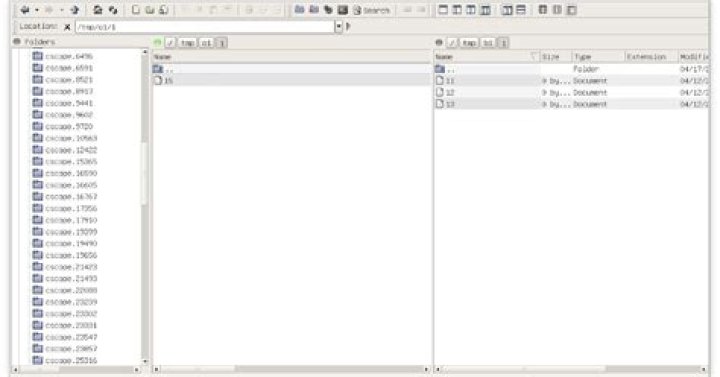
I want to move content of a directory within another directory with the same folders.
Here's an example:
I have ./backup which has the directories base and test. Now, I want to move these directories to ./backupArchives.
I use this:
mv ./backup/* ./backupArchivesbut I got the error
mv: cannot move './backup/base' to './backupsArchive/base': Directory not emptyI tried using --force, but no luck. Is there a way to move it when folders already exists?
Note: I just want to merge contents, there's no overwriting.
67 Answers
Though its man page doesn't document it, mv will refuse to rename a directory to another directory if the target directory contains files. This is a good thing in your case because you turn out to want to merge the content of the source into the target, which mv will not do.
Use rsync -a backup/ backupArchives/ instead. After that rm -rf backup/*.
Instead of using rsync, you also can do the classical
(cd backup && tar c .) | (cd backupArchives && tar xf -)which earns you more geek points.
13Quick and dirty, if you know what you are doing:
cp -r ./backup/* ./backupArchives && rm -R ./backup/*After the directory you moving you need * (represents any text or number). For example:
mv /var/www/* /recovery/wwwrecovery/thats all, if you moving files, than you move as:
mv /var/www/index.php /recovery/index.php
Another way is to pack that folder content by using tar:
tar -cvzpf backup.tar.gz /var/www Then move it lie any other file. Also I recommend this step because tar compresses it and make it smaller in size.
To extract the files to another folder use
tar -xvzpf /var/www/If you need to copy to a location you don't own, make sure to prepend your command with the sudo command after whichever option you decide to use.
sudo tar -cvzpf backup.tar.gz /var/www/Sure rsync does work, but this might work as well for machine that does not support rsync (i.e in cpanel, which rsync is not installed by default).
What about using:
cd /path/to/backup/ && cp -R --parents ./* ../backupArchivesThen remove the backup directory if necessary
Note1: You need to cd to the backup directory before executing the cp -R --parents ...
Note2: Double check the backupArchives directory if you got the new files from backup.
Before asking the question, let's consider a simplified case.
Suppose in /home/admin we have two folders foo and bar which have the same subdirectory structure, but each contains different files in it. Now we want to merge them into one. When we do things like mv foo/* bar, the error mv: directory not empty occurs.
My solution is to give up command line tools and switch to a GUI file manager, for example, dolphin. When you rename foo to bar in dolphin, it gives you the option to write into the destination folder, and asks you whether to overwrite existing files, interactively. This avoids copy and delete, which in effect saves your time without a single line of code.
PS: I didn't test every file manager out there. But most of them should have this feature.
When moving directory during a script execution, you need to consider non-existing or empty directories, and also force override and removal without confirmation:
# If old directory exists, and isn't empty
if [[ -d old_dir ]] && [[ -n `ls -A old_dir` ]] ; then # Make a new directory (skip if already exists) mkdir -p new_dir # Copy all files to the new directory (-afr : Keep attributes, Force overwrite, Recursive copy) cp -afr old_dir/* new_dir/ # Remove old directory rm -rf old_dir
fi
I had to copy a very large directory with a lot of large files, so I created hardlinks to the original files in the target directory like this:
cp -al ./backup/* ./backupArchivesThen I deleted the originals, leaving only one hardlink to each file.
Since hardlinks are quite space efficient, you could even use hardlinks to copy the backupArchives and backup directories to a new trial location, and check that the file counts are as you expect, as a dummy run. This assumes that your filesystem supports hardlinks - ext4 does.


