Multiple desktops on windows as in Mac OSX
I would like to explain myself very clearly since this issue gives chance to multiple misunderstandings.
When using Mac OSX there is a feature available that let you multiply your desktop very simply. So with just moving three fingers at the same time in the pad, I can go from a desktop with full applications on it to an empty desktop. If you move these three fingers vertically it let you see how many of these you have and can add more.
It is very simple and very convenient. It is not different accounts, it is not different environments, and it is definitely not using another physical monitor (most google goes to this last option so it is very difficult to google)
It does not require complicated setups. No virtual machines etc.it is not screen sharing etc.
It is just having more landscape available to you My question is, is there a way to reproduce this on windows 10?
12 Answers
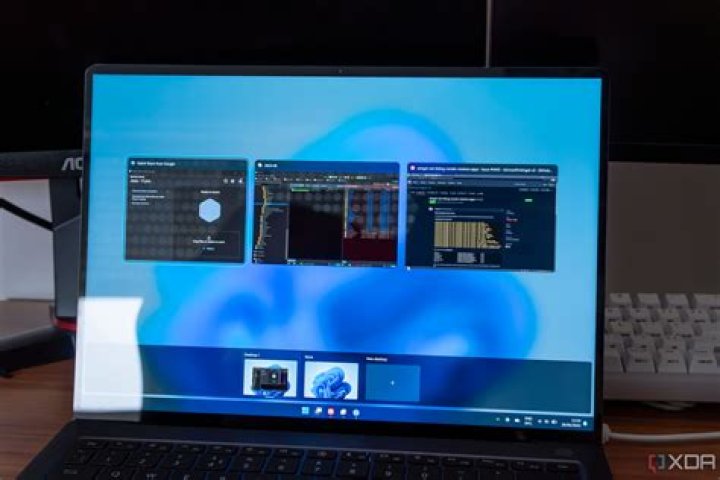
Windows Task View
Windows Task View is a feature similar to that of Mission Control in Mac OSX.
How To Use Windows Task View
There are Three ways in which you can use Windows Task View in Windows 10.
Method 1:Using the Task View Button on the TaskBar.
Chances are your Task View button option might be disabled, so first thing to do, enabling the Task View Button.
- Right Click on your TaskBar and Select the Show Task View Button .
- Click on this button.
- Click on New Desktop.
- Switch between the two desktops using the button and mouse.
Method 2:Use of KeyBoard Shortcuts.
Here’s a list of useful shortcuts you can use.
Opening the Task View window : WIN+TAB
Switching Between Two Windows when the Task View window is open: Arrow Keys
Create New Virtual Desktop : WIN+CTRL+ D
Close Current Virtual Desktop : WIN+Ctrl+F4
Switch to NEXT Virtual Desktop Directly(Similiar to swiping towards LEFT with Three Fingers on MAC OSX) : WIN+ CTRL+->
Switch to PREVIOUS Virtual Desktop Directly(Similiar to swiping towards RIGHT with Three Fingers on MAC OSX) : WIN+ CTRL+<-
Method 3:
The Elephant in the Room
The Similar to Mac OSX Trackpad Swiping Feature in Windows 10
Note: This will work only if your laptop has a Precision Trackpad.
First:
To open the TaskView Window Directly, Swipe Up(Away from you) with Three fingers.Note, If you do this when on the Desktop, it will open your recent open window.
Second:
To go to your Desktop, Swipe Down(Towards you) with Three fingers.
Third and the most interesting for you:
Swipe towards RIGHT with Four fingers to move to your NEXT Virtual Desktop.
Fourth with the similar vibes:
Swipe towards LEFT with Four fingers to move to your PREVIOUS Virtual Desktop.
Extra:
If you swipe towards RIGHT or LEFT with Three fingers It will work similar to ALT+TAB.
Have fun utilizing your extra space. Make sure you have more than sufficient RAM, my suggestion is atleast 16GB of RAM.
5It's as simple as Mac OSX.
- To create a new desktop, press Control + Windows + D
- To move through desktops, press Control + Windows and then 'left arrow' if you want to go to the previous desktop and 'right arrow' to move to the next desktop.
You can also see all your desktops clicking the multitask button at the right of Cortana (It's like a box with a cutted box at the top and in the bottom).
I hope it will work. Good luck!
1

