List All User Accounts on a Windows System via Command Line
I would like a command to list all of the user accounts in a Windows (Vista, 7, etc.) system in a way that I can use to iterate through them with a subsequent command.
net user gives me the data for which I'm searching, but it adds a bunch of other junk that would cause difficulty in parsing the users.
Ideally, I would receive output like:
> usercommand
user1
user2
user3
5 Answers
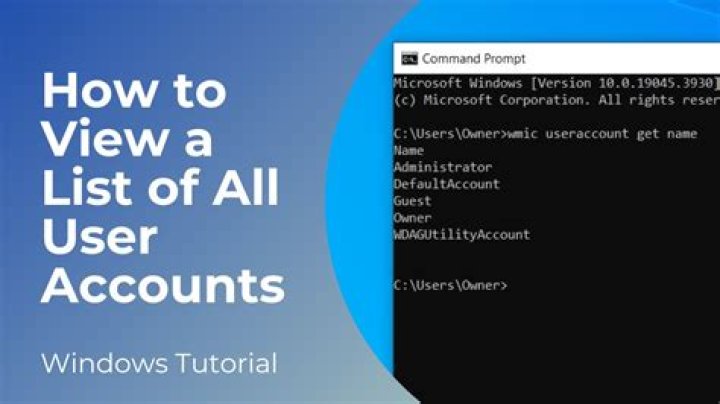
If you want to iterate through users strictly in the Windows command line, the easiest way would be a combination of wmic and a for loop.
for /f "tokens=* skip=1" %%a in ('wmic UserAccount get Name') do ( if not "%%a"=="" ( :: %%a is a variable containing an account name )
)
The heart of the command is wmic UserAccount get Name, which should print out a list of accounts. You may wish to do some filtering, like Karan did in his VBScript answer, with something like wmic UserAccount where "LocalAccount=True" get Name. Any field is filterable; to view all of them, use wmic UserAccount get (omitting Name).
The for loop is simply used to parse the command output. It skips the first line (which prints the column heading), and the last line is skipped with the if command, since it is empty. See for /? for more information.
For anyone who is here just looking for a way to list all users on your machine in the command line, and don't need a loop. Just run this command:
net userAnd it will output what you need in this format
-------------------------------------
User1 User2 User3 User4
The command completed successfully.This Windows PowerShell script will provide a list of users in a table format, it's not exactly what you are looking for but it shouldn't be too hard to reformat the output into a format you could use to feed into another command.
$computerName = "$env:computername"
$computer = [ADSI]"WinNT://$computerName,computer"
$computer.psbase.Children | Where-Object { $_.psbase.schemaclassname -eq 'user' } | Format-Table Name, Description -autoSize Save the following with a name like GetLocalUsers.vbs:
Set colItems = GetObject("winmgmts:\\.\root\cimv2").ExecQuery("Select * from Win32_UserAccount Where LocalAccount=True")
For Each objItem in colItems Wscript.Echo objItem.Name
Next
Run from the command line as follows:
cscript //NoLogo GetLocalUsers.vbs
This will output literally what you're asking for:
dir /b C:\Users
1