Kubuntu refuses to upgrade "E: The repository 'http://ppa.launchpad.net/gezakovacs/ppa/ubuntu disco Release' does not have a Release file." [duplicate]
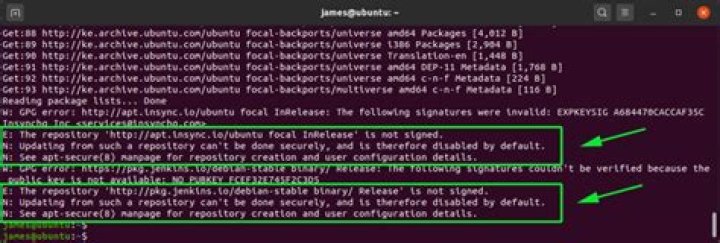
NOTE: I know this is a duplicate, but the guides I follow don't work nor make sense.
I've been having this problem for a while now.
Running sudo apt-get update && sudo apt-get dist-upgrade leaves me with this:
Hit:1 disco InRelease
Ign:2 stable InRelease
Hit:3 disco InRelease
Hit:4 stable Release
Get:5 disco-security InRelease [97.5 kB]
Hit:6 trusty InRelease
Hit:7 disco InRelease
Ign:8 disco InRelease
Get:9 disco-updates InRelease [97.5 kB]
Err:10 disco Release 404 Not Found [IP: 91.189.95.83 80]
Hit:12 disco-backports InRelease
Reading package lists... Done
E: The repository ' disco Release' does not have a Release file.
N: Updating from such a repository can't be done securely, and is therefore disabled by default.
N: See apt-secure(8) manpage for repository creation and user configuration details.
W: Target Sources (main/source/Sources) is configured multiple times in /etc/apt/sources.list.d/gezakovacs-ubuntu-ppa-disco.list:1 and /etc/apt/sources.list.d/gezakovacs-ubuntu-ppa-disco.list:2
Any help? I'm on Kubuntu 19.04.
22 Answers
This is the process I have used to upgrade the last several times.
Often extraneous repositories are the cause of upgrade problems. Remove PPAs and other unofficial repositories. Make sure there are no references to previous releases, such as cosmic, bionic, or artful. Make sure the only repositories left are current official Ubuntu repositories.
Using a GUI is fine if you prefer and know how. I use a terminal:
sudo -s
cd /etc/apt/sources.list.d/
# place to temporarily store unwanted repositories
mkdir /etc/apt/
# check contents of files and move unwanted ones
ls
cat [file]
mv [file] /etc/apt/
# alternatively, can edit to comment out repositories with `#`
nano *.list
I started using
aptitudea long time ago and stuck with it. Otheraptprograms will work, but they may behave differently, so consider installingaptitudeif needed.# update repositories sudo apt update # consider installing aptitude sudo apt install aptitudeAnother source of update problems is having too many conflicting packages to update. The package manager has difficulty finding a reasonable solution within a reasonable amount of time. It may give up or come up with a solution that involves removing (what seems like) half of the installed packages. To avoid this, I upgrade/reinstall the manual packages first.
# get a list of manually installed packages
sudo apt-mark showmanual > manual-list.txt
I don't try to reinstall all the packages in the list at once because there are usually a few problem packages. I go through the list in several parts so I can skip the problem packages (based on warnings
aptitudewill display).Open the list in your favorite text editor. Remove
lib*packages that should have been marked auto, not manual. (Keeplibreoffice*orlib*-binorlib*-tools.) Also remove the*-devpackages. Consider marking them auto:sudo apt-mark auto [packages]Replace the new-lines '\n' with spaces (with replace all). Then download them to
/var/cache/apt/archive/.sudo -s cd /var/cache/apt/archive/ aptitude download [packages]When download is done, copy/paste groups of packages, for example, all the ones that start with the same letter, into the following command to install them:
sudo aptitude install [packages]Check that the solution the package manager proposes is okay with you. It's normal that it will want to remove and upgrade some packages. Just make sure it isn't removing anything critical. If it is, you need to try again with fewer packages to find the problem package that needs to be skipped (for now).
Repeat until most or all of the manual packages have been upgraded.
Decide what you want to do with the problem packages. Do you want to force them to upgrade or is it okay to remove some of them?
aptitude remove [package]To upgrade, you may need to allow packages to be removed, then reinstall them later. It's easier to remove non-critical packages to reinstall after the full upgrade is complete. For example,
gimpsometimes causes problems at this stage.You can try a
safe-upgradeat this point. It might pick up some more problems to fix. I would skip this unless the full upgrade has problems.sudo aptitude safe-upgradePerform the full upgrade. As usual, look through the proposed changes
aptproposes. Make note of any packages that are removed that you might want to reinstall. As long as nothing critical will be removed, it's fine to go ahead. If something looks wrong, try doing asafe-upgradefirst to prevent potential problems.sudo aptitude dist-upgradeRemove obsolete packages. I usually do this with a graphical interface.
sudo synapticRe-add PPAs and other repositories that support the current release. Install or update software as desired.
This line in the output tells you that something is very wrong with a ppa you have added:
Err:10 disco Release 404 Not Found [IP: 91.189.95.83 80]I don't know Kubuntu, but on stock Ubuntu and other flavors you can start Software & Updates, click the Other Software tab, and uncheck (or delete) all references to the bad ppa. It will ask you for your password when you do this.
When you click the Close button, the app will do a apt update and after that you should be able to update your system.