Keyboard shortcut for printing in Windows File Explorer
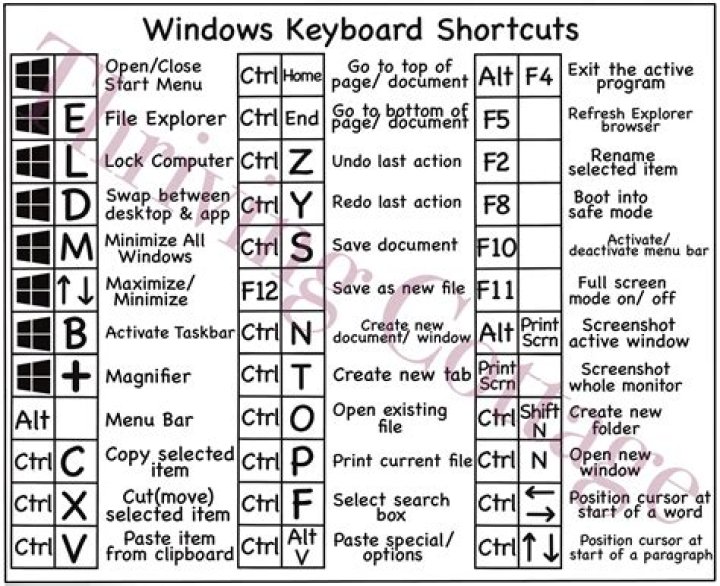
Is there a keyboard shortcut that you can use to print selected files in Windows File Explorer? If not, is there any way to assign one?
2 Answers
If the file association listed a print verb then pressing Shift+F10, P (as for text files) will print it. It is program specific.
One way to implement printing from Explorer is to add a context menu item for each document type to be printed. The application that handles one document type might not handle another, so an application must be specified for each.
For example, MS Paint can display and print a .png image, but not a LibreOffice Writer .odt document.
Here is how to create a Print context menu item for a .txt file in Windows 10. N.B. Be very careful using Regedit. It is a good idea to make a disk image before making major changes.
Press Windows, type
regeand select Regedit.Allow it to run in the UAC dialog.
Find the application, in
HKEY_CLASSES_ROOT\Applications, that would normally open that file type. Note that in the screenshot below, on this PC, .txt files are opened by Notepad++, not by Notepad, so changes are made to the Notepad++ key!Right-click on
shelland create a new key,print.Right-click on
printand create a new key,command.Double-click on the REG_SZ string
(Default)and change its value to the location of the app to print with the correct command-line arguments, here,"C:\Windows\System32\NOTEPAD.EXE" /p "%1".
BTW, rather than starting the larger Notepad++ app to print, I chose to use MS Notepad for that purpose. Note also that quotes may be needed around the application path and the file path argument (%1), but not around the command-line argument, %p, to print.
Ahhh... but where is the keyboard shortcut you requested? Here:
- In Explorer, with the desired file selected, press ShiftF10 to see the context menu.
- Press AltP to select Print, if the P in print has an underscore (if not, use the underscored letter).


