Is there a way to disable MS Word 2010's file close (ctrl+w) short cut?
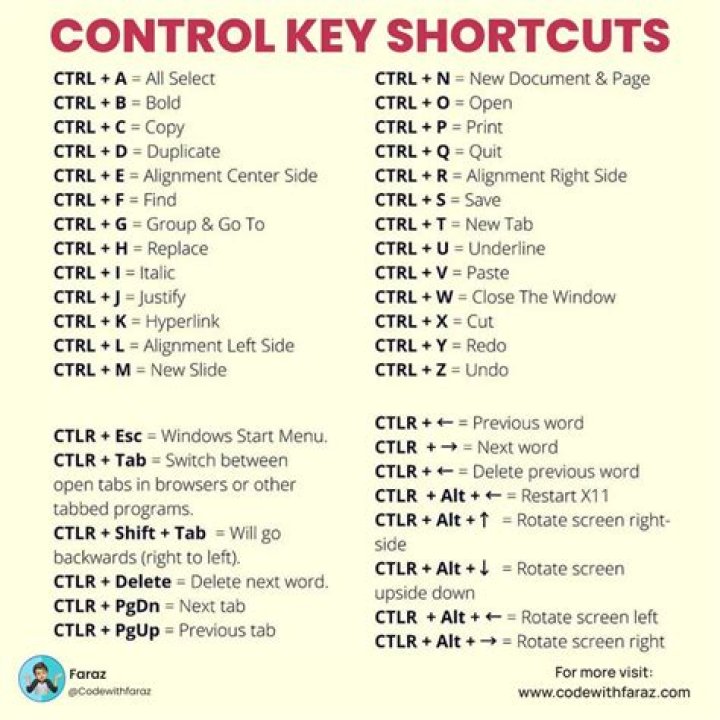
There was a mishap where CTRL+W was pressed on a long document that wasn't saved yet, and all of that unsaved work was gone. Is there a way to disable MS Word 2010's file close short cut?
12 Answers
Yes, but realise it's only for your computer. If you move computers, the keyboard shortcut will still exist.
- In Word 2010, press File, Options.
- Open the Customize Ribbon tab.
- Press the Keyboard shortcuts: Customize... button at the bottom of the left-hand list.
- Select Category All Commands, Command DocClose.
- Select the current key Ctrl+W and press the Remove button at the bottom of the window.
- Press Close, then OK.
If you want to see the name of a command that's mapped to a keyboard shortcut, you can type the shortcut in the Press new shortcut key box and it will tell you the name of the command that uses that shortcut. For example, press Ctrl+N and it will say "Currently assigned to: FileNewDefault".
There is a way!
Code it's VB code so the format crashes better-look version on my GitHub page and just modify the BuildKeyCode(wdKeyBackspace) to BuildKeyCode(wdKeyControl,wdKeyW).
Attribute VB_Name = "NewMacros"
Public backspace_disabled As Boolean
Sub disable_backspace()
KeyBindings.Add KeyCode:=BuildKeyCode(wdKeyB, wdKeyShift, wdKeyControl), KeyCategory:=wdKeyCategoryMacro, Command:="print_hello_world"
KeyBindings.Add KeyCode:=BuildKeyCode(wdKeyBackspace), KeyCategory:=wdKeyCategoryMacro, Command:="empty_function"
End Sub
Public Sub print_hello_world()
Dim aKey As KeyBinding
For Each aKey In KeyBindings If aKey.KeyCode = BuildKeyCode(wdKeyBackspace) Then If backspace_disabled Then MsgBox ("disable_backspace") 'KeyBindings.Add backspace_fake aKey.Rebind KeyCategory:=wdKeyCategoryMacro, Command:="empty_function" Else 'FindKey(BuildKeyCode(wdKeyBackspace)).Execute MsgBox ("enable_backsapc") 'MsgBox ("bye") aKey.Disable End If End If
Next aKey
backspace_disabled = Not backspace_disabled
End Sub
Public Sub empty_function()
End Sub

