Is there a tool to quickly create custom keyboard layouts for international keyboard, greek and unicode math?
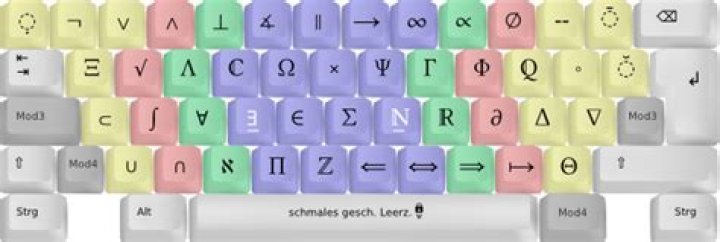
Is there a tool to quickly create custom keyboard layouts?
For example to achieve this:
Producing Unicode characters in secondary layers, but based on US international (Alt GR-dead keys)
This is mainly to type math in using Unicode, but keeping the default layer to be US international.
Maybe there is one prepared already that is pretty general, if so then how to install it?
This question is not about generating short-cuts in a particular application but to change the system's keyboard layout.
14 Answers
I think this tool might work for you although I've never used it. keyboardlayouteditor
If it doesn't work then with a little patience you can create a custom keyboard layout by yourself.
I know it's not a quick way to do it but by doing it this way you will learn something.
If you decide to do it by yourself then the only thing you need to do is edit a file located in /usr/share/x11/xkb/symbols.
Inside the folder "symbols" you will find all the keyboard layout files.
Backup the file you want to use, in your case the "us" file.
To backup the file open a terminal and type:
cp /usr/share/X11/xkb/symbols/us /usr/share/X11/xkb/symbols/us_backupNow open the "us" file:
sudo gedit /usr/share/X11/xkb/symbols/usYou will see something like this:
// Alphanumeric section
key <TLDE> { [ grave, asciitilde ] };
key <AE01> { [ 1, exclam ] };
key <AE02> { [ 2, at ] };
key <AE03> { [ 3, numbersign ] };
key <AE04> { [ 4, dollar ] };
key <AE05> { [ 5, percent ] };
key <AE06> { [ 6, asciicircum ] };
key <AE07> { [ 7, ampersand ] };
key <AE08> { [ 8, asterisk ] };
key <AE09> { [ 9, parenleft ] };
key <AE10> { [ 0, parenright ] };
key <AE11> { [ minus, underscore ] };
key <AE12> { [ equal, plus ] };
The key <xxxx> entries are the name of the keys and the {[]}; entries are the symbols
The image below will show you the key codes:
Now to create your custom keyboard layout you need to replace the contents of {[]}; with the symbol names you want.
For example in order to replace the exclamation mark with the dollar symbol change the following line
key <AE01> { [ 1, exclam ] };to this:
key <AE01> { [ 1, dollar ] };After you finish editing your custom keyboard save the file and restart your computer.
In case you want to go back to your original "us" keyboard layout open a terminal and type the following:
sudo cp /usr/share/X11/xkb/symbols/us_backup /usr/share/X11/xkb/symbols/usFor further reading:
6Recently looking at packages I found mathwriter input.
This, apparently in Gnome3, allows the input of mathematical characters as if it were a special language. This allows to enter symbols by typing the name of the symbol, in the screen a menu appears with options and hitting space allow to choose a match.
Relevant links:
I was also personally interested in being able to do this, I made a python program to do it.
Get it here:
To sum it up, you can create custom layouts like this
|∀∃|∈∉|⊆⊇|∪∩|≤≥|<>|({|)}|⌊⌈|⌋⌉| |∅∗|+∑|∣∖|fg|↦⤳|xy|=≠|+-|⋅\|~≟| |∨∧|⇒⇐|⇔⊕|⊦⊧|∞ℵ|′∂|ℕℤ|ℚℝ|∇∫|∎≡|And it generates a custom layout file which you just have to move to /usr/share/X11/xkb/symbols.
Before you enable your new layout make sure you have set up some shortcuts to switch between them, for example I am using xfce,so I have:
Now we can switch between the math and standard layout easily.
2This is not an answer to my own question but a much less invasive alternative that consists in configuring gedit for the purpose of typing unicode/special characters.
After trying some of the proposed solutions, I realized that changing the keyboard layout is an overkill. After all, I needed it only to code (mainly "string"s with unicode and math in LaTeX). So I decided that for my purpose it was better to somehow make my editor able to convert writen words into unicode characters.
My editor is gedit, which has a standard plugin called Snippets. I realized that if I put the special characters in ~/.config/gedit/snippets/global.xml I would be able to type them in any text file.
I made a program that reads a table of unicode characters and a their common names and builds the snippets file. In this way I type the name of character, like _alpha and press TAB and α appears. There are no key combiations or keyboard layers to remember.
After the process my ~/.config/gedit/snippets/global.xml file looks like this. Don't forget to activate the Snippet plugin.
<?xml version='1.0' encoding='utf-8'?>
<snippets> <snippet> <description>New snippet</description> </snippet> <snippet> <text><![CDATA[α]]></text> <tag>_alpha</tag> <description>alpha</description> </snippet> <snippet> <text><![CDATA[β]]></text> <tag>_beta</tag> <description>beta</description> </snippet> <snippet> <text><![CDATA[χ]]></text> <tag>_chi</tag> <description>chi</description> </snippet> <snippet> <text><![CDATA[ⅆ]]></text> <tag>_dd</tag> <description>dd</description> </snippet> <snippet> <text><![CDATA[γ]]></text> <tag>_gamma</tag> <description>gamma</description> </snippet> <snippet> <text><![CDATA[ℏ]]></text> <tag>_hbar</tag> <description>hbar</description> </snippet> <snippet> <text><![CDATA[μ]]></text> <tag>_mu</tag> <description>mu</description> </snippet> <snippet> <text><![CDATA[ω]]></text> <tag>_omega</tag> <description>omega</description> </snippet> <snippet> <text><![CDATA[Ω]]></text> <tag>_Omega</tag> <description>Omega</description> </snippet> <snippet> <text><![CDATA[π]]></text> <tag>_pi</tag> <description>pi</description> </snippet> <snippet> <text><![CDATA[ε]]></text> <tag>_varepsilon</tag> <description>varepsilon</description> </snippet> <snippet> <text><![CDATA[𝟷]]></text> <tag>_1</tag> <description>1</description> </snippet>
</snippets>
Notes:
- The idea is taken from here , with the addition that I wrote a program to massively generate the file from a table.
- Why the underscore (e.g.
_pi)? This is because otherwise many snippets will conflict with the autocompletion feature. For examplepi+TAB will not produceπbut it will producepictureif this word is mentioned in the document. - Additional characters can be added manually by copying and pasting from the
Gnome Character Mapprogram. - To activate the
Snippetsplugin, first install thegedit pluginspackage. Then go toPreferences->Plugin->click onSnippets. Then, from theTools->Manage Snippets...menu, verify that the entries are avialable in theGlobalgroup (at the top).


