Is there a photoshop filter that limits colors, but better than posterize?
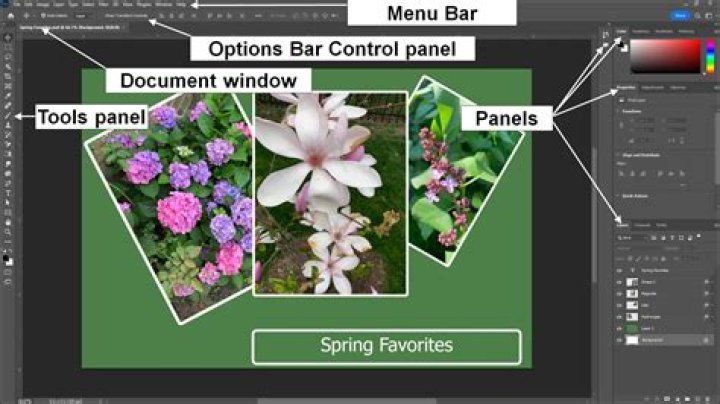
Here's an example of what I want to do.
The idea is: the filter looks for areas of adjacent (or even non-adjacent) colors that are very similar (only a few color levels off from each other) and recolors them all to the same color. I guess it could pick that one color by just averaging all the pixels in the selected area.
To manually get this effect, I basically do right click --> color range (with magic wand tool) to select my color blocks, then fill them with the desired color. But has someone made a filter that does this in one pass?
Image-adjust-Posterize seems to fight to keep unwanted similar colors rather than just grouping them together their neighbors. The median filter is sort of what I want, but also blurs areas I don't want blurred.
17 Answers
You can Save for Web and devices... and then select PNG-8 format, turn dither to 0% and reduce the number of colours down to just a few. I got reasonable results with your sample image by reducing the number of colours to 6.
Try to convert the image to a vector format. For example, VectorMagic does a great job
Open the image.
Click-Image>mode>Indexed colour, to open colour reduction.
Forced:None,Dither:None,Transparency:0 ,'Palette' has to be changed
into 'Local Adaptive'and reduce the number of colours to an extend where the over all look of the image doesn't change. Then, change the 'Palette' into 'Custom',you will find all the colours in the table. To delete the colours, click ctrl+ click the colour you want to delete. That specific colour gets deleted,hence restrict the palette according to your requirement. Click OK.Convert the image to RGB.(Image>Mode>RGB)
Again change it into indexed colour,then change the Palette into 'Exact'.You will get the exact reduced colours.
I agree with Majenko that this would best be answered on gd.stackexchange.com. However, here are some tips:
- Vectorize the image as Gregory mentioned. VectorMagic can do this, but so can Illustrator and some free online tools like Aviary Raven.
- Convert to grayscale, then posterize, and then use a gradient map to recolor the image. This usually works better than plain posterization (especially on images with lots of noise), but for some images you may need to manually change color regions with with the same luminosity.
- Create separate layers for the different colors. You can then adjust the levels, shadow/highlights, or use multiple posterize passes to get better color boundaries. This can also be combined with the above processes. Recording a macro for this process can speed things up.
- Use higher quality images. There's no one-click solution to turning a low quality (i.e. lo-res, scanner/photo noise, bad/uneven lighting, compression artifacts, etc.) into crisp, high quality images. That's why most professional illustrators manually digitize their illustrations (make hi-res scans of their sketches and use a digitizer tablet to digitally trace the lines and color it) or just draw digitally from the get go. It's just easier to draw the illustration digitally than using a bunch of filters to try to convert analog artwork into something that looks like it was drawn digitally. It will never look as clean, and it's a lot more work than simply creating the illustration in a vector image editor like Illustrator in the first place.
image>mode>indexed color
i create patterns for rugs in this fashion.. for that matter.. all the previously mentioned as well.
but indexed color works best for color count. fattens layers so you have to do a lil prep work.. but imo thats a good life practice
I think that you can use Illustrator's filters and plugins in photoshop, but currently can check it myself. Illustrator have bitmap trace plugin.
I've discovered that newer versions of photoshop have a filter called "Surface Blur" that do almost exactly what I want. It's actually been around since CS2 so maybe I missed it.
It works very well on cartoons or contrasty photos. It still doesn't quite look as good as doing it "manually" but I find I can do it once to the whole picture, and then manually fix a few selected areas.