Install Windows 7 on mbr hard disk with UEFi firmware
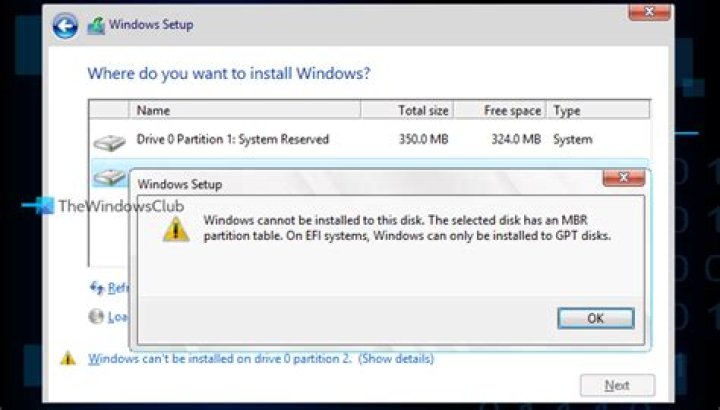
I have a Toshiba and I want to install Windows 7 on it. My firmware is UEFI. I have disabled the secure boot and I have enabled the Legacy support.Before the installation of Windows 7 i have partitioned my hard disk with MBR with gparted.
I then try to install Windows on it. The problem is that Windows during the installation converts my hard disk to GPT automatically. Why? How can i solve this problem?
52 Answers
From UEFI Wikipedia page:
To ensure backward compatibility, most UEFI firmware implementations on PC-class machines also support booting in legacy BIOS mode from MBR-partitioned disks, through the Compatibility Support Module (CSM) that provides legacy BIOS compatibility. In this scenario, booting is performed in the same way as on legacy BIOS-based systems, by ignoring the partition table and relying on the content of a boot sector.
BIOS-style booting from MBR-partitioned disks is commonly called BIOS-MBR, regardless of it being performed on UEFI or legacy BIOS-based systems.
Furthermore, booting legacy BIOS-based systems from GPT disks is also possible, and such a boot scheme is commonly called BIOS-GPT.
Windows installation booted from EFI, does not allow installation on MBR disks and vice versa.
EFI installation needs EFI partition scheme TO BOOT (correct me if I'm wrong)
like:
Partition FileSystem Size Purpose
EFI FAT32 100MB EFI Boot Sector on GPT disk
MSR N/A 128MB Hidden Services Partition for GPT disk
Primary NTFS N/A Windows Installation/Data Volume contaning VHD
But, it can load windows from another MBR disk (or VHD) in CSM mode. So, to accomplish this, you need at least 2 disks, or 1 physical GPT disk, containing a Virtual MBR disk.
EFI boots from the .EFI file specifics in the UEFI vars. If those are not set it will fall back to a fixed path. For Amd64 PC this is \EFI\BOOT\BOOTX64.EFI. If a firmware suppost both normal EFI boot and backward CSM then you usually get two boot entries.
Note that EFI booting is enabled by default on a windows 7 DVD, but not if you turn that iso/DVD into an USB pendrive. In that case you would need to manually move files around.
Theefor you have two options:
1
- Insert a windows 7 x64 DVD and boot in EFI mode.
- Insert a FAT32 formatted pendrive with the bootmanager copied to \EFI\BOOT\BOOTX64.EFI
In both cases windows will install onto a harddisk using the GPT partition style. It will not work with MBR.
2
Use an old computer with BIOS firmware or in a modern EFI based system turn on CSM and disable secure boot, then
- Insert a windows 7 x64 DVD and boot in BIOS/CSM mode, or
- Insert a windows 7 pendrive (NTFS, with bootsector) and boot in BIOS/CSM mode.
In both cases this will only work with a harddisk partitioned with the MBR scheme.
Since your problem is that the disk keeps getting converted to GPT you are most likely booting with the first option. Either accept that and use EFI/GPT (which has advantages over MBR), or look carefully at how you are booting. Many firmware can boot from both options, but usually prefix the boot options. E.g. both item below are from booting the same DVD.
P0: Samsung DVD 0
UEFI: Samsung DVD 0
If you get options similar to those two then you need to select the right one, even though both will start the installation process. If you do not get two options that check if you can boot other DVD/CD from that device or make a pendrive which only supports your desired option.
Microsoft has a tool in their own site for just this thing, writing an ISO to an USB pendrive. Alternatovely Rufus is a great tool and supports both options (so make sure you set the one you want to avoid ambiguity).