In Excel - split a row into multiple rows
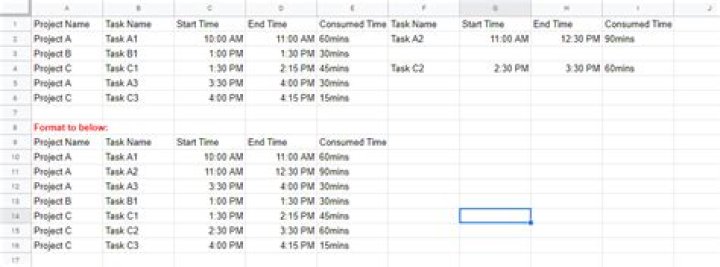
I would like an Excel formula that will help me split entries in a single row to be split into multiple rows as shown in the second table in the image. Would appreciate any help:
Page 2
Attempted the formulas shared in How do I split one row into multiple rows with Excel? however it doesn't work if Name column entries are duplicated.
=IF(COUNTIF($A$7:A7,A7)=COUNTA(OFFSET('Sheet2'!$B$1:$D$1,MATCH(A7,'Sheet2'!$A$2:$A,0),0)),INDEX('Sheet2'$A$2:$A,MATCH(A7,'Sheet2'$A$2:$A,0)+1),A7)2 Answers
To transform your Table1 to Table2, as in your first screen shot, you can use Power Query available in Excel 2010+ either as a free add-in from MS, or built-in in later versions.
Although the transformation can be done from the GUI, that will return errors if you expand the number of columns in your data. So you need to modify the actual M-Code that is generated.
- I have assumed that columns, if added, will always be in Groups of 4 (
Task Name | Start Time | End Time | Consumed Time). - I have Also assumed that the
Consumed Timecolumn contains formatted Integers. If it really contains text, some changes will be required in the Query.
Steps:
- Import the Table (
PQwill turn a range into a Table, or you can do this yourself) - Select
Project Nameand unpivot other columns - Because this has been converted into a Table, the duplicate column names in the original range will be converted by have a sequential number appended.
- To remove that number after the unpivot, select the new
Attributecolumn- Split the column on the transition from letter to digit
- Delete the column with the numbers.
- To remove that number after the unpivot, select the new
- For grouping of the data into appropriate rows:
- Add Index column (base zero)
- Based on the Index column, add an
Integer/Dividecolumn dividing by 4 - Delete the Index column
- Now we Group By the
Integer-DivisionandProject Namecolumns withOperation:= All Rows(no aggregation) - We add a Custom Column which converts the resultant table into a List and then
- Extract the values from the List using a semicolon separator (or some other token not likely to appear in the data).
- We then Split those values into separate Columns using the semicolon as the delimiter
- Remove the extraneous columns
- Rename the columns so as to be the same names as the first five names in the original table.
- Change the data type of the table columns to Text, Time and Whole number as warranted
- Sort the rows by
Project NameandTask Name - Load back to the worksheet.
This query can be refreshed if you change anything, or add rows or column groups.
If you just paste the code into the Advanced Editor of a blank query, you will need to change Table3 in line 2 to whatever the name of your table is on your worksheet.
M-Code
let Source = Excel.CurrentWorkbook(){[Name="Table3"]}[Content], #"Unpivoted Other Columns" = Table.UnpivotOtherColumns(Source, {"Project Name"}, "Attribute", "Value"), #"Split Column by Character Transition" = Table.SplitColumn(#"Unpivoted Other Columns", "Attribute", Splitter.SplitTextByCharacterTransition((c) => not List.Contains({"0".."9"}, c), {"0".."9"}), {"Attribute.1", "Attribute.2"}), #"Removed Columns" = Table.RemoveColumns(#"Split Column by Character Transition",{"Attribute.2"}), #"Added Index" = Table.AddIndexColumn(#"Removed Columns", "Index", 0, 1), #"Inserted Integer-Division" = Table.AddColumn(#"Added Index", "Integer-Division", each Number.IntegerDivide([Index], 4), Int64.Type), #"Removed Columns1" = Table.RemoveColumns(#"Inserted Integer-Division",{"Index"}), #"Grouped Rows" = Table.Group(#"Removed Columns1", {"Integer-Division", "Project Name"}, {{"Grouped", each _, type table [Project Name=text, Attribute.1=text, Value=anynonnull, #"Integer-Division"=number]}}), #"Added Custom" = Table.AddColumn(#"Grouped Rows", "Custom", each Table.Column([Grouped],"Value")), #"Extracted Values" = Table.TransformColumns(#"Added Custom", {"Custom", each Text.Combine(List.Transform(_, Text.From), ";"), type text}), #"Split Column by Delimiter" = Table.SplitColumn(#"Extracted Values", "Custom", Splitter.SplitTextByDelimiter(";", QuoteStyle.Csv), {"Custom.1", "Custom.2", "Custom.3", "Custom.4"}), #"Removed Columns2" = Table.RemoveColumns(#"Split Column by Delimiter",{"Integer-Division", "Grouped"}), colNames = List.FirstN(Table.ColumnNames(Source),5), #"Renamed Columns" = Table.RenameColumns(#"Removed Columns2",List.Zip({Table.ColumnNames(#"Removed Columns2"),colNames})), #"Changed Type" = Table.TransformColumnTypes(#"Renamed Columns",{{"Project Name", type text}, {"Start Time", type number}, {"End Time", type number}, {"Consumed Time", type number}}), #"Changed Type1" = Table.TransformColumnTypes(#"Changed Type",{{"Start Time", type time}, {"End Time", type time}}), #"Sorted Rows" = Table.Sort(#"Changed Type1",{{"Project Name", Order.Ascending}, {"Task Name", Order.Ascending}})
in #"Sorted Rows"
Click in a cell, or select multiple cells that you want to split. Under Table Tools, on the Layout tab, in the Merge group, click Split Cells. Enter the number of columns or rows that you want to split the selected cells into.


