HP Envy m6 Subwoofer Beats Audio not working
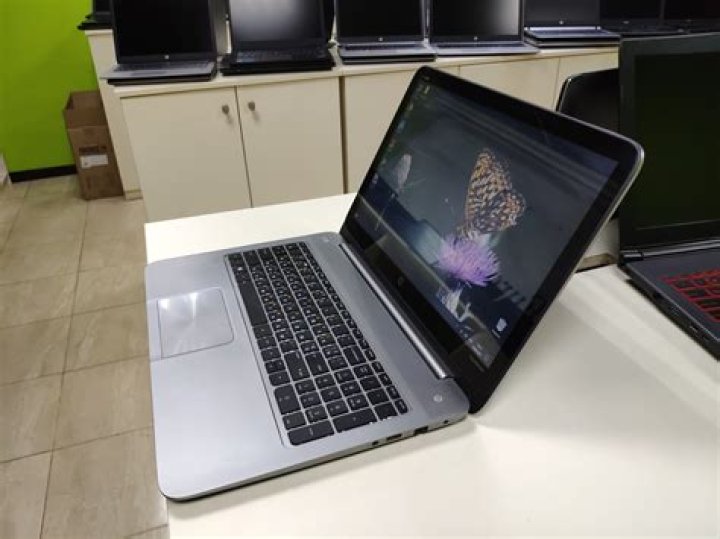
I have an HP Envy m6-n010dx.Running Elementary(Ubuntu 14.04)This is an AMD based model,which includes Beats Audio in the form of 2 speakers and an integrated subwoofer. It uses Realtek ALC3241 sound card/chip.I can not get the subwoofer to work at all,and the sound is laughable compaired to Beats on Windows 8. I have read many posts regarding this and have tried many of the suggestions,such as adding options snd-hda-intel model=ref to alsa-base.conf,enabled lfe remixing, and changed the amount of sample channels.WHen using HDAJackRetask,I set one of the unconected pins to LFE Speaker,and Alsamixer shows a bass speaker that can be muted or unmuted,but there is no volume level for it,and no change to my sound.Depending on the pins I connect,different things show up in alsamixer,but they have no volume levels,only mute or output.I feel like I've tried everything,and any help would be appreiated.Let me know if you'd like to see my aplay or lspci | Audio outputs. Thanks in advance.
2 Answers
Here's what I did to solve my issue with the subwoofer.
I searched for ALSA Tools in software manager. Do note, ALSA Tools now have HDAJackRetask packed into it.
I installed ALSA Tools from the search result. Fired up HDAJackRetask. Selected ALC3241. Here I noticed my Pin IDs were set up as below:
Pin 0x12 = internal mic Pin 0x14 = internal speaker Pin 0x15 = headphone Pin 0x1a = microphone
- To activate the subwoofer, all I had to do is select 'Show unconnected pins', override Pin ID: 0x17 to Internal speaker(LFE) and click apply now. I checked the sound output using VLC/Rythmbox/Videos. Finally I clicked Install boot override to make the setting permanent.
My Configuration:
Laptop: Asus Zenbook UX51VZA Realtek ALC663 OS: Ubuntu 14.04.3 (lsb_release -a), kernel: 3.019.031 (uname -r)
Speakers: just the internal one and the subwoofer
Problem: External subwoofer doesn't work or not recognized
Resolution:
a. Add line at the bottom of alsa-base.conf
`sudo gedit /etc/modprobe.d/alsa-base.conf`
line at bottom--> options snd-hda-intel model=auto
b. No need to change anything in /etc/pulse/default.pa
c. Edit daemon.conf file
sudo gedit /etc/pulse/daemon.conf
--> take out the ";" and change to yes for this line
enable-lfe-remixing = yes
also, unmark line/edit/or add as necessary in order to havedefault-channel-map = front-left,front-right,lfe
(note: if your speaker configuration is different, ie, you have rear speakers, etc, add those in, such as rear-left, rear-right...)
if you only have your internal laptop speaker and the subwoofer -------------
d. Add below block of lines to extra-hdmi.conf file
sudo -H gedit /usr/share/pulseaudio/alsa-mixer/profile-sets/extra-hdmi.conf
[Mapping analog-surround-21]
device-strings = surround40:%f
channel-map = front-left,front-right,lfe
paths-output = analog-output analog-output-speaker analog-output-desktop-speaker
priority = 7
direction = output
sudo gedit /usr/share/pulseaudio/alsa-mixer/profile-sets/default.conf
...add here same block as above
Install pavucontrol
sudo apt-get install pavucontrolInstall alsa-utils-gui
sudo apt-get install alsa-utils-gui
Install hdajackretask
sudo add-apt-repository ppa:diwic/hda && sudo apt-get update
sudo apt-get install hda-jack-retask
type this command in the terminal:
hdajackretask
select/checkmark "Show unconnected pins", checkmark 'Advanced Override' Go down to 'Not Connected', Pin 0x16, select Location: External, Device: Speaker, Jack:Other Analog, Channel: 5, Channel Group: 'Center (LFE). Click Apply Now. Now Unselect Advanced Override. Go back through the list until you reach Pin 0x16. It should be checked, but the option shows blank. Choose INTERNAL SPEAKER (LFE) from the Drop-down list. Click Apply now and Install boot override.
NOTE: to check your possible pin setting for the subwoofer, get this:
sudo apt-get install snd-hda-tools then type command: sudo hda-jack-sense-test -as(first with subwoofer plugged in, ...look for a YES in the pin line, then with the subwoofer disconnected)
NOTE2: mine showed the subwoofer when connected as being on pin 0x1e. But, I decided to leave it on pin 0x16. REBOOT computer.
Open Pavucontrol
go to Configuration tab and choose 'Analog Surround 2.1 Output + Analog Input' (or if you have other configuration, like front/rear speaker, than 4.1, or front/center/rear 5.1, etc)
go to Output Devices and Select 'Speakers' in the dropdown option 'PORT'. Adjust your volumes as necessary
Check alsamixer volumes, especially the Master and BASS ones. Move across options with right arrow key. If you see MM for a device, press 'M' to unmute. Then up arrow key to raise volume ---> type command : alsamixer
Good luck.
12

