How to turn off screen (DPMS) together with locking session in KDE?
First of all, I'm aware a similar question for GNOME is asked here: "Switch off laptop backlight when locking screen".
Objective
I would like to turn off my screen on locking the session for power saving reasons.
Actual problem
Locking the screen on Kubuntu (KDE) inevitably triggers the screensaver as far as I can see. There's no screensaver option other than 'Blank screen' together with its background colour set to black that comes just close to my goal. It blanks the screen, but doesn't turn off the screen. Screen's backlight will still be on and not saving any power.
Current workaround
A workaround via a script + shortcut key is possible, however, it's just a workaround since it doesn't trigger on all ways to lock the session. Therefore, I think it should be possible to have it done more elegantly, for example by providing this option in KDE's configuration dialog of the screensaver.
The workaround I am now using is the following. A script that locks the screen and turns off the screen:
#!/bin/bash
qdbus org.freedesktop.ScreenSaver /ScreenSaver Lock
xset dpms force standby
and let it run with a shortcut key via a custom menu entry. It works.
Here's why I consider it to be a workaround rather than a solution. It doesn't work for other ways to trigger the locking of the session.
My actual question(s)
Do I need to touching/patching KDE's source?
- If not what are my options?
- If so,
- could someone point me to where I can get started?
- what do you think is the recommended place in the GUI for configuration?
I'm using Kubuntu 12.04 and willing to upgrade to KDE 4.9 or waiting for the 12.10 release.
9 Answers
Found a way for KDE 4 (up to Ubuntu 14.10). For modern KDE 5 see other answer.
Go to System Settings → Application and System Notifications → Manage Notifications.
Select Screen Saver as the Event Source
Locate and select the Screen Locked
add this command to the event:
xset dpms force off
It will turn off all displays every time it gets locked.
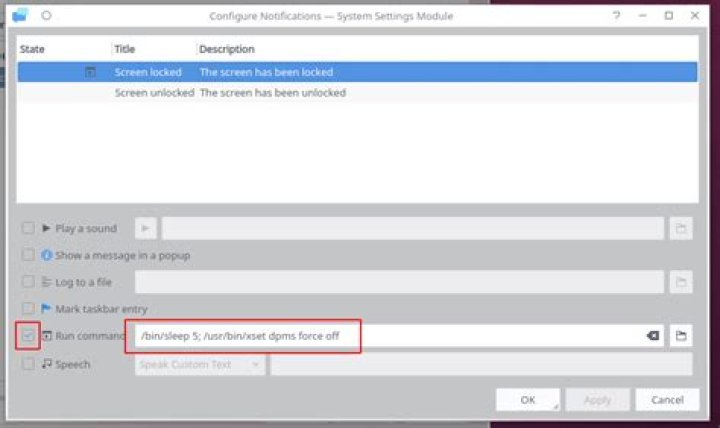
5Confirmed: running the command: /bin/sleep 1 ; /usr/bin/xset dpms force off within the screen locked notification works for Plasmashell 5.10.
Go to: System Settings > Notifications > Event source "Screen Saver":
With KDE Plasma 5.18, it is a little bit different from this comment.
Search for Notification via Super and follow the screenshots below:
I used /bin/sleep 5; /usr/bin/xset dpms force off instead of 1, but that's up to you.
As of KDE 5, most of the solutions here no longer work.
Here's what I found that works though (as of 2016-09-28), create a text document and in it copy and paste the following code:
#!/bin/sh
sleep 0.5
loginctl lock-session
xset dpms force off
and then save it as "KDE5lockscreenanddpms.sh" The name doesn't matter, just make sure you have the .sh at the end of it. Then navigate to where you saved with your file manager, right click on it and open up properties>permissions> and make it executable.
Now you can click on it and it will run the script which will lock your screen and then after .5 seconds will turn your monitor(s) off.
Here are some posts with the info about these commands.
KDE.org- loginctl lock-session
Linux-apps.com - sleep 0.5 xset dpms force off
One possible solution is switch to xscreensaver. The man page actually come with instruction.
Following is outline
Disable KDE screen saver
- K menu -> Computer -> System Settings -> Display and Monitor -> Screen Saver
- Uncheck Start automatically after
Install xscreensaver
sudo apt-get install xscreensaver
Create
~/.kde/Autostart/xscreensaver.desktopAdd following lines into it
[Desktop Entry]
Exec=xscreensaver
Name=XScreenSaver
Type=Application
X-KDE-StartupNotify=false
Replace KDE lock screen
cd /usr/lib/kde4/libexec
sudo mv kscreenlocker kscreenlocker.original
sudo vim kscreenlocker
Add following lines into
kscreenlocker#!/bin/sh xscreensaver-command -lockUse
xscreensaver-demoto configure dpms (no sudo)Configure DPMS in
Advancetab. The minimum standby is 1min.However, you can try make it less by editing
~/.xscreensaverafter first time configuration. Look fordpmsStandby:in the file.Not sure if it work if
dpmsStandby:is changed to 0:00:00. I am testing with a VM and the black screen look the same.
You need a different solution, if you use a Wayland KDE session (running kwin_wayland).
As we - in the aformentioned scenario - are no longer using X.Org, X11 API and so xset - surprise - no longer works nowdays (as users are using less and less kwin_x11 based sessions).
But there should be some dbus method to turn off the screen(s), right? Right!
This solution is based on the accepted anwser and its KDE5 actualized copy.
So skim them - if you haven't done already - first. But the command needed is different now, and I have been inpired by a good topic on KDE screen turn-off shortcut.
Combining multiple info sources, bit dbus viewer trying and instrospect calls and tada - you should paste this command to the screen lock noticification:/bin/sleep 1 && /bin/dbus-send --session --dest=org.kde.kglobalaccel /component/org_kde_powerdevil org.kde.kglobalaccel.Component.invokeShortcut string:'Turn Off Screen'
Some reasonin behind the command:
- The command starts with a 1 sec sleep delay because: the key unpress event of screen lock shortcut can immediately turn the screen back on
- The
qdbuscommand is deprecated, and not installed on many distros now, but dbus-send is pretty basic and ubiquitous
Also, this should be moved to Super User, or Unix & Linux. Ubuntu is not the most relevant distro for KDE. but this applies to all KDE distros.
Kde5 and XScreenSaver(5.34) :
click on tab complexAdvance , then activate energy management by ticking it and set the minutes in power-off to your like (or use even quick power-off).
System Settings / Personal / Light Locker (in the new Whisker menu)
1On Kubuntu 14.04, simply go System Setting - Power Mgmt. - turn off Dim Screen and Screen Energy Saving under Energy Saving tab.
Cheers!
1