How to split the column and merge them into one row(or one column) using power query?
There is one column with several rows which I want to convert into one column after split. Each cell of the column contains several values which can be split based on commas as separator. But I feel a bit confused about what to do next after separation. Could anyone help me with this? Please take a look at the picture shown below.
This is the table which I want to convert
The end result of the table
1 Answer
- Select the range of you data, click Data > From Table/Range. If your range/table has headers, tick "My table has headers"
- When the Power Query Editor opens, on the Home or Transform tab, click Split Column > By Delimiter.
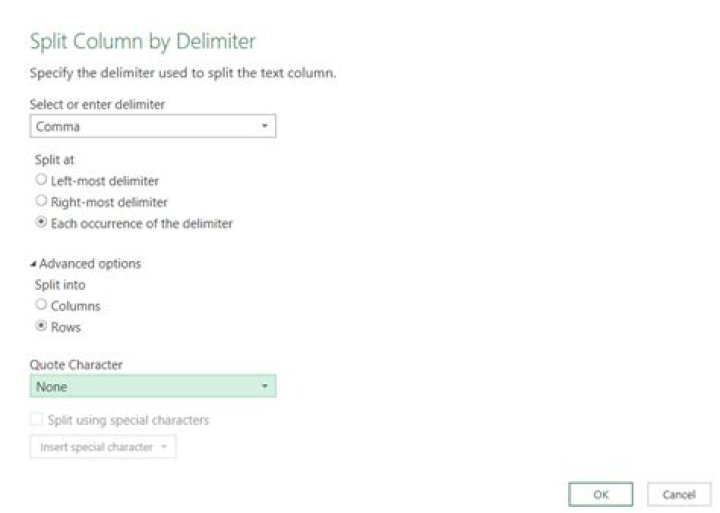
- Select the delimiter in you case Comma.
- Set Split at to "Each occurrence of the delimiter".
- Click Advanced options, set Split into to Rows.
- Set Quote Character to None. See image below for reference to set Split Column by delimiter options.
- Click OK. Your rows will be split based on the selected delimiter.
- On the Transform tab, click Format > Trim to remove leading or trailing spaces as suggested by @RonRosenfeld on the comments.
- Click Close & Load. The image below shows the final result.


