How to share a screen in MS Teams or Zoom from Ubuntu 22.04
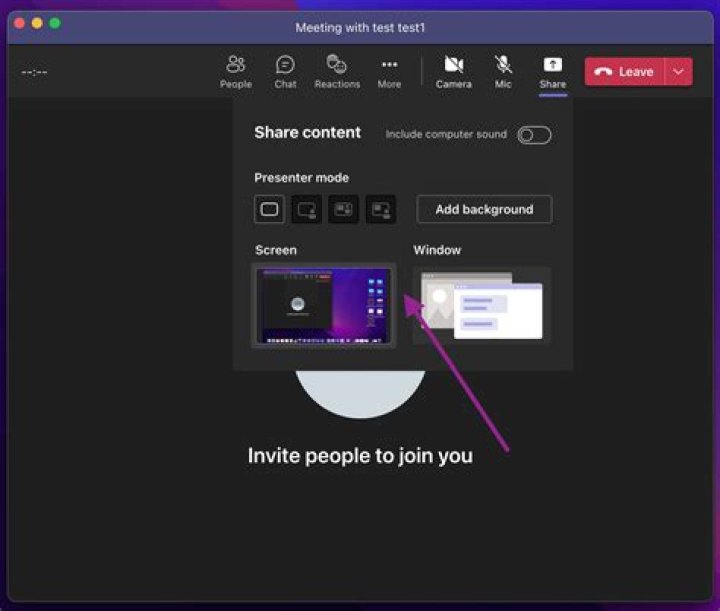
In both
- MS Teams (You have Microsoft Teams Version 1.5.00.10453 (64-bit).) and
- Zoom (Version: 5.10.4 (2845))
on Ubuntu 22.04 LTS (42.0, Wayland) no screen shows up after clicking on "share screen".
Hardware: Lenovo ThinkPad X1 Yoga 3rd, Mesa Intel® UHD Graphics 620 (KBL GT2), Intel® Core™ i7-8550U CPU @ 1.80GHz × 8 connected with two monitors via Thinkpad Thunderbolt 3 dock.
Is there a configuration issue, or is screen sharing not supported?
4 Answers
These applications have not been updated for Wayland, which is why screensharing does not anymore work for the time being.
You may want to switch to Xorg to regain this functionality. To do so, log out, then, before entering your password, click the cog on the bottom right and log in on "Ubuntu on Xorg".
Other workarounds include relaxing security settings in Gnome Shell or using a browser based version of Zoom in a browser that supports Wayland.
3screen sharing is disabled as ubuntu starting from version 21.4 started depending on wayland instead of xorg. to fix this issue easily:
- open your terminal and write
sudoedit /etc/gdm3/custom.conf - uncomment the value
waylandEnabled=false-- just remove the # - press ctrl+X
- restart your machine
this will trigger ubuntu to fall back to xorg and then you can share screen again.
When rebooting, you need to manually select the "Ubuntu with xorg" in login screen (bottom right of the screen there should be a gear, click on it to select the x11 version)
Going back to Xorg which is regularly proposed as a solution to the above problem is pretty much like telling someone to ditch their car and go back to horse and carriage if they have a flat tire.
One of the reasons screen-sharing works under X and not under Wayland is that X has no concept of security. Every X application has full access to the frame buffer and thus sees everything. Disabling security -- however crude a solution that may be -- does the trick for now and you are not worse off than with Xorg and at least you can disable it for the duration of your screen sharing session only.
The solutions is to edit this file
sudo vim /etc/gdm3/custom.conf
1[daemon]
WaylandEnable=false


