how to run and debug bash script from VSCode
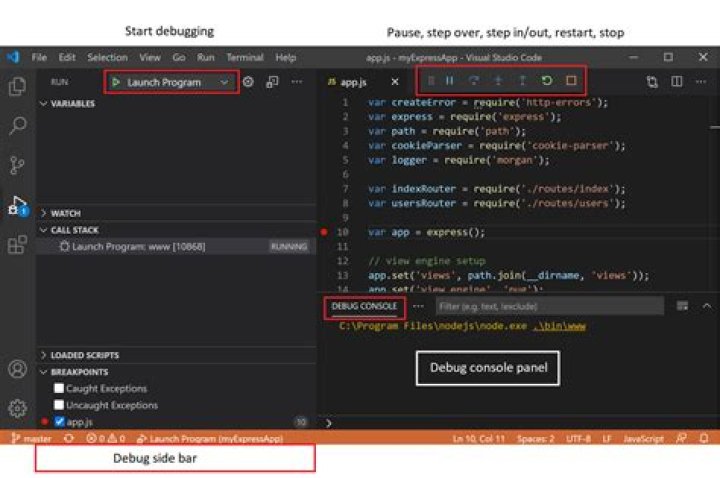
How do I run and debug bash script from VSCode. I have this setup in my Ubuntu machine. Is there any way to configure so that when I say run it execute the bash script?
I did install the bash debug extension but I get this error
1rogalmic.bash-debug-0.3.7/bashdb_dir/command/source.sh: line 41: /dev/stdin: No such device or address
2 Answers
From the run option in your integrated terminal, change the option to be the shell type you want to run your code in.
You can create multiple terminals open to different locations and easily navigate between them. Terminal instances can be added by clicking the plus icon on the top-right of the TERMINAL panel or by triggering the Ctrl+Shift+` command. This action creates another entry in the drop-down list that can be used to switch between them.
More information on the integrated terminals here.
3You are getting that error because you need to attach a terminal to the script's input/output.
The bash debug extension works for me.
Try a debug launch configuration like this:
"configurations": [ { "type": "bashdb", "request": "launch", "name": "Bash simple", "cwd": "${workspaceFolder}", "program": "${file}", "terminalKind": "integrated" <---- This attaches the integrated terminal. }
]
Then open the script file in Code and press F5.


