How to remove "Sync Issues", "Search Folders" and "Groups" tabs in Microsoft Outlook 365 desktop navigation pane?
I think the title explains the problem pretty well. In Outlook 365 desktop navigation pane you get some folders(or tabs) created for you and I want to get rid of them. Please take a look at following screenshot. I want to remove everything in the red squares.
I have removed the majority of the unused folders using OutlookSpy. However, it seems outlook spy doesn't work for these folders. Any help would be appreciated, I have several email accounts and I want to be able to see all the folders without scrolling. The amount of space these folders waste is just ridiculous.
1 Answer
I found a similar thread which talks about how to hide Sync Issues Folder.
It seemed that you have done a Ctrl +6 activates the “Folder list” option which in turn displays all hidden folder in the Navigation folder.
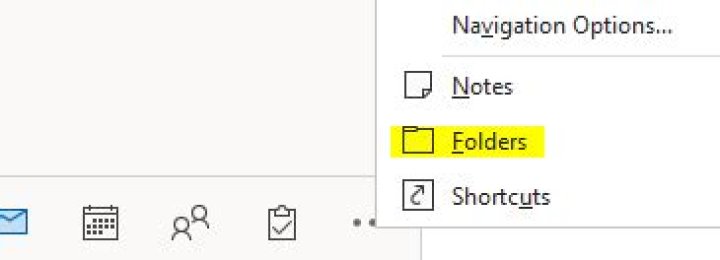
In addition, which also may be that you click the Folder in Navigation tab as the following screenshot:
You can press Ctrl+1 to hide the sync issues or use MFCMAPI to delete it. Here is an article on how to use MFCMAPI to delete folders you can refer to.
However, Search folders and Groups are the features of Outlook, they don't seem to be able to be removed.
2

