How to remove "Creative Cloud Files" from File Explorer address bar
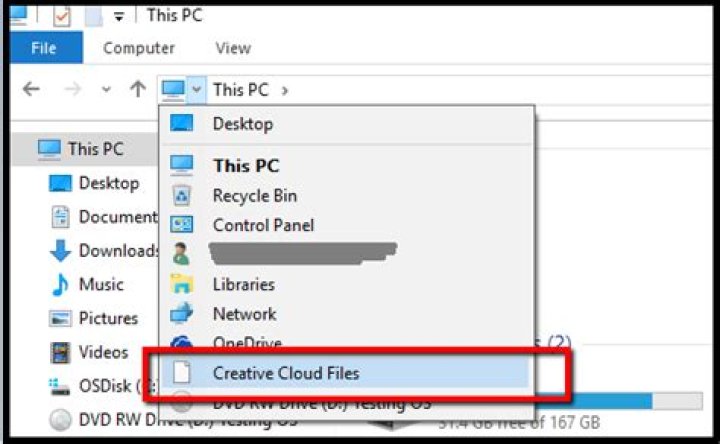
Does any one know how to remove this Creative Cloud Files option after uninstalling Creative Cloud app from Windows 10
Additional info :
- This folder does not exist as I deleted
C:\username\Creative Cloud Filesafter uninstallation - This is not from File Explorer address bar history
- I've already tried clearing address bar history
- I've reinstalled and used Official Uninstallers [ 1 ] & [ 2 ]
- Suggestions about removing Creative Cloud Files from File Explorer Side Bar does not resolve this
I can't tell if this problem exist in other user account but i don't want to use that either.
Any hints or suggestions ?
Update
After much digging around & hints from @DrMoishe Pippik, I have reached another dead end.
If I go to %USERPROFILE%\Links there are two links Desktop & Downloads
Going inside Desktop, it shows me Creative Cloud Files but I cannot delete it as Delete option is not there and Unlocker could not delete/rename it
Hence the problem now becomes :
- I cannot cannot access this file from command prompt as its link inside link. Weirdly I cannot find this in
dir /al /s c:\ > c:either - I cannot change its permission as it shows the error below. Safe mode doesn't allow that either
Update
Registry key HKEY_LOCAL_MACHINE\SOFTWARE\Microsoft\Windows\CurrentVersion\Explorer\FolderDescriptions as requested by @harrymc can be found below
Screenshot of HKEY_LOCAL_MACHINE\SOFTWARE\Microsoft\Windows\CurrentVersion\Explorer\Desktop\NameSpace which didn't point to anything important either
6 Answers
I have tested the following, removing the registry key:
HKEY_CURRENT_USER\SOFTWARE\Microsoft\Windows\CurrentVersion\Explorer\Desktop\NameSpace\{0E270DAA-1BE6-48F2-AC49-8B7440BCAABB}
Resolves the issue.
Before:
After:
Didn't even require a restart of Explorer. As I can't see any information from your HKCU path I can't confirm if the GUID will be the same for you, I only had two other things in there (Dropbox and OneDrive), where one had a default key of Creative Cloud Files. (I can also confirm removing the Dropbox and OneDrive ones from here removes from this dropdown also.)
It is a Shell Namespace extension (like Recycle Bin). The uninstaller should have unregistered it. But it's still there.
To remove it, run Registry Editor:
- Press Ctrl+R.
- Type
regeditand click OK. Consent to elevation request. - Expand the tree to:
HKEY_LOCAL_MACHINE\SOFTWARE\Microsoft\Windows\CurrentVersion\Explorer\Desktop\NameSpace. - The tricky part is to find the right extension.
Warning: Before editing or removing a key, I recommend exporting¹ it to file. If something goes wrong, you will be able to import it into the registry and restore to the previous state.
To find the right extension key, click each key or use ↓ and look at the default value in the right pane. Probably you'll find one which contains Creative Cloud Files. Once you find it, remove it: right-click the key and then click Delete.
There's a similar per-user list of Namespace extensions in: HKEY_CURRENT_USER\Software\Microsoft\Windows\CurrentVersion\Explorer\Desktop\NameSpace.
¹ To export a key, right-click it and then click Export. Navigate to a folder, enter file name and click OK to save it.
7Adobe products are well-known for their voluminous updates of the registry, which are largely left-over after the uninstall. Below are some registry hacks which may relate to your problem.
A hack that can be found in this thread is to go to the registry keyHKEY_CLASSES_ROOT\CLSID\{0E270DAA-1BE6-48F2-AC49-A38C4014C938},
right-click Permissions and set all of the group and username entries to Deny :
Another thread claims the registry key is rather{0E270DAA-1BE6-48F2-AC49-AC2EEB83CE33}.
Another entry in the same thread counsels in the registry branchHKEY_CLASSES_ROOT\CLSID\{0E270DAA-1BE6-48F2-AC49-A38C4014C938}to set the value of System.IsPinnedToNameSpaceTreefrom 1 to 0. You could search the registry for this item, in case your
branch is different.
There is another hack described in the articleHow to Remove Creative Cloud Files from the File Explorer Sidebar in Windows. You could try it, although it relates rather to the Explorer Sidebar.
13Look in Autoruns (free tool from SysInternals, now part of MS). On the Explorer tab, search for "Adobe" or "cloud". From that tab, add-ons can be disabled, and if that fixes the issue, completely removed.
5According to the support article from Adobe on how to Remove Creative Cloud Files folder shortcut from the Navigation panel, you can run the following .reg command:
Windows Registry Editor Version 5.00
[HKEY_CURRENT_USER\Software\Policies\Adobe\CreativeCloud]
"unPinCCF"=dword:00000001
Save as a .reg file and run it
here is the registry change that worked for me. you are changing the Dword value from 1 to 0.
Windows Registry Editor Version 5.00
Computer\HKEY_CLASSES_ROOT\CLSID{0E270DAA-1BE6-48F2-AC49-06059ADE597F} "System.IsPinnedToNameSpaceTree"=dword:00000000


