How to prevent Windows file explorer from automatically linking a .html (or .htm) file to a similarly named folder? (Connected Files in File Explorer)
This old trick for Windows XP allows you to unlink files and folders in the Windows OS.
Windows Explorer > Tools > Folder Options > View > Managing pairs of Web pages and folders > Show and manage the pair as a single fileThis linking of certain file types to their supporting folders is described as a 'feature' of Windows. One that I'd rather live without. How do I disable it in the manner above for Windows 7, and eventually for Windows 10?
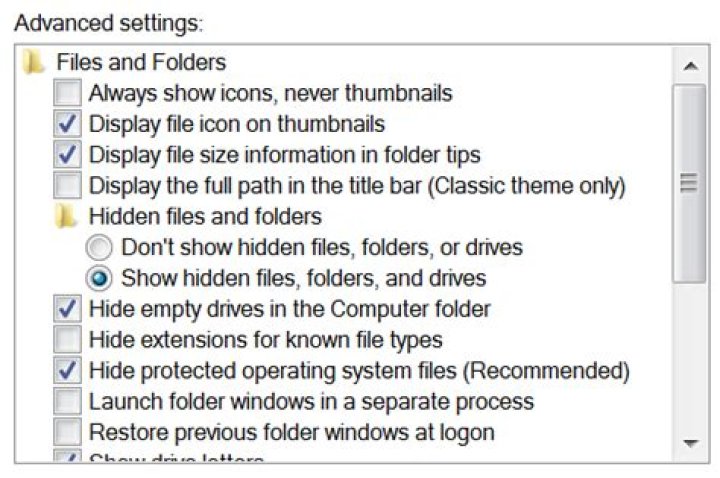
It seems to be missing from the options in Windows 7, see my screen captures below:
For future readers... this post may help you if you get the following error:
If you rename this file, it will no longer belong to the folder 'item '.
To rename it safely, open the file, save it with a new name, and then delete the folder 'item '.
Do you want to rename this file anyway?
And a workaround is to simply rename one of the files to break the 'link' then rename it back to it's original filename.
21 Answer
| ℹ️ Author remarks directed to the original poster of the question (optional read) |
|---|
This may have only been added to the linked Microsoft documentation article after you first stumbled across it, but the article mentions the presence of the Connected Files feature in Windows versions as early as Windows 2000. Of course I would never accuse you of this, but could it be possible you simply missed the part where it explains how to disable the feature last time you read the article? |
At the bottom of the Connected Files paragraph in the documentation, just below the table of permissible name suffixes and the purple information block directly underneath that; it mentions a simple registry tweak to permanently disable the Connected Files feature and prevent the📁 File Explorer from automatically mirroring any changes you make between a linked HTML file and folder.
How to disable the Connected Files (or file connection) feature in Windows
Whether file connection is enabled or disabled is controlled by a
DWORD (32-bit)value (originally calledREG_DWORDin the article),NoFileFolderConnection, of the following registry key.HKEY_CURRENT_USER Software Microsoft Windows CurrentVersion ExplorerThis value normally is not defined, and file connection is enabled. If necessary, you can disable file connection by adding this value to the key and setting it to
1. To enable file connection again, setNoFileFolderConnectionto0.
⚠️ Note File connection should normally be enabled because other applications might depend on it. Disable file connection only if absolutely necessary. (literally copy and pasted from the Microsoft documentation page for the
Connected Filesfeature)
How to edit the registry and disable Connected Files in easy, comprehensive steps
| ℹ️ Encouragement for the reader (optional read) |
|---|
| I know this looks like an insane wall of text, but I promise that it'll only take a few minutes at most to disable the feature! It is just that I had to take the time to literally describe every single step in the entire process, and that in the highest detail possible. It does have the unexpected benefit of allowing even the most inexperienced PC users to easily follow these steps. |
To easily apply this change and disable the
Connected Filesfeature you can open the Windows register editor (also known asregedit.exe) by simultaneously pressing the[WIN]+[R]keys on your keyboard, then typingregeditinto the textbox inside the Run window that popped up followed by an[ENTER].A new window titled
Registry Editorwill now open. If you're using Windows 7 (or an older version), then I'm afraid you'll have to manually navigate to the appropriate registry hive. If you're on Windows 10 (or 11) however, you're in luck because you'll find a slender, elongated white box near the uppermost part of the window, just below the menu strip. This address textbox should be just about the same width as theRegistry Editorwindow itself, and as you move through the registry hives it will automatically update as you browse, and display the location of the registry key you're currently inspecting. In fact, this textbox functions practically identical to the navigation textbox visible at the top of every📁 File Explorerwindow. Similarly, this textbox can also be used to quickly navigate to a specific registry key, provided you know the absolute path of course.(Hint: If you've never used the
Registry Editorbefore, then this textbox will simply contain the textComputerwhen the window first opens. When copying and pasting registry paths you should know that there is no need to ever manually remove the 'Computer' part at the beginning, because the path input parsing algorithm is sufficiently smart to ignore it when encountered.)Copy and paste the text
Computer\HKEY_CURRENT_USER\Software\Microsoft\Windows\CurrentVersion\Explorerinto the textbox and press[ENTER]to select the appropriate registry key. After pressing enter you will see a list of properties in the right half of the window.Right click in the white part of the right half of the window and click on
New>DWORD (32-bit) Value. A new key will now appear in the right half of the window with the name field editable, type NoFileFolderConnection into the text field and press[ENTER]when done. (Hint: If you lose the editing field you can right click on the new key, clickDeleteand then try adding the key again) There should now be a new registry key visible on the bottom of the list on the right side of the window with a blue and white icon andNoFileFolderConnectionas the name.Double click on our newly created key or right click on it and then click on
Modify...in the menu popup to open the key modification window. A small window with only a single editable field will now open. Please be sure to read the entire next step including the two accompanying boxes of information before continuing with this guide.Check before continuing with step 7: the text field named
Value data:should be set to a value of0and the read-only text fieldValue name:should readNoFileFolderConnection.⚠️ Important STOP and check if the fields match BEFORE attempting to change their value! If either one of these fields doesn't match the expected value you must first double and then triple check whether you're indeed modifying the correct registry key! ℹ️ Additional information (optional read) If you were to accidentally modify the value of another registry key it may have seriously detrimental effects on your Windows installation. The severity of which will depend on exactly which key you modified, but if you are unlucky, and you happen to change a vital value somewhere, it is very much possible (albeit unlikely) to accidentally render your Windows installation unbootable or at the very least damage it to such an extent that you'll have no choice but to perform a complete re-installation of Windows to have any hope at all of restoring your PC to a working state. Once you've checked that you're actually modifying the correct registry key replace the
0with a1and then press[ENTER]on your keyboard. In case you're wondering, you can safely ignore any other options or settings present in this Modify/Edit window as they are not applicable to this specific registry key.
And done! Restart your system (or manually restart just the File Explorer if you know how to do that) and the Connected Files feature should henceforth be disabled!
| ℹ️ Author remarks addendum (optional read) |
|---|
| For some weird reason I am not allowed to post screenshots (or any other type of image at all, really), so instead of spending 5 minutes on making a few screenshots and adding those to my answer I had to spend over an hour describing every single step of the process in excruciating detail. I hope this guide will be helpful to someone so at the very least the time spent writing this guide won't have been wasted. |


