How to lock position of tables in Microsoft Word
I'm currently trying to lock the position of a table and header so that if more text is added on the page beforehand, the header and table stay at the top of the page and do not get bumped down by the text above it. I was thinking page breaks might be helpful but I just can't seem to figure out how to lock both the title and the table together. Is there any way to do this?
2 Answers
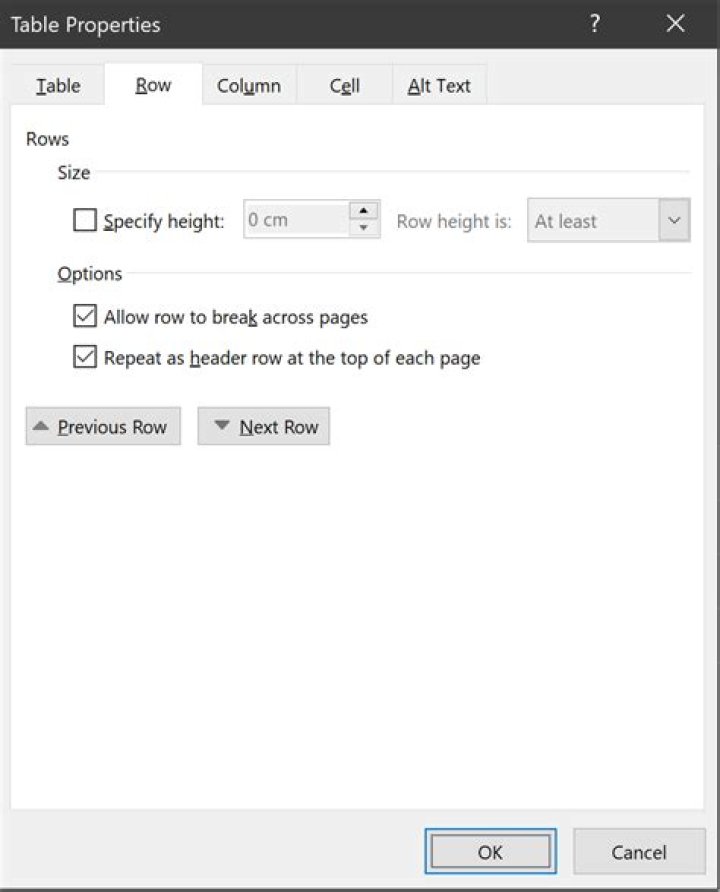
The first thing to check & do is to set the Repeat Header Rows option that is on the contextual Layout tab when your selection point is in a table.
The second thing to do if you want the table to always start at the top of a page and if a row must roll over to the next page is to select the entire table. Then from the contextual Layout tab for tables, select Properties, and from the Table Properties dialog clear the checkbox for "Allow row to break across pages."
If I understand you correctly, you want to lock the position of a table to the top of a page and not move when text is inserted before the table.
This is achieved in the table properties (select table -> menu Layout appears -> properties).
Change text wrapping to Around and then the Position button enables. Here you choose how to position your table on the page.


