How to get tab count in Chrome desktop without app/extension?
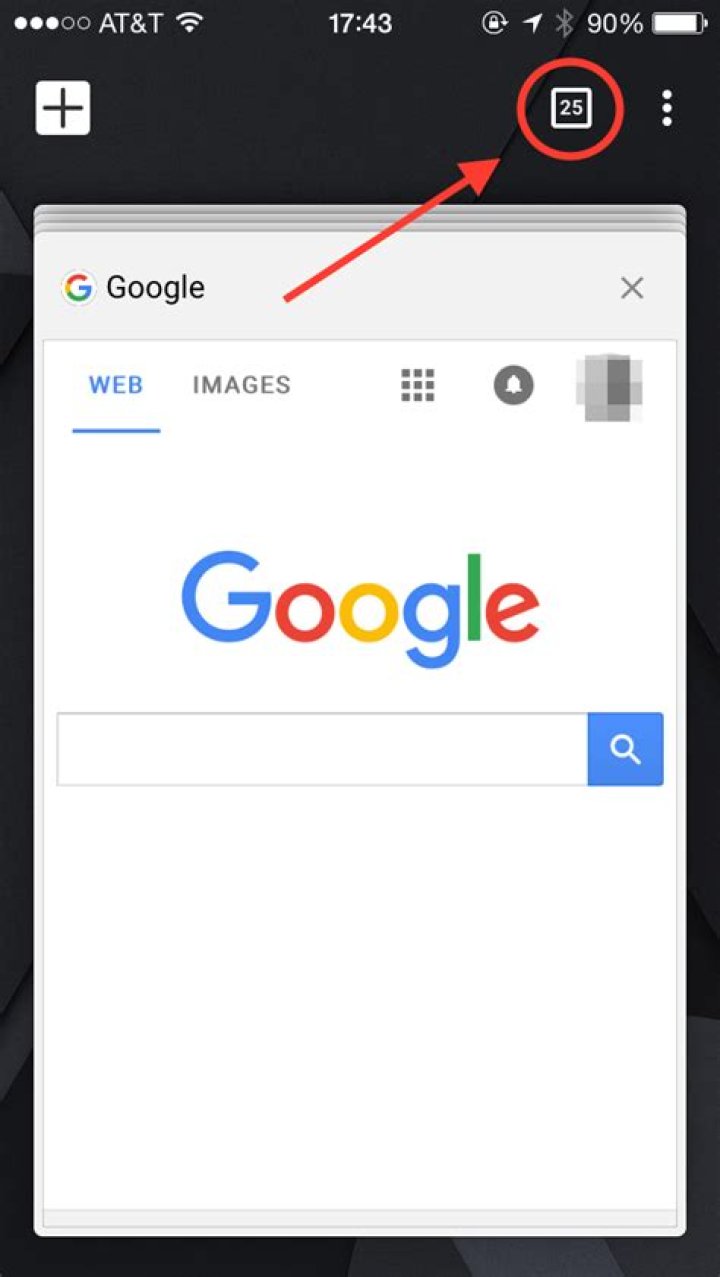
How can I view the number of open tabs in Chrome (desktop) without installing an app or extension?
On Chrome for iOS it's easy, just look in the top right for the number:
I have seen this question posted before, but asking for app/extension recommendations. I would like a solution which does not require installation of third-party code.
15 Answers
(Note: This answer was provided using Chrome version 45)
By navigating to chrome://inspect/#pages, one can view a list of all open pages (tabs):
Each entry includes a link below it with the text "inspect". By performing a Find operation on the page (ctrl/cmd + F) for the string inspect, Chrome will produce the Find input box containing the total number of instances of the searched string, and, in this case, the total number of open pages/tabs in your browser!
While jsejcksn's answer led me in the right direction, it wasn't enough, since (on Chrome version 67) this page also contains embedded windows in pages, so the total count of inspect search results can be greater than the actual tab count.
The solution I found is the following:
- Go to
chrome://inspect/#pages Run the following line of code in the javascript console:
document.getElementById("pages-list").childElementCountThe tabs count will be printed to the console.
Haven't seen this solution mentioned yet, but it is by far the easiest (one-click) solution that works for me:
If you have chrome sync enabled, simply navigate to
It should give you the count of open tabs, among other counts (e.g. bookmarks, extensions, etc)
1Just close the window and open Chrome again to load the tabs into history (if you have history enabled). You can then click on the three little dots in the top right, go to History and there will be the full number of tabs (including inactive tabs after a restart, so no need to reload the tabs to get an accurate number). Of course, you also get the option to open the window with all the tabs again if you have History enabled properly.
Works in Google Chrome version 98.0.4758.82 (official build) (64-bit)
You could utilise an existing extension's background script (Manifest V2) or service worker (MV3) and run a chrome.tabs.query() with a catch-all condition, for example
await chrome.tabs.query({ windowType: 'normal' })In order to access an extension's background script or service worker, you'll need to
- Navigate to chrome://extensions in a new tab
- Turn on "Developer mode" from top-right
- Find an installed extension and click on the "background script" or "service worker" link at the bottom of the extension's description.
A new developer tools window opens up where you can run the tabs query right in the Console.
Note: the extension will have to have requested the tabs permission in order for this to work.