How to force boot time chkdsk to show progress in Windows 10?
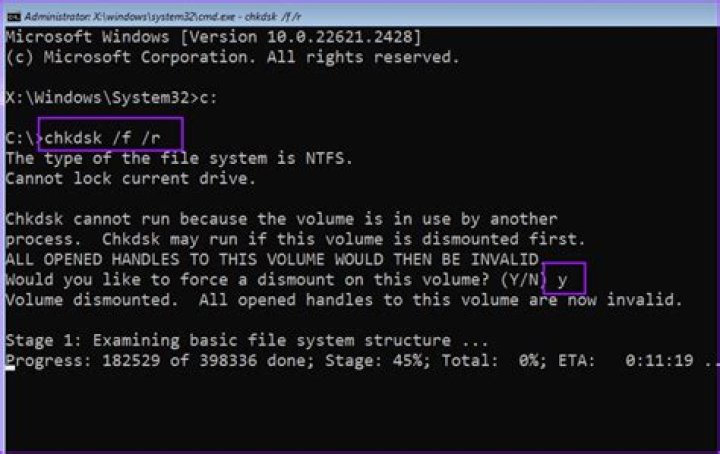
How do I force a boot-time chkdsk to show progress, like they did in Windows 7? I want to make sure it is running (and to stare at the data).
32 Answers
Extending @Barakando's answer: to create a full disk check, you need to use the /f flag to CHKDSK, as it is documented here.
As such a check requires the disk to be detached (un-mounted), because it manipulates the low-level filesystem data structures on way, which is incompatible with its usage. It tries to detach the disk. If it can't be done, then the full disk check will happen on the next reboot.
This was yet more verbose on Win7, but in Win10 the verbosity was simply disabled by the Microsoft, because they love us all and don't want to make our life too complex.
Probably there is no way to make it more verbose. At least not a way what can be find by google. Possibly booting into a rescue system or live system, and then making the scan from the command line would work.
However, the scan results are logged and you can get the results with the command
get-winevent -FilterHashTable @{logname="Application";}| ?{$_.providername –match "wininit"} | fl timecreated, messageOr the text log with the command
get-winevent -FilterHashTable @{logname="Application";}| ?{$_.providername –match "wininit"} | fl timecreated, message | out-file Desktop\CHKDSKResults.txtAs written here.
Open command-prompt as Administrator (right-click on the start button to do that). In the command prompt, type in the following:
CHKDSK /f /r /x C:It will prompt you to restart - do that. You will see CHKDSK running, with progress, on boot.
10

