How to find the difference between a script file and a binary file?
$ ls -l /usr/bin
total 200732
-rwxr-xr-x 1 root root 156344 Oct 4 2013 adb
-rwxr-xr-x 1 root root 6123 Oct 8 2013 add-apt-repository list goes long ---------
In the above adb is a binary file and add-apt-repository is a script file.I get this information by viewing the files through nautilus.But through command line, i didn't find any differences.I am not able to predict whether a file is binary file or a script file.
So how do I differentiate between script and binary files through the command-line?
3 Answers
Just use file:
$ file /usr/bin/add-apt-repository
/usr/bin/add-apt-repository: Python script, ASCII text executable
$ file /usr/bin/ab
/usr/bin/ab: ELF 64-bit LSB shared object, x86-64, version 1 (SYSV), dynamically linked (uses shared libs), for GNU/Linux 2.6.32, BuildID[sha1]=569314a9c4458e72e4ac66cb043e9a1fdf0b55b7, stripped
As explained in man file:
NAME file — determine file type
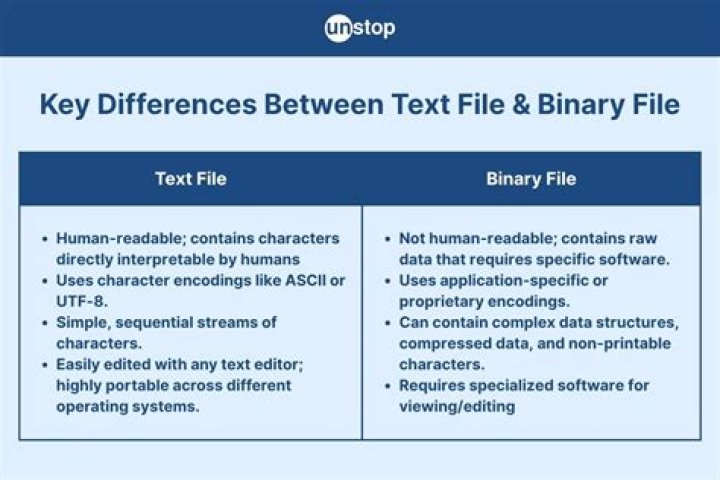
DESCRIPTION This manual page documents version 5.14 of the file command. file tests each argument in an attempt to classify it. There are three sets of tests, performed in this order: filesystem tests, magic tests, and language tests. The first test that succeeds causes the file type to be printed. The type printed will usually contain one of the words text (the file contains only printing characters and a few common control characters and is probably safe to read on an ASCII terminal), executable (the file con‐ tains the result of compiling a program in a form understandable to some UNIX kernel or another), or data meaning anything else (data is usually “binary” or non-printable). Exceptions are well-known file formats (core files, tar archives) that are known to contain binary data. When adding local definitions to /etc/magic, make sure to preserve these keywords. Users depend on knowing that all the readable files in a directory have the word “text” printed. Don't do as Berkeley did and change “shell commands text” to “shell script”.
You can also use a trick to run this directly on the name of the executable in your $PATH:
$ file $(type -p add-apt-repository | awk '{print $NF}')
/usr/local/bin/add-apt-repository: Python script, ASCII text executable
$ file $(type -p ab | awk '{print $NF}')
/usr/bin/ab: ELF 64-bit LSB shared object, x86-64, version 1 (SYSV), dynamically linked (uses shared libs), for GNU/Linux 2.6.32, BuildID[sha1]=569314a9c4458e72e4ac66cb043e9a1fdf0b55b7, stripped
To find the file type of all executables that can be found in the directories of your $PATH, you can do this:
find $(printf "$PATH" | sed 's/:/ /g') -type f | xargs fileAnd to run file on all files in a particular directory (/usr/bin, for example), just do
file /usr/bin/*Actually, the differences between those are not that great.
On a typical Unix or Linux system, there are fewer than five real executables. On Ubuntu, these are /lib/ld-linux.so.2 and /sbin/ldconfig.
Everything else that is marked executable is run through an interpreter, for which two formats are supported:
- Files starting with
#!will have the interpreter name between this and the first newline character (that's right, there is no requirement that "scripts" be text files). - ELF files have a
PT_INTERPsegment that gives the path to the interpreter (usually/lib/ld-linux.so.2).
When such a file is executed, the kernel finds the name of the interpreter, and calls it instead. This can happen recursively, for example when you run a shell script:
- The kernel opens the script, finds the
#! /bin/shat the beginning. - The kernel opens
/bin/sh, finds thePT_INTERPsegment pointing to/lib/ld-linux.so.2. - The kernel opens
/lib/ld-linux.so.2, finds that it doesn't have aPT_INTERPsegment, loads its text segment and starts it, passing the open handle to/bin/shand the command line for your script invocation. ld-linux.so.2loads the code segments from/bin/sh, resolves shared library references and starts its main function/bin/shthen reopens the script file, and starts interpreting it line by line.
From the point of view of the kernel, the only difference is that for the ELF file, the open file descriptor is passed rather than the name of the file; this is mostly an optimization. Whether the interpreter then decides to jump to a code segment loaded from the file, or interpret it line by line is only decided by the interpreter, and mostly based on convention.
2File command is great , but for more professional analyzing tool , i would like you to try TrID package which is a File Identifier tool.
TrID is an utility designed to identify file types from their binary signatures , and its easy to use .
For more information and the package just visit : Site


