How to extract iso images to the hard disk?
I have some ISO images and would like to extract them to a hard-disk. They are not OS images, I think they are music or audio books, I Don't know until they are extracted. Thanks
6 Answers
If you are comfortable with the command line you can make use of the loop-back device.
All you'll need is an empty folder, so either use an existing one or create an new one:
mkdir test_folderthen run:
sudo mount -o loop,ro -t iso9660 filename.iso test_folderIf you are not sure about the filesystem type of the .iso, your system might be able to auto-detect it. This works on Ubuntu 18.04 with the Ubuntu installation ISOs for example:
sudo mount filename.iso test_folderNow you can just cd test_folder or just ls test_folder to see the contents. No need to extract anything.
To "remove" the .iso, just type:
umount /path/to/test_foldersudo apt-get install p7zip-full
7z x disk.isoSee also:
See also:
- create ISO: How to create an ISO image from a ZIP file? It seems 7z can only unpack but not create ISO files?
- edit ISO: How to edit ISO Images (Including Bootable ISOs)
Tested in Ubuntu 18.04 with the Ubuntu 18.04 ISO itself: ubuntu-18.04.1-desktop-amd64.iso.
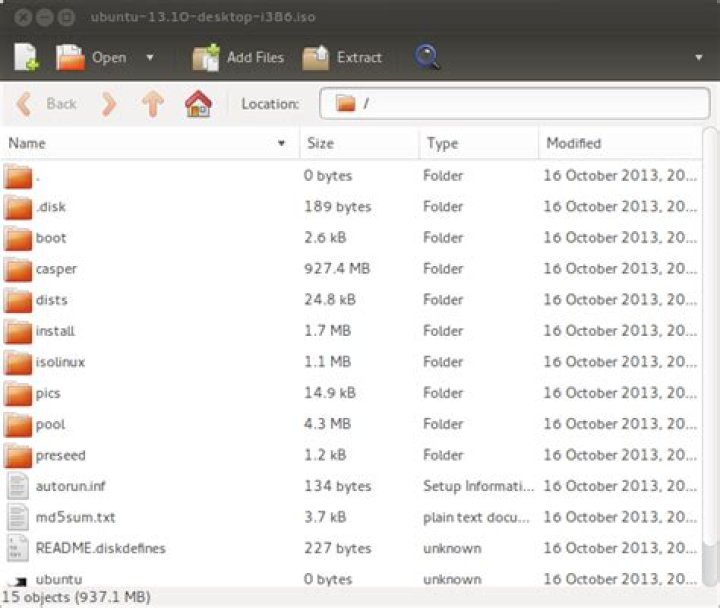
In Ubuntu, you can open them in Archive Manger:
You can add files .isos, and extract them.
To open it, right-click on the file and select Open With →, and Archive Manager. If the option is available, you can also mount the .iso image as though it was a disc in the computer.
If it is not installed (it should be, I think it is part of the desktop), use this:
sudo apt-get install file-rollerYou may also get an option to right-click and Extract Here to extract the contents of the iso files, and other compressed files.
17z has a bug that truncates file names longer than 64 characters so I used CMake instead:
cmake -E tar xf filename.iso(but any other libarchive-based tool should work, including bsdtar)
1Easyest way to extract iso file in linux is
Open terminal and type
sudo su root
enter your password then type
mount -t auto -o loop "Path/location to iso" /where u want to mount
Wikipedia:
AcetoneISO is often referred to as the Daemon Tools equivalent for GNU/Linux. This mighty software can mount ISO, MDF, BIN and NRG files and burn ISO images to optical discs. It supports file conversion from BIN, MDF, NRG, DAA, IMG, DMG, CDI and other formats to ISO, as well as extracting content from them. You can use it to create ISO images from files and folders on your computer, as well as to encrypt and decrypt existing images, it has also the ability to split big image files, or to merge two or more smaller ones, this software is under the GPL License.
I didn't test it myself.


