How to do hex calculations across multiple cells in excel?
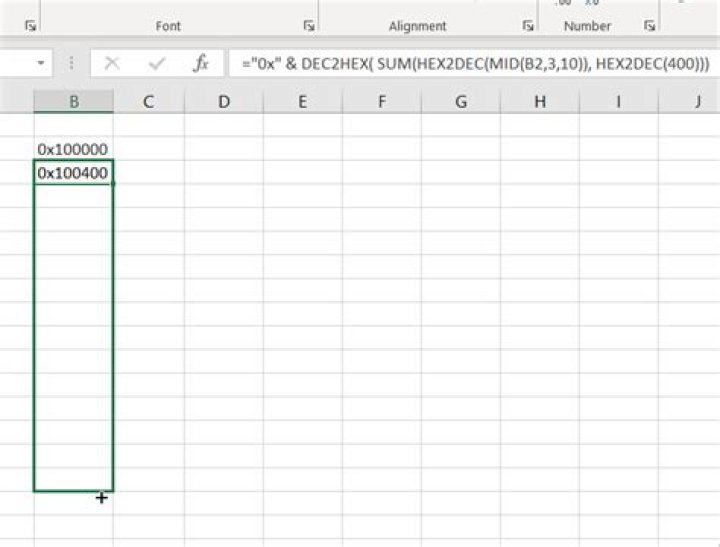
I'm working on a spread sheet and I have a table or grid of [256]x[256] that looks like this:
 B c D E F G IY
3 Address: [byte][byte][byte][byte] ... [256]
4 0x100000
5 0x100400
6 0x100800
7 0x100C00
.
.
.
259
This table has the following custom format "0x"@.
Now I'm trying to do calculations... I'm trying to calculate the address values going vertically down in column B.
Instead of manually typing in each value into B5, B6 ... BN I'm trying to increment it by 0x400 each time we go down one row...
One would think for cell B5 they would use something like =SUM(HEX2DEC(B4),1024) since B4 is displayed as hex convert 0x100000 to decimal then add 1024 since 1024 in decimal is 0x400 in hex.
However, Excel is printing the text 0x=Sum(HEX2DEC(B4),1024)) in the cell.
I'm not sure what I'm doing wrong here. I'm expecting to get 0x100400 as my printed result.
I've tried various combinations of formulas and nothing seems to work, however, if I do something simple like set cell D4 equal to B4 using the formula =B4 in cell D4, Excell will display 0x100000 in cell D4.
When I try to use any other formula, I'm not getting values in hex...
Even when I try:
`=Sum(B4,1024)` in `B5` it still displays
`0x=Sum(B4,1024)` in `B5` and when I try:
`=Sum(B4,0x400)` in `B5` again it displays
`0x=Sum(B4,0x400)` in `B5`...3 Answers
Try the formula:
="0x" & DEC2HEX(SUM(HEX2DEC(MID(B2,3,10)), HEX2DEC(400)))It get extract the part of B2 after 0x, convert it to decimal. Add it to converted 400 to decimal. Then convert the result back to hex before concatenating it with 0x.
I think it has to do with excel seeing it as a string before a function. In that way the formatting wins over the function calculation.
If you do =TEXT(DEC2HEX(SUM(HEX2DEC(B4),1024)),"0") it works in my test.
The problem is almost certainly in the cell with the results having the format of "0x"@.
The poster is using Excel 2007 and I cannot test in that. However, we are all used to seeing various formulas entered in a cell with General formatting and after pressing Enter seeing the result appear along with the formatting of the referenced cell/s. When possible for Excel to decide. Since only one cell is being referenced here, it can.
Today (2021) using Office 365, I have no difficulties with that happening for this exact situation because... it doesn't. But maybe it would in Excel 2007.
However, there is a related, but more likely possibility: That the output cell is formatted directly for "0x"@.
Note that the result of the formula is a string (all non-decimals in Excel are actually text strings). So it fits neatly into the format... Excel might simply be taking the string entered, even though it begins with an "=", and handling it as a string, fitting it into the format for a string of "0x"@.
Giving EXACTLY the result shown.
When I enter the formula in a General formatted cell, as mentioned above, it works great. Entering it to edit, then saving the (non-) edit works just fine. But if I format the cell beforehand, it fails to give a good result, instead ending up EXACTLY as reported here.
So while the first possibility mentioned could be it, the second definitively does what is seen. Accordingly, that must (you know, to a high degree of certainty anyway) be it.
(The main objection would be along the lines of "Oh no, Excel always treats something started with an '=' as a formula" but that is shown to not be the case with the actual situation, not even simply a listing of times it likely would not treat it as a formula.)
How to solve? Just return the output column to General formatting so a formula will work and then, since there is no loss in doing so as the output will already be a string, not a number, wrap it with a TEXT() using the format. If the value in the result cell needs used further, wrap its reference with a RIGHT() that fits the circumstances (probably needs LEN() in it, but all the addresses are the same length, one could hard code the RIGHT(). Pass its result into whatever formula is using the reference.


