How to disable "Which device did you plug in?" prompt?
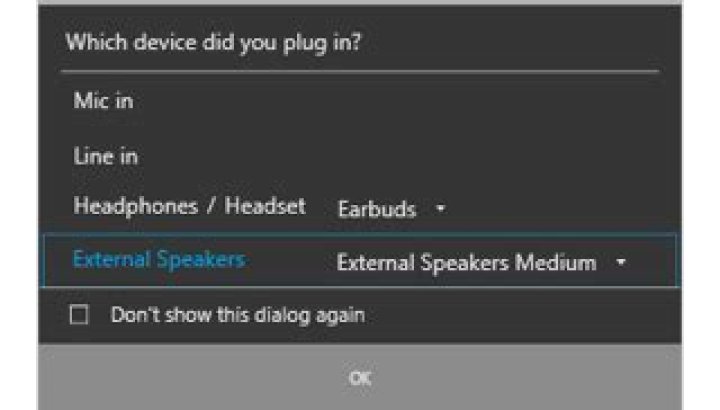
Recently I got Dell Inspiron laptop. Every time I plug in my headphones it prompts me with this dialog Which device did you plug in?
Is there a way to disable this prompt? I never get such prompt on other laptops.
Other Info
OS: Windows 10.
Sound driver: Realtek Audio [ 6.0.1.7962 ]
MaxAudioPro
9 Answers
To Enable or Disable In Windows 10 on a DELL
- Open the program
WAVES MaxxAudio Pro - Choose the device, eg. Playback
- click
Advancedin the bottom center of the window - Toggle the "Show pop-up dialog when device is connected" checkbox
Try this:
- Press Windows + R, type
control paneland then hit Enter, selectHardware and Sound. - Scroll down and select
Realtek HD Audio Manager. - Click the
folder iconjust above and to the right of where it says analog back panel and just below Device Advanced settings. - Uncheck
Enable auto popup dialog when device has been plugged in. - Click
OKtwice. - Now, restart the computer and check the issue.
This worked for me with realtek audio console -- Disabling Realtek audio notification on Windows 10
Go to Settings > System > Notifications and actions and under Get notifications from these senders, scroll down and turn off Realtek HD Audio Console
- go to task manager & start-up tab,
- found WavesMAXX Audio settings, and opened it's properties, to find its full path C:\Windows\System32\DriverStore\FileRepository\wavesapo.inf_amd_whatever is next..
- opened executable thereMaxx AudioPro and tune-up the settings to pop-up the window on JACK insert.
- Open task manager: right-click on the Windows taskbar >
Task Manager. - Go to the
Start-uptab - Disable the following (right-click >
Disable):HD Audio Background ProcessRealtek HD Audio ManagerWaves MaxxAudio Service Application
- Restart your computer
This removed the prompt for me, and I've had no trouble with audio so far.
Not sure what else these do but you can always enable individually if you wish.
(N.B. In older versions of Windows, these start-up options may be in Win+R > msconfig.)
I was receiving a prompt with the same text, but a different appearance. I resolved it by searching the start menu for "Realtek Audio Console", then clicking "Device advanced settings" -> "Enable Jack detection when device is plugged in" -> Off
1If you have an Alienware use Alienware audio advanced then jack info that is actually how I enabled mine works to disable too.
They have removed that check box "show popup ..." from the prompt in the latest version. You cannot uninstall as well. But I went to "services", disabled Waves Audio Service and rebooted. No more annoying pop-up when I plug in the headphones. Thank you all for your responses.
This is the hopeless feature that anybody can implement - what an horrible business usecase? who needs this functionality????
2OK, so I was trying to turn it back on after accidentally turning it off. My answer is a combination of MST's and Chad's answers on this page but with pictures since neither worked on their own.
Open Task Manager and find "Waves MaxxAudio Service Application"
Right click it and select "Properties"
Find the location
Go to the location in Windows Explorer
Run "MaxxAudioPro.exe"
Select "Playback" (top left icon of two speakers)
Press "Advanced"
Set "Show pop-up dialog when device is connected" to your preference
Plug your audio device in to test!