How to disable WebP images in Chrome?
Google Chrome sometimes takes a .jpg image and converts it to a .webp file.
The problem is that when I save this image to file, I cannot open the file. I have tried manually changing the extension of the file to ".jpg", but the file is still unreadable (without the use of external software).
Is there a way to completely disable .webp images in Chrome?
If not, is there an easy way or workaround to save an image that is presented as a WebP image, as a JPEG? The solution provided here does not work for me, as my URL contains no "-rw" suffix.
OS X El Capitan, version 10.11.6.
36 Answers
Open-source solutions
WebP is an image format currently developed by Google, based on technology acquired with the purchase of On2 Technologies.
If the User-Agent field in your HTTP(S) request header reveals you are using a recent browser, content delivery network (CDN) servers may serve original .jpg or .png images in this new WebP format to reduce data traffic. Nonetheless, these served image files will keep their original file extension; what is truly misleading.
On GNU/Linux systems, one solution consists in downloading the original image file using either the wget or curl command.
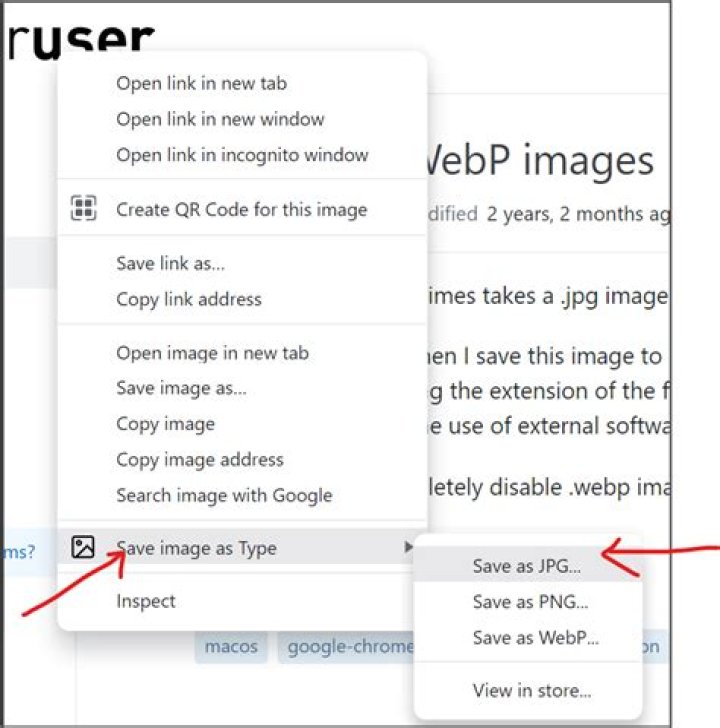
Several Google Chrome extensions offer a way to save images served as WebP in another image format. However, only one extension is open-source software; which is Save image as Type.
This and all other similar extensions have one annoying drawback, though. Between saves, these extensions do not recall the directory to which the previous image was saved. This may or may not be due to Google's sand-boxing policy concerning extensions. Anyhow, I opened a GitHub issue about it.
Method 1 provided by @Darius half works, but needs to be combined with a second modification. Changing the User-Agent alone does not fully solve the problem as the image server may also look at the HTTP "Accept" Request Header that lists the file formats the browser is compatible with. For chrome, the default Accept Header is "text/html,application/xhtml+xml,application/xml;q=0.9,image/webp,image/apng,/;q=0.8". Removing the image/webp format from that list and changing the User-Agent solves the problem. To do this:
Install the chrome extension ModHeader. Use that to change the "Accept" Heder to "text/html,application/xhtml+xml,application/xml;q=0.9,image/apng,/;q=0.8".
Install User-Agent Switcher and change to a browser such as Internet Explorer 9 that does not support webp. So that this does not break your internet viewing experience across the web, you may want to use the "Permanent Spoof List" feature by right clicking the extension icon and selecting "Options". This allows you to change the user-agent only on certain websites.
I found a possible solution to this. I simply added a question mark (?) to the end of the url and was able to download the image. So for example:
This link downloads with webp extention when i go to "save image as"
? This link downloads as jpg when I "save image as"
Please test and confirm is this works for anyone else.
1Chrome does not change images from JPEG to WebP - the images are served in WebP format from the website you're browsing. The web designer chose to serve images in WebP format because they're smaller than JPEG, so they load faster and use less of your bandwidth. It's better for everyone but not many programs can view WebP images at present, which can be a problem if you save a WebP image and then want to open it on your computer.
The good news is that you don't need to convert the WebP image to JPEG (or PNG or GIF) to view it. Chrome can display WebP images (as can Firefox, Opera and Edge browsers), which means you can simply open the .webp file in Chrome. In Chrome, click Ctrl + O to open the file or just drag and drop the file into Chrome.
If you want to edit the WebP image that you downloaded, you can open it in Photoshop and some other image editors (e.g. GIMP or MS Paint). More and more programs are adding support for WebP images, so in the future you'll have a wider choice of programs for viewing and editing WebP.
If you really need to convert the WebP image into a JPEG and you don't have a program to do that, you can upload the image to a converter service such as this:
Well, you can try the methods below. I have tried successfully.
Method 1: Disguish your Chrome.
Webp is only supported by Chrome, Firefox and Opera. WebP format is only supported by Google Chrome, Firefox and Opera. If your browser doesn’t support WebP format, the JPG or PNG image will be uploaded on websites instead of WebP image to ensure it can be opened. So, you can use an extension named User-Agent Switcher for Chrome to disguish your Chrome as other browsers that don't support WebP.
Method 2: Copy and Paste
If you save images as WebP in Chrome automatically, maybe you can change the way to save it. When you come across Webp image, you can right-click it and select to copy the image. Then you can paste it to image editor like Windows accessional Paint or others. Finally, you can save the new file in any format as you like.
Method 3: Save image as you want
It is also a Chrome extension that enables you to save any image in most image formats like png, jpg, etc. So you can try to use it to disable Webp in Chrome.
More details can be referred to this post:
How to Save Webp Image as JPG or PNG in Chrome
None of those methods works 100% but it gave me an idea how to make it 100% working. Simply download Chromium Portable v61. It does not require installation and it does not support webp =)
1

