How to copy playlist from Banshee to MP3 player?
I have an Android phone which I use as a music player, and I use Banshee to manage the music on my computer. I can copy music fairly easily from Banshee to the phone, I can even copy the music (MP3s) contained in a playlist.
What I would like to do is copy the playlist itself, but that is apparently not so straightforward. What I have tried:
- Drag and drop the playlist from the computer to the phone (under Devices). This copies all the MP3 files across.
- Right-click on the device and select 'New playlist'. Then tried dragging and dropping the contents of the playlist on my computer into the playlist on the phone. It would not let me.
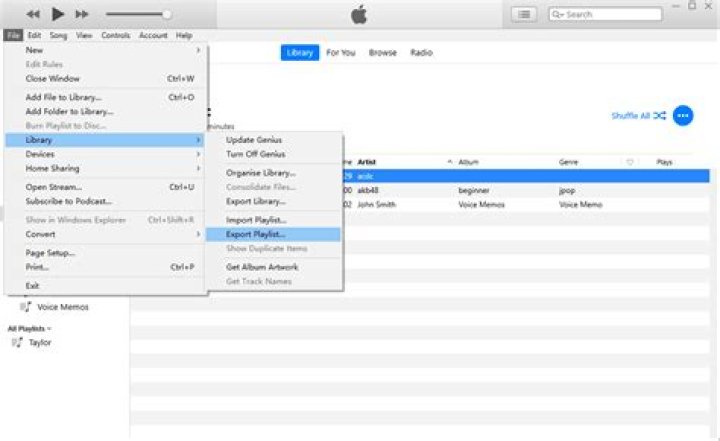
- Right-click on the playlist on the computer and 'Export playlist', then save it to the Android phone. This came close, but the folder structure was all wrong, so it couldn't find the music.
This seems like it should be a pretty straightforward process - is there a way to do it, or are there extensions that will let me do it? If necessary, I could use Rhythmbox instead, but it seems that is equally unable to do this.
53 Answers
I'm a little late to the party, but better late than never right?
I think I have a better solution. After much reading of forums and gnashing of teeth, I figured out how to get banshee to sync playlists to an sd-card. I read lots of instructions on different forums/mailing lists, some gave only part of the information you need, some simply gave bad info (for example several posts showed the .is_audio_player file with a line "playlist_format" instead of "playlist_formats". That "s" makes all the difference!)
Anyway,
Add a file .is_audio_player to the root directory of your sdcard or android device's main memory.
Open the file and add these lines:
name="name you want banshee to call your phone"
audio_folders=Music/
output_formats=audio/mpeg,audio/x-ms-wma,application/ogg
playlist_formats=audio/x-mpegurl,audio/mpeg-url
playlist_path=Playlists/
endoffile=PlaceThisHereToEnsureThereIsABlankSpaceBeforeTheLastLineOfTheFile
(there are other lines you can add, just google for .is_audio_player for more info. That last line comes for a post left by one of the developers of banshee noting that banshee won't pick up the last line in the file without a hard return at the end)
Then load banshee, your sd card will now show that it supports playlists, and the sync function will work for music and playlists.
Pro-tip, you can create a smart playists to act as a meta-playlist for all the playlists you want to transfer over. Your media player on the phone should now pick up all your music and all your playlists (only checked by me with the google play music app).\
hope this helps somebody...
2ok, the following seemed to me, that it was a studpid answer, and I couldn't believe it, when I read it the first time, but it works.
found on:
the first thing you have to do ist to use a .is_audio_player file, no way else.
then 1. Create a Smart Playlist (f.e. XYZ) 2. Set the conditions of the smart playlists to "Playlist" and "is" and select the playlists you want on your media player. 3. Sync the smart playlist (XYZ) with your media player by the menu on the device shwon in banshee. 4. It will copy all the files, and populate your playlists - on the player - automatically at the end.
Well, this is the way I found to do it in the end:
- Copy the playlist contents across to the external player by dragging the playlist from under Music in the left pane down onto the player entry under Devices. This copies the files across, but not the playlist.
- Right-click on the playlist and select "Export Playlist..." Save it to the base music directory on your computer (e.g.
~/Music). - Copy the playlist file (.m3u in my case) to the base music directory on the external device.
- Use listFix() to re-link the playlist entries to the correct files on the external device. At least in Android, the player will locate the playlist and index all the music files correctly.
Perhaps there's a more straighforward way than this, that doesn't require external tools...