How to convert PDF to image?
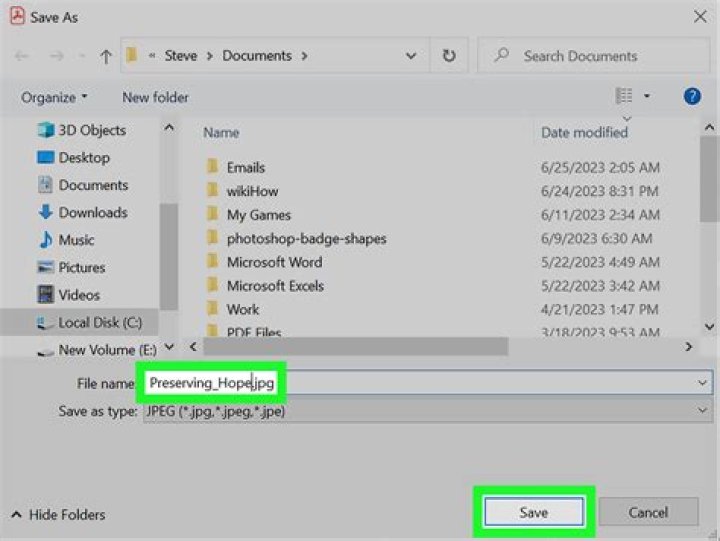
I have requirement of converting PDF pages to images. There is a background image with some text in my file, and when I save it as an image only the background image gets saved.
Is there any software available for the same so that complete page can be converted to an image?
512 Answers
You can use pdftoppm from the poppler-utils package to convert a PDF to a PNG:
pdftoppm input.pdf outputname -pngThis will output each page in the PDF using the format outputname-01.png, with 01 being the index of the page.
Converting a single page or a range of pages of the PDF
pdftoppm input.pdf outputname -png -f {page} -singlefileChange {page} to the page number. It's indexed at 1, so -f 1 would be the first page.
If you'd like to work on a range of pages, you can also specify a number for the flag -l (last page), so having -f 1 -l 30 would specify the pages from 1 to 30.
Note again that .png will be appended to outputname automatically, so there's no need to include the extension. Also, -singlefile removes the -01 suffix cited above, since the output is known to have only one file.
Specifying the converted image's resolution
The default resolution for this command is 150 DPI. Increasing it will result in both a larger file size and more detail.
To increase the resolution of the converted PDF, add the options -rx {resolution} and -ry {resolution}. For example:
pdftoppm input.pdf outputname -png -rx 300 -ry 300Install imagemagick.
Using a terminal where the PDF is located:
For the full document:
convert -density 150 input.pdf -quality 90 output.pngFor a single page:
convert -density 150 input.pdf[666] -quality 90 output.png
Whereby:
PNG, JPG or (virtually) any other image format can be chosen.
-density xxxwill set the DPI toxxx(common are 150 and 300).-quality xxxwill set the compression toxxxfor PNG, JPG and MIFF file formates (100 means no compression).[666]will convert only the 667th page to PNG (zero-based numbering so[0]is the 1st page).All other options (such as trimming, grayscale, etc.) can be viewed on the website of Image Magic.
IIRC GIMP is capable of using PDFs, i.e. converting them into images. So if you want to edit the images right away - GIMP is your friend.
2The currently accepted answer does the job but results in an output which is larger in size and suffers from quality loss.
The method in the answer given here results in an output which is comparable in size to the input and doesn't suffer from quality loss.
TLDR - Use pdfimages : pdfimages -j input.pdf output
Quoting the linked answer:
2It's not clear what you mean by "quality loss". That could mean a lot of different things. Could you post some samples to illustrate? Perhaps cut the same section out of the poor quality and good quality versions (as a PNG to avoid further quality loss).
Perhaps you need to use
-densityto do the conversion at a higher dpi:convert -density 300 file.pdf page_%04d.jpg(You can prepend
-units PixelsPerInchor-units PixelsPerCentimeterif necessary. My copy defaults to ppi.)Update: As you pointed out,
gscan2pdf(the way you're using it) is just a wrapper forpdfimages(from poppler).pdfimagesdoes not do the same thing thatconvertdoes when given a PDF as input.
converttakes the PDF, renders it at some resolution, and uses the resulting bitmap as the source image.
pdfimageslooks through the PDF for embedded bitmap images and exports each one to a file. It simply ignores any text or vector drawing commands in the PDF.As a result, if what you have is a PDF that's just a wrapper around a series of bitmaps,
pdfimageswill do a much better job of extracting them, because it gets you the raw data at its original size. You probably also want to use the-joption topdfimages, because a PDF can contain raw JPEG data. By default,pdfimagesconverts everything to PNM format, and converting JPEG > PPM > JPEG is a lossy process.So, try
pdfimages -j file.pdf pageYou may or may not need to follow that with a
convertto.jpgstep (depending on what bitmap format the PDF was using).I tried this command on a PDF that I had made myself from a sequence of JPEG images. The extracted JPEGs were byte-for-byte identical to the source images. You can't get higher quality than that.
If your pdfs are scanned, the images are already stored as part of pdf. you will simply need to extract them with pdfimages:
pdfimages my-file.pdf prefix If you only want to convert a specific page of a PDF to a PNG, you can pipe pdftk to convert (described above) like this:
pdftk document.pdf cat 12 output - | convert - document-page-12.pngYou can use convert and specify a higher density using -density option.
eg. convert -d 300 foo.pdf bar.png
To get a single page from gm convert, add [N] (with N the page number starting at 0) to the PDF name, ie gm convert foo.pdf[11] out.png to get the 12th page from the PDF.
For pdftoppm use -f N -singlefile, where N is the page number starting at 1, ie pdftoppm -f 12 -singlefile foo.pdf out for the same result. It appears to always add ".png" to the output filename and there is no way to stop this.
You can do this with ghostscript:
gs -dSAFER -dBATCH -dNOPAUSE -r300 -sDEVICE=png16m -dFirstPage=1 -dLastPage=1 -dTextAlphaBits=4 -dGraphicsAlphaBits=4 -sOutputFile=output.png input.pdfSee for details
Master PDF Editor (ver 2.2) has this option built in. Open the PDF file and then go to File > Export to > Images. It presents a dialog where you can define different options for the output. Extremely useful. Hope this info helps.
2PDF Mod also allows exporting images of all or individual pages of PDF files.
- Open PDF file in PDF Mod
- Select page(s)-
- Edit > Export image(s)
pdftocairo file.pdf -png (was posted by Anthony Ebert as a comment at How to convert PDF to image?)


