How to assign unallocated space to ubuntu partition
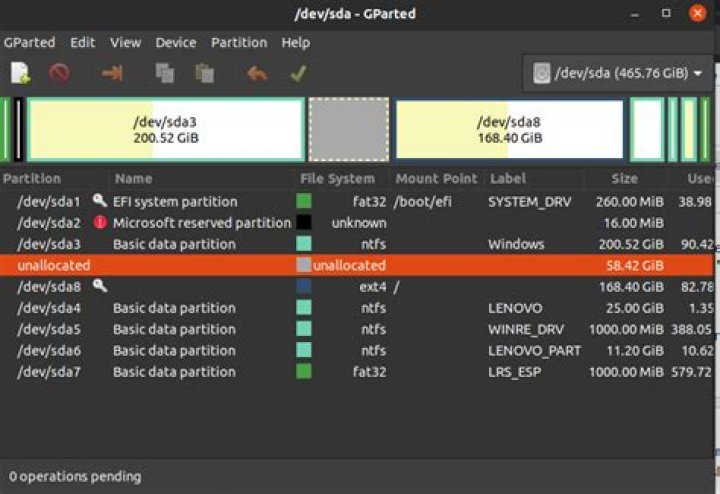
I wanted to give the ubuntu partition some more space from the windows partition, so I removed some space from the windows partition. I want to ask how do I allocate the free space to the ubuntu partition. I read a lot of similar questions asked but I didn't understand and some didn't work for me.
So here is the problem. There is 58 GB of free space and when I try to resize the ubuntu partition the '+' button is greyed out. I don't know how to increase the partition size.
The gparted image:
When I try to resize the ubuntu partition:
As you can see I am unable to enter anything into the free space preceeding section. What do I do to increase the size?
32 Answers
The little "key" icon indicates partitions that cannot be modified because they are mounted.
It's impossible to resize the partition that houses your booted system.
Instead, boot a LiveUSB. Select the "Try Ubuntu" environment. Now you will find the "key" icons gone, and your installed system partition can be modified.
WARNING: Editing partitions is inherently risky, regardless of how elegant and comforting the User Interface is. Assume that the data on any edited or moved partition will be destroyed, and have backups ready before you begin. Maybe everything will be fine and you won't need the backups.
Make sure that you have a good backup of your important Ubuntu files, as this procedure can corrupt or lose data.
Keep these things in mind:
always start the entire procedure with issuing a swapoff on any mounted swap partitions, and end the entire procedure with issuing a swapon on that same swap partition
a move is done by pointing the mouse pointer at the center of a partition and dragging it left/right with the hand cursor
a resize is done by dragging the left/right side of a partition to the left/right with the directional arrow cursor
if any partition can't be moved/resized graphically, you may have to manually enter the specific required numeric data (don't do this unless I instruct you to)
you begin any move/resize by right-clicking on the partition in the lower pane of the main window, and selecting the desired action from the popup menu, then finishing that action in the new move/resize window
Do the following...
Note: if the procedure doesn't work exactly as I outline, STOP immediately and DO NOT continue.
- boot to a Ubuntu Live DVD/USB, in “Try Ubuntu” mode
- start
gparted - move /dev/sda8 partition all the way to the left
- resize /dev/sda8 right side all the way to the right
- click the Apply icon


