How to add top and bottom borders to text in PowerPoint (without right and left borders)
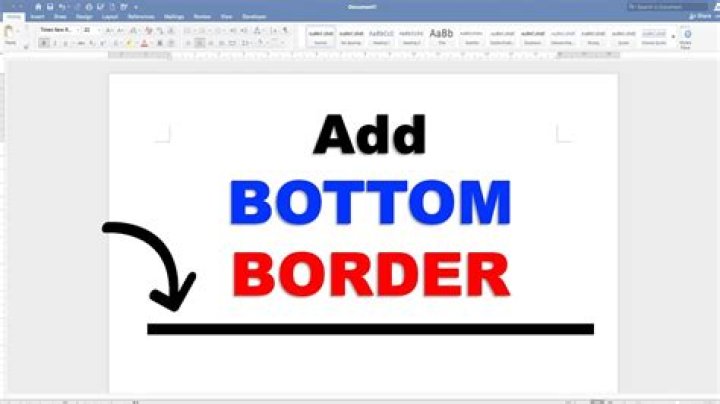
I would like to add borders to text in PowerPoint. I know how to do this using styles in Word but I don't know how to do in PowerPoint.
I would like something like this image:
.
I am not sure if the creator has used border or something like that but I suppose he did. Any suggestion?
2 Answers
You didn't specify which version of PowerPoint. The screenshots below were taken using PowerPoint 2010.
Insert a 1x1 table:
Set the desired border width and color:
Add a top border and a bottom border:
Type your text in the single table cell. You can change the table shading color, border color and width, font size and effects to fit your needs. Here's my simple example:
And of course you can resize the text and table as needed.
What I do to give the look of a border along one edge of a rectangle in ppt is set a background with a gradient of the color I want the border to be in, with first color 100% opacity at 0% location, and second color 0% opacity at 1% location.
If I want a wide border I set a third color. First is 100% opacity at 0% location, second is 100% opacity at location percentage that sets the width, and third is 0% opacity at +1% from there, so the "gradient" is imperceptible.
You can even add borders, of different weights if you want, on opposite edges of a rectangle by doing the same thing at the other end.
1

