How to add a line break to the output of a formula in Excel?
=UPPER($B$8)& " " &PROPER($C$8) & "& " & UPPER($B$9)& " "&PROPER($C$9))I want add a line break to a cell. Current my cell looks like this:
SMITH John & SMITH LindaBut I want to display like this:
SMITH John &
SMITH LindaSo that there is a line break after the & sign and everything is displayed in one cell. I have been Googling the answer, but I found the answer is usually Alt+Enter, but that only adds a like break to the cell formula, not how it is displayed. Am I doing something wrong?
How can I do that?
02 Answers
Use this formula:
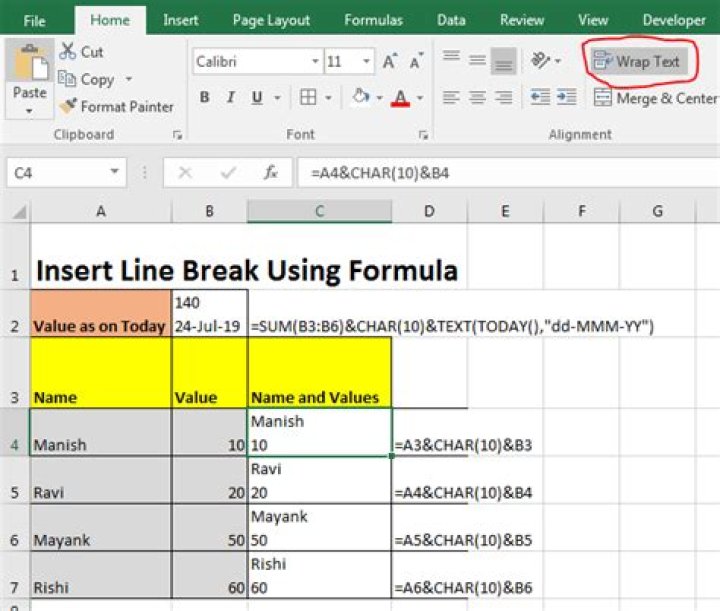
=UPPER($B$8)& " " & PROPER($C$8) & " &" & CHAR(10) & UPPER($B$9) & " " & PROPER($C$9)and enable text wrapping in the cell with the formula:
or
EDIT#1:
There are four things at issue here:
- Text wrapping must be enabled in the formula cell
- the column must be wide enough to prevent "accidental" line-breaks
- the
CHAR(10)should be inserted where YOU want the line-breaks - the row height may need to be adjusted manually
For example
="James" & CHAR(10) & "Ravenswood"EDIT#2
Of course if the cell does not contain a formula, but only typed text then using Alt+Enter at the insertion point:
- automatically inserts the ASCII-10
- automatically turns on Text wrapping
- automatically adjusts the row height
Add CHAR(13) (that works for me, if not works for you try char(10)) AND enable text wrapping in the cell, otherwise new line character won't have effect.


