How do I remove the last page from the numbering
I have a DOCX document with the following numbering format in the footer: "Page X of Y" (e.g. Page 3 of 10).
I want to have 11 pages, but I want the last one not to count. That is, even though I have 11 pages I want the footer to read Page X of 10, not 11.
I already inserted a section break in the last page, so the footer alreday doesn't appear in the page... but the remaining pages still show Page X of 11.
How can I solve this?
04 Answers
You can do this by modifying the field code to include a formula to subtract 1 from the page count.
{={NUMPAGES}-1}You can not just type the field brackets ({ and }). You must use Ctrl+F9 to insert the brackets.
Here is more information - How to control the page numbering in a Word document
If this is going to be a shared document, I would seriously consider their advice;
2Caution: Just a word to the wise: consider carefully before using the following techniques. They can lead to problems in corporate documents, unless you include a warning to other uses that you are "calculating" the page numbers in this document. If you do not, great confusion can result, and other users may unsuspectingly ruin your page numbering or your document.
The proper formula you are looking for is:
{If {Page} = {numpages} "" "Page {Page} of {={numpages}-1}"}Obviously you have to do the curly brackets as described above. Looked all over the internet for this and took me ages to work out.
Another possible option is to make the entire first ten pages consist of one section (I know it sounds dodgy), have the 11th page as a separate section as you already do and then replace the NUMPAGES field with a SECTIONPAGES field. This should show only the number of pages before and not including the last page in footer.
1My word is not in English so the words I'll probably differ.
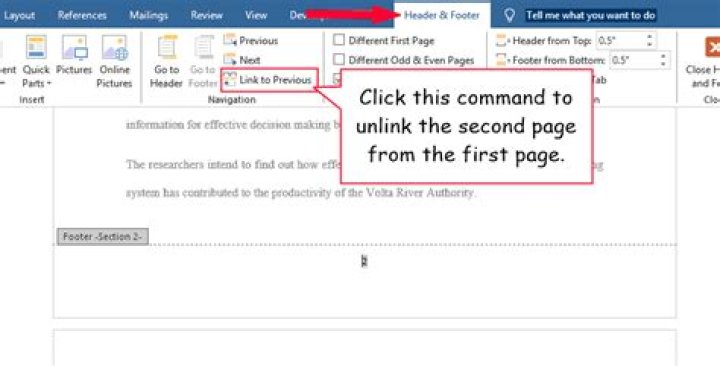
Anyway, go to the 10th page. On the Ribbon, go to "Page Layout", then choose "Breaks", "Section Breaks", "Next Page". If that doesn't work you can try selecting "Same Page".
Now you just have to tell Word that the sections have different Headers. Click twice on the page Numbers - this should open Header / Footer Design. Select the page number and delete it.
That should do it.
1

