How do I keep Excel from changing my date format?
Pretty basic question for a more advanced user than me but I can't seem to find an option.
I am working on an order form for my clients to fill out by plugging data into a preformatted spreadsheet. However, I am using a date format that apparently Excel doesn't like.
This: 01-31-15
Keeps changing to this: 1/31/2015
This just really doesn't work with what I am doing and I don't want to retype every date on every order.
I've tried making it a General text field, there are no existing functions in the cell but then it changes my setting to a date field and just keeps reformatting. I've also tried cursing at it and that didn't help either. :)
57 Answers
Try specifying a custom number format of mm-dd-yy, that should do the trick.
Incidentally, General is a number format that can cause headaches sometimes - Excel decides for itself what type of value it thinks you entered in a cell. I tend to stay away from General and explicitly pick my number formats where possible.
I have just answered this on another page and hoped this may help, if you are having this issue on Windows 10 then the best (and complete) solution is to install the "English (United Kingdom)" language pack.
This can be found by going to: Control Panel [make sure you select 'view by: Small icons' in the top right so you can see all items] then select 'Language'. Here you will see the default "English (United States)" option with "enabled" against it and should see the "English (United Kingdom)" option below. [If not you should be able to find it via the 'add a language' button] Click on options and then the "Download and install language pack button"
Just wait for it to install then highlight the recently installed option and click the 'move up' button so that this becomes your default. It should display "Will be enabled on next sign-in". It will do exactly that, after a reset it will be enabled and should be your default.
This will then give you the wider variety of date options i.e. dd/MM/yy and d/M/yy.
Hope this helps :)
the best way to get what you want, ie: numbers staying the exact way you type them is to put this in front of what you type. ' then number. ie: '03/11/2015 It should always stay, no matter how the rules want to work for themselves. Sometimes you can enter a rule and it still doesn't work. hope this helps :)
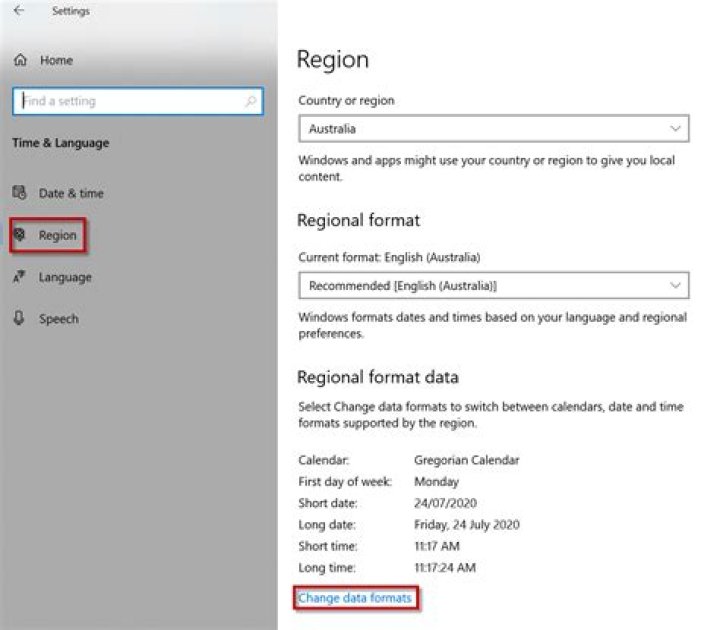
2Excel relies on the time and regional settings/preferences of your operating system to analyze data. Thus, if you have "European times" as preferences, it will consider your set of data format as being "European" (no matter that it is a US format, Excel does not know it).
So the trick is just to change your time and regional settings/preferences to the US ones.
- For Windows, go to "Control panel" -> "Region and language"
- For MAC, go to "System Preferences" -> "Date and Time" -> Open "Language and Region"
Once you have done this, close your Excel format and then reopen it to make sure that these changes will apply to your data set.
After this, depending of what you want to achieve, you can apply different formula to convert your data (column A) into the right date format:
- in another column (column B) apply the formula
=DATEVALUE(A) - if only the dates appear (and not the hours), add in a new column (Column C) the formula
=TIMEVALUE(C)and finally add both in a last column (Column D) with the formula=B+C.
Normally, it should automatically be considered by Excel as a date. You can check this by applying a filter to your data (it will be classified by years, months and days).
4- Do this before you even start putting numbers in or you will have to go back and change everything.
- Move over to the column you want to put your dates in
- Right Double Click at the top of the column.
- Go Down to "FORMAT CELLS"
- Highlight TEXT
- Then click OKAY
Try this:- Set format of cell to text and enter date. Now change the format of cell to general. The cell does not automatically change the format to date, but leaves it as general.
The data format changing after pasting it into an Excel 2013 sheet can be stopped this way.
- Click on the File menu.
- Select Options.
- Select Proofing.
- Revise the AutoCorrect Options and deactivate what is not necessary.
- Unselect options in the list of "When correcting spelling in Microsoft Office programs".